Buffer Instagram Scheduling Not Working: Fix Connection & Permissions (2026 Guide)
Buffer Instagram scheduling not working? Learn how to fix connection and permission issues, including reauthorizing Meta access, resolving common errors, and preventing failed auto-posts.
Author
When Buffer suddenly stops posting to Instagram, the problem is usually the connection rather than the post.
These failures look like a Buffer problem, but the cause is usually Meta authentication, Page/IG permissions, or an Instagram account restriction. If you troubleshoot in the right order, you can fix most of them in under 30 minutes.
This guide covers: - The fastest way to diagnose whether it’s a token/connection, permissions, or a Meta-side restriction - Step-by-step fixes for the most common Buffer + Instagram errors (including “400: Session Invalid”) - A simple checklist to keep the connection healthy
What “Buffer Instagram scheduling not working” usually means
Most people search this phrase after one of these things happens:
- Your scheduled Instagram post didn’t publish (and you didn’t notice until hours later)
- Buffer says it posted, but nothing appears on Instagram
- Your Instagram channel shows as expired/disconnected
- Buffer can’t “see” the Instagram account when you try to connect it
- You get an error like missing permissions, session invalid, or cannot publish until PPA is completed
Buffer’s own help center highlights that not all Instagram posts publish automatically and recommends an “automatic publishing checklist” when posts don’t send as expected.
Source: Buffer Help Center, Why aren’t my Instagram posts sending automatically? https://support.buffer.com/article/659-why-arent-my-instagram-posts-sending-automatically
Why this keeps happening in 2026
Instagram scheduling depends on Meta’s systems (Facebook + Instagram permissions). That means changes on the Meta side can break publishing even if you didn’t touch anything.
Common triggers include: - Password/security changes (often revoke or invalidate access tokens) - Meta permission prompts where someone clicks “Not now” or doesn’t select everything - Facebook Page role changes (you’re no longer an admin / don’t have the right access) - Instagram account restrictions (checkpoint, policy restriction, “action required” state) - A Page requires Page Publishing Authorization (PPA), and publishing fails until it’s completed
Meta explicitly notes that if the connected Page requires PPA, publishing requests can fail until it’s completed.
Source: Meta for Developers, IG User media_publish reference https://developers.facebook.com/docs/instagram-platform/instagram-graph-api/reference/ig-user/media_publish/
Quick diagnosis: connection vs permissions vs post issue (2-minute triage)
Before doing anything, answer these 3 questions:
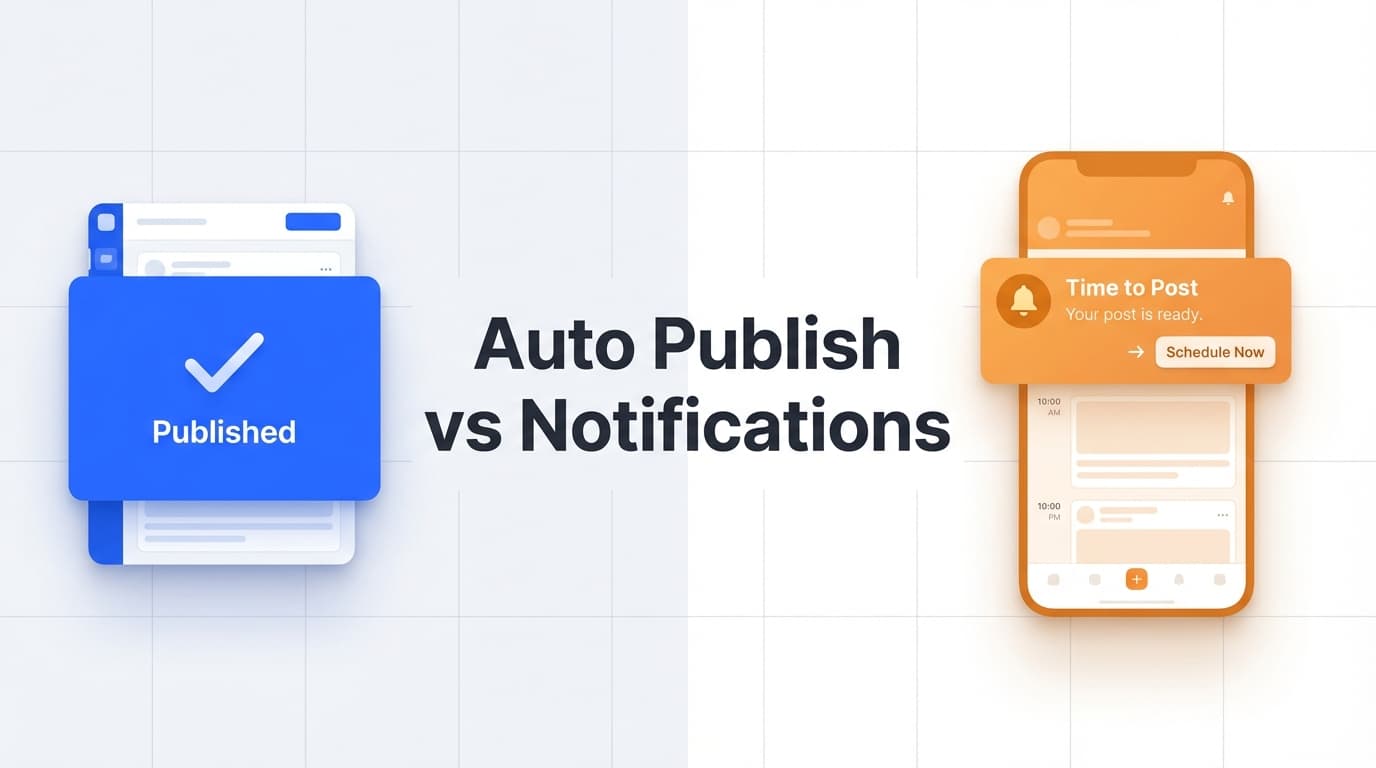
1) Is Buffer trying to auto-publish, or to send a notification/reminder?
If your workflow expects auto-posting but your channel is set to reminders/notifications, the post won’t publish automatically.
Check Buffer’s guidance here:
Source: Buffer Help Center, Why aren’t my Instagram posts sending automatically? https://support.buffer.com/article/659-why-arent-my-instagram-posts-sending-automatically
2) Did this break right after a password/security change?
Access tokens can expire for several reasons, including password changes, so a sudden failure often points to an expired connection.
Source: Buffer Help Center, Refreshing a channel in Buffer https://support.buffer.com/article/573-refreshing-a-channel-in-buffer
3) Are you missing Page permissions (admin/full control) in Meta?
If you don’t have the right Page access, Buffer may not be able to publish or even “see” the connected Instagram account.
Source: Buffer Help Center, Troubleshooting Facebook connections https://support.buffer.com/article/872-facebook-troubleshooting-guide
If you’re unsure, work through the steps below in order. Clicking around at random can waste an hour.
How to fix Buffer Instagram scheduling not working: step-by-step (connection + permissions)
Step 1: Confirm your Instagram account type + Page linkage (publishing prerequisites)
For Instagram auto-publishing via third-party tools, your account generally needs to be a professional Instagram account (Business or Creator) and properly linked in Meta to a Facebook Page.
If you’re using Instagram’s native scheduling, Meta states: - You can schedule up to 25 posts per day - You can schedule content up to 75 days in advance
Source: Meta Business Help, How to create and manage scheduled posts and Reels on Instagram https://www.facebook.com/business/help/3294660970775616
(Also corroborated by Shopify’s guide mentioning “up to 75 days in advance.” Source: https://www.shopify.com/blog/schedule-instagram-posts)
What to do now - In Instagram: verify the account is Business or Creator - In Meta (Business settings / Page settings): confirm the IG account is correctly linked to the right Page
Pro tip: If you manage multiple clients, it’s easy to be logged into the wrong Facebook profile when authorizing apps. That leads to “missing Page” and “no channels found” issues later.
Step 2: Refresh the Instagram channel in Buffer (fix expired tokens first)
If Instagram suddenly stopped publishing, start with a refresh. It fixes a lot of failures.
Buffer’s official process:
Source: Buffer Help Center, Refreshing a channel in Buffer https://support.buffer.com/article/573-refreshing-a-channel-in-buffer
What this fixes - Expired tokens - Tokens invalidated after password/security changes - Some “permissions changed” edge cases
After refreshing - Re-queue a test post (a simple single-image feed post) to confirm publishing works before rescheduling an entire week.
Step 3: Reauthorize Buffer in Facebook/Meta and select all Pages/permissions (the most common fix)
A major cause of “Buffer Instagram scheduling not working” is incomplete authorization in the Facebook permission prompt.
Buffer explicitly warns that all permissions for all Pages and Instagram accounts need to be selected during authorization, even ones you’re not connecting.
Source: Buffer Help Center, Troubleshooting Instagram connections https://support.buffer.com/article/565-troubleshooting-instagram-connections
What to do 1. Remove Buffer’s access (or reauthorize) in Facebook settings (the exact path can vary by Meta UI). 2. Reconnect inside Buffer. 3. When Meta asks what you allow, click “See all Pages” (or equivalent) and select all.
If you only grant access to one Page, Buffer can lose the ability to publish (or even locate) the IG account if Meta expects broader permissions.
Step 4: Fix “Yoiks! Buffer doesn’t have permission…” (permission mismatch)
If you see errors that suggest Buffer doesn’t have permission, treat it as a Meta authorization problem first, before you look at the post itself.
Start with: - Refresh channel - Reauthorize permissions - Confirm your Facebook Page access level
Useful references:
- Buffer Help Center, Instagram error library: https://support.buffer.com/article/581-instagram-error-library
- Buffer Help Center, Facebook error library: https://support.buffer.com/article/580-facebook-error-library
Step 5: Fix “400: Session Invalid” when connecting Instagram to Buffer
This is a known pain point across many Meta integrations. Buffer explicitly calls out “Invalid session error 400” as a known Meta issue and suggests troubleshooting steps.
Source: Buffer Help Center, Connecting your Instagram account to Buffer https://support.buffer.com/article/568-connecting-your-instagram-business-or-creator-account-to-buffer
What usually works (in order) 1. Try an incognito/private browser window 2. Clear cookies/cache for Facebook + Instagram 3. Log out of all Facebook accounts, then log in only to the Facebook profile that has the correct Page access 4. Attempt the connection again 5. If it still fails, wait and retry later (because Meta-side auth issues can be intermittent)
Common mistake: You think you’re logged into the right Facebook profile, but Meta is authorizing under a different session in the background.
Step 6: Fix “Complete Page Publishing Authorization (PPA)” errors
If publishing fails until PPA is completed, you must complete PPA on the Facebook Page connected to the Instagram account.
Meta documentation:
Source: Meta for Developers, IG User media_publish reference https://developers.facebook.com/docs/instagram-platform/instagram-graph-api/reference/ig-user/media_publish/
Third-party help center (explains the same failure mode in plain language):
Source: StoryChief Help Center, Instagram publishing errors https://help.storychief.io/en/articles/6234535-instagram-publishing-errors
What to do - Identify the connected Facebook Page - Complete the Page Publishing Authorization flow (usually requires the Page owner/admin) - Re-test publishing
Agency note: This is common when you inherit a Page/IG setup from a previous agency and the Page has extra security requirements.
Step 7: If posts still fail, check for Instagram account restrictions (not tool-related)
Sometimes the account is restricted or “action required,” and publishing via API tools fails until the account owner resolves it.
A good checklist-style reference:
Source: StoryChief Help Center, Instagram publishing errors https://help.storychief.io/en/articles/6234535-instagram-publishing-errors
Also see Metricool’s troubleshooting guide (useful for recognizing “Meta server overload” style issues and retry logic):
Source: Metricool Help, Instagram posting errors & troubleshooting https://help.metricool.com/en/article/instagram-posting-errors-troubleshooting-1j9yv87/
What to do - Have the account owner log into Instagram directly - Look for security prompts, policy warnings, or “confirm it’s you” checkpoints - Try publishing natively first; if native posting works but API publishing fails, it’s often a permissions/PPA/app authorization problem
A practical “error → cause → fix” table (save this)
| Symptom / Error | Most likely cause | Fix |
|---|---|---|
| Scheduled post didn’t auto-publish | Channel set to reminders/notifications, or auto-publish prerequisites not met | Follow Buffer auto-publish checklist https://support.buffer.com/article/659-why-arent-my-instagram-posts-sending-automatically |
| Instagram channel shows expired/disconnected | Token expired (often after password/security change) | Refresh channel https://support.buffer.com/article/573-refreshing-a-channel-in-buffer |
| “No channels found” / can’t see IG in Buffer | Wrong Facebook profile, missing Page access, incomplete permissions | Reauthorize and select all Pages/permissions https://support.buffer.com/article/565-troubleshooting-instagram-connections |
| “400: Session Invalid” when connecting | Meta login/session bug or conflicting cookies/sessions | Follow Buffer’s troubleshooting https://support.buffer.com/article/568-connecting-your-instagram-business-or-creator-account-to-buffer |
| “Complete Page Publishing Authorization (PPA)” | Page requires PPA | Complete PPA (Meta docs) https://developers.facebook.com/docs/instagram-platform/instagram-graph-api/reference/ig-user/media_publish/ |
| Everything looks correct but still fails | Instagram account restricted / Meta-side issue | Check account status + retry later (Metricool guide) https://help.metricool.com/en/article/instagram-posting-errors-troubleshooting-1j9yv87/ |
Best practices to prevent Buffer + Instagram scheduling problems
Buffer calls out that refreshing channels can be a normal part of using social APIs and gives “general guidelines” to keep channels connected.
Source: Buffer Help Center, Best practices for keeping your social channels connected https://support.buffer.com/article/552-best-practices-for-keeping-your-social-channels-connected
Do this once per month (especially for agencies)
- Refresh the channel proactively (don’t wait for a failed post)
- Confirm the correct Facebook profile still has the right Page access
- Avoid frequent password changes right before major campaigns
- Keep one “owner/admin” account responsible for Page security steps (PPA, security prompts)
Watch out for rate limits (especially when bulk scheduling)
Meta has publishing limits. For example, Meta’s announcement for the Instagram Content Publishing API stated: - 25 API-published posts within a 24-hour moving period per Instagram Business account
Source: Meta for Developers blog, Introducing Instagram Content Publishing API https://developers.facebook.com/blog/post/2021/01/26/introducing-instagram-content-publishing-api/
For native scheduling, Meta also caps you at up to 25 posts per day. Either way, Instagram limits how much you can publish automatically.
Source: https://www.facebook.com/business/help/3294660970775616
Common mistakes that keep breaking Instagram scheduling
Mistake 1: Authorizing Buffer with the wrong Facebook profile
If your browser is logged into multiple Facebook accounts, Meta can grant access under the wrong identity, and then your Instagram account and Pages won’t show up.
Fix: Log out of all accounts and reconnect in a fresh session (incognito helps).
Mistake 2: Not selecting all Pages/permissions during authorization
Buffer explicitly warns this can break the connection later.
Source: https://support.buffer.com/article/565-troubleshooting-instagram-connections
Mistake 3: Assuming “it posted” because the scheduler moved it to “sent”
Always check that the post actually exists on Instagram, especially after reconnecting.
Mistake 4: Ignoring PPA requirements (agency handoffs)
If PPA is required, you can refresh forever and it still won’t publish until that authorization step is completed.
Source: https://developers.facebook.com/docs/instagram-platform/instagram-graph-api/reference/ig-user/media_publish/
Tools that can help (if you want a fallback plan)
When you manage several brands and can’t afford to miss a campaign post, it helps to have a backup workflow.
Buffer (what it’s good for)
- Scheduling + publishing workflows (when the Meta connection is healthy)
- Strong troubleshooting documentation for connections and permissions
Sources: - Refresh channel: https://support.buffer.com/article/573-refreshing-a-channel-in-buffer
- IG connection guide: https://support.buffer.com/article/568-connecting-your-instagram-business-or-creator-account-to-buffer
Meta Business Suite / Instagram native scheduler
- Helpful for testing whether the issue is Buffer-specific or Meta/account-specific
- Meta states native scheduling limits: 25 posts/day and 75 days ahead
Source: https://www.facebook.com/business/help/3294660970775616
PostQuickAI (alternative scheduler if you need a second option)
If you want an alternative to test whether the issue is Buffer-specific, PostQuickAI supports:
- Instagram auto-publishing for single-image, carousel, video, and Stories posts
- Cross-posting to multiple platforms from one action (Instagram, Facebook Pages, LinkedIn, X, TikTok, Threads, Bluesky, and more)
Pricing: PostQuickAI requires a paid plan, and paid plans start at $15/month. Your first plan starts with a 7-day free trial (card required).
- Instagram scheduling: /instagram-scheduler
- Pricing: /pricing
- Buffer comparison: /comparisons/buffer
If planning is the bigger problem than publishing, you can also use an Instagram grid preview tool to plan content batches before scheduling: - Instagram feed planner: /tools/instagram-feed-planner
Key takeaways
- If Buffer Instagram scheduling isn’t working, start with connection/token refresh, then fix Meta permissions, then investigate PPA/account restrictions.
- Meta’s native scheduler limits are 25 posts/day and up to 75 days ahead, and the Instagram Content Publishing API has its own rate limits (including 25 API-published posts per 24 hours, per Meta’s announcement).
- Most failures that look random have one of a few causes: expired tokens, wrong Facebook profile, incomplete permissions, or Page Publishing Authorization.
FAQ (real questions people ask)
Why is Instagram scheduling not working?
Most often: you’re missing required account setup (professional account + Page linkage), your connection token expired, or the publishing tool doesn’t have the right Meta permissions. Start with a channel refresh and a full reauthorization.
Why are my Buffer scheduled Instagram posts not posting?
Buffer notes that not all Instagram posts can publish automatically and recommends checking your automatic publishing settings and requirements.
Source: https://support.buffer.com/article/659-why-arent-my-instagram-posts-sending-automatically
How do I refresh (reconnect) my Instagram channel in Buffer?
Use Buffer’s “Refresh channel” flow to renew tokens and fix expired connections.
Source: https://support.buffer.com/article/573-refreshing-a-channel-in-buffer
Why won’t Buffer connect to Instagram (or “No channels found”)?
Usually you authorized with the wrong Facebook profile, you don’t have the right Page access, or you didn’t select all Pages/permissions during Meta authorization.
Source: https://support.buffer.com/article/565-troubleshooting-instagram-connections
How do I fix “400: Session Invalid” when connecting Instagram to Buffer?
Buffer documents this as a known Meta issue and provides troubleshooting steps (often involving clearing cookies, using incognito, and retrying authorization).
Source: https://support.buffer.com/article/568-connecting-your-instagram-business-or-creator-account-to-buffer
What is Page Publishing Authorization (PPA), and why does it block posting?
If the Facebook Page connected to your Instagram account requires PPA, publishing can fail until PPA is completed.
Source: https://developers.facebook.com/docs/instagram-platform/instagram-graph-api/reference/ig-user/media_publish/
How far in advance can you schedule posts on Instagram?
Meta states you can schedule content up to 75 days in advance.
Source: https://www.facebook.com/business/help/3294660970775616
How many posts can you schedule per day on Instagram?
Meta states you can schedule up to 25 posts per day via their scheduling tools.
Source: https://www.facebook.com/business/help/3294660970775616