How to Choose an Instagram Scheduling Tool: Auto-Publish vs Notifications Guide for 2026
Learn how to choose the right Instagram scheduling tool by understanding auto-publish vs notification reminders, API access, pricing, and feature comparisons. 2026 guide.

Author
If you’ve ever planned a week of Instagram content and still ended up posting by hand at 9:17 PM because you missed a reminder, you know ideas aren’t the hard part. Getting the posts out is.
Whether scheduling saves you time depends mostly on one choice:
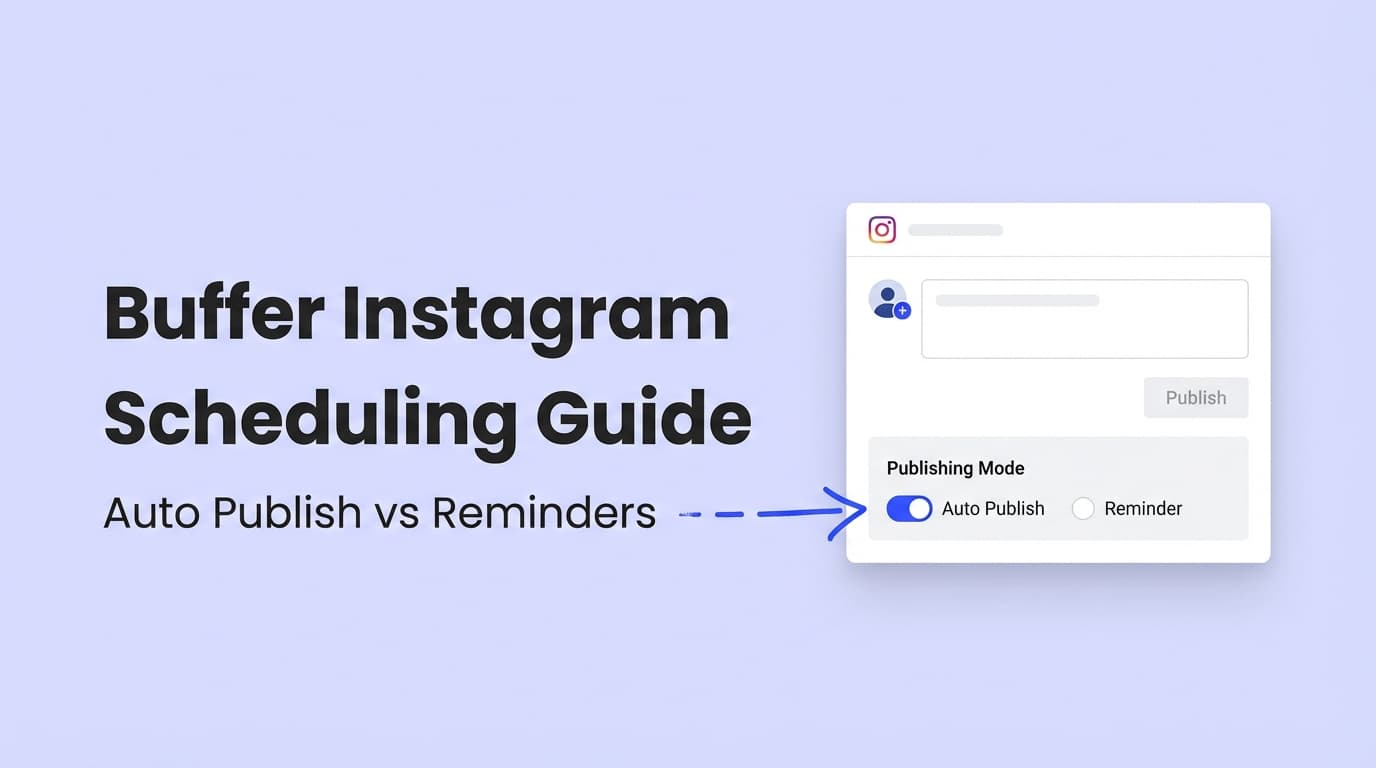
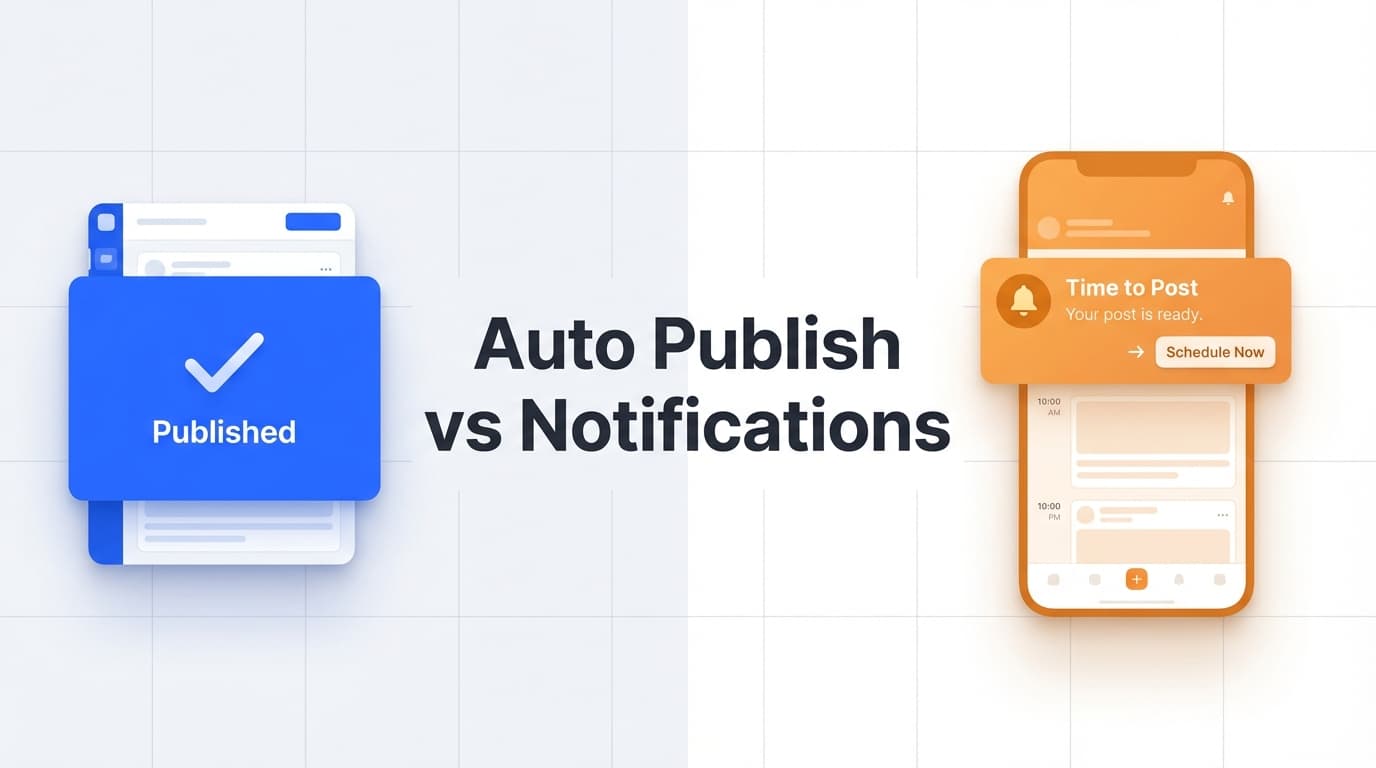
- Auto-publish (direct publishing): the tool posts for you at the scheduled time.
- Notification/reminder publishing: the tool prepares the post, then prompts you to open Instagram and hit publish (or finish the post).
Instagram is still one of the biggest platforms on earth (reported at 2+ billion monthly active users) (CNBC; Backlinko). Pick the wrong workflow and you’ll miss posts at exactly the times you most wanted to show up.
This guide covers: - What auto-publish vs notification scheduling means (and what each is best for) - How to pick the right tool for your posting style - A scheduler evaluation checklist (reliability, formats, approvals, security, and more) - A quick test plan to validate a tool before you commit
What “Auto-Publish” vs “Notifications” Means (In Plain English)
Auto-publish (direct publishing)
Auto-publish means you schedule your post (caption + media + time) and the tool publishes it to Instagram automatically. No phone alarm, no tapping through the app at posting time.
This is the workflow most people want when they say “I need an Instagram scheduling tool.”
Best for: - Busy marketers who can’t be online at posting time - Agencies managing multiple brands/time zones - Brands that publish on a strict cadence (daily, 3x/week, etc.)
Notification publishing (reminder workflow)
Notification publishing means the tool stores your post and sends you a reminder at the scheduled time so you can open Instagram and publish (or finish) the post yourself.
Buffer describes this “Notify Me” flow as receiving a notification and completing the post in Instagram (support docs + guide) (Buffer Support; Buffer).
Best for: - Creators who like to do final tweaks in the Instagram app right before publishing - Posts that require last-second decisions - Teams that want a human “final check” before something goes live
Why This Choice Matters in 2026
1) Instagram scheduling has real platform limits
Instagram’s own help documentation states you can schedule up to 25 posts per day and up to 75 days in advance (Instagram Help Center). That’s generous, but there are limits, and third-party tools work within similar platform rules.
2) Consistency is still the advantage (and scheduling makes it easier)
Scheduling won’t grow your account by itself. It helps you post consistently, which is hard to do by hand.
One industry claim (Sprinklr) says businesses using social scheduling tools can save 6–8 hours per week on planning and posting tasks (Sprinklr). It’s a vendor’s claim, so treat it as a rough figure, though it matches what most social teams report.
3) “Does scheduling hurt engagement?” Tests suggest it doesn’t
Hootsuite published an experiment testing whether third-party scheduling tools hurt Instagram performance. Their test reported a 1.75% increase in engagement rate for scheduled posts, while noting the sample size was small (five posts per method) (Hootsuite).
4) Your audience is huge, so missed posts cost more
Pew Research reported 62% of U.S. teens use Instagram (2023 short-read summary) (Pew Research Center). Even if your audience isn’t teens, it shows how much of people’s day Instagram takes up.
Auto-Publish vs Notifications: Pros, Cons, and When to Choose Each
Auto-publish: advantages
-
Posts go out without you - Posts go live even if you’re in meetings, traveling, or asleep.
-
Scales across accounts - If you manage multiple clients/brands, auto-publish keeps a calendar that looks great from turning into posts that never go out.
-
Easier to post at peak times - Scheduling a 7:45 AM slot is easy; being awake and available every time is not.
Auto-publish: tradeoffs
-
Less room for last-second edits - If you regularly change captions, tags, or creative right before posting, auto-publish can feel rigid.
-
Some Instagram-native choices may still be “in-app first” - Certain final touches are easiest inside Instagram (for example: checking the post preview, last-second copy edits, or confirming everything looks right on mobile).
Tip: Auto-publish works best when you finish each post the day before, not the minute before.
Notifications: advantages
-
Human QA at publish time - Great if you’ve had “oops” moments (wrong client, wrong CTA, wrong crop).
-
Maximum flexibility - If your content depends on something happening that day (trend, weather, inventory, news), notifications keep you in control.
-
Best fit for “I only post when I’m online anyway” creators - If you genuinely enjoy being present at posting time, notifications can be enough.
Notifications: tradeoffs
-
You still have to be there - If you miss the reminder, your schedule breaks.
-
It doesn’t scale well - With several accounts, your day turns into a string of interruptions, which defeats the point of planning.
-
Time-zone problems - A “9 AM local time” strategy becomes messy when you’re posting across regions.
The Decision Framework: Choose the Right Workflow in 60 Seconds
Use this quick decision tree.
Choose auto-publish if…
- You manage multiple accounts/clients
- You post on a fixed cadence (ex: 3–7x/week)
- You want reliability over flexibility
- You’re optimizing for “content actually goes live”
Choose notifications if…
- You almost always want to review the final post right before publishing
- You post opportunistically (not on a strict schedule)
- You don’t mind being interrupted to publish
- You frequently make last-minute changes
Most teams eventually land on a hybrid
Many brands use: - Auto-publish for feed posts and planned campaigns - Notifications/manual steps for anything that needs a last-second decision
Don’t buy a tool assuming it auto-publishes everything. Check what it can publish automatically for your formats and account type.
What to Check Before You Buy: Instagram Scheduling Tool Evaluation Checklist
Checking these now saves you from switching tools later.
1) Publishing method
For each format you care about, ask:
- Does it auto-publish or require notifications?
- If auto-publish: does it work consistently for your account type?
- If notifications: how does the reminder arrive (push vs email vs in-app)?
Important: Some tools support reminders, but not every tool supports mobile push reminders. Confirm the reminder method you actually want.
2) Supported Instagram content types
Common publishing types: - Single-image feed posts - Carousels - Video feed posts - Reels - Stories (often the messiest area across tools)
How to evaluate this quickly: - Make a list of your top 3 post types. - During trials/demos, schedule one of each.
Some schedulers support many formats; others deliberately support fewer.
3) Account requirements (professional vs personal)
Instagram scheduling and publishing features often require a professional account (Business/Creator). This is common across native and third-party publishing workflows.
- Meta’s content publishing documentation is built around professional account publishing via their platform APIs (Meta for Developers: Instagram Content Publishing).
- Many scheduling guides also call out Business/Creator requirements (for example, Sprout Social’s scheduling guidance) (Sprout Social).
4) Reliability: how to measure it (instead of trusting claims)
Don’t rely on “best scheduler” listicles alone. Run a simple reliability test:
7-day reliability test - Schedule 10 posts total: - 4 single-image - 3 carousel - 3 video/Reels (if you publish video) - Mix publish times: - 2 posts outside business hours - 2 posts on weekends - Track: - Did it publish on time? - Did it fail? If yes, what error? - Did you get a clear failure message and next step?
If the tool can’t handle 7 days of normal posting, it won’t handle a campaign.
5) Workflow speed (how many clicks from “idea” to “scheduled”?)
This matters more than people think.
Ask: - Can you draft captions quickly (and reuse them)? - Can you preview posts before scheduling? - Can you duplicate a post and schedule variants? - Can you batch schedule a week in one sitting?
If scheduling feels slower than posting manually, you won’t use it consistently.
6) Collaboration needs (solo vs team)
Even solo creators often have “stakeholders” (a partner, a client, a founder).
Consider: - Do you need comments/feedback on drafts? - Do you need approvals before publishing? - Do you need multiple users?
If you do, look at tools built for teams (many focus on approvals and collaboration, especially for agencies).
7) Security & account connection (avoid sketchy setups)
A practical rule:
- Prefer tools that connect through official Meta authorization/permissions where possible.
- Be cautious with tools that ask for credentials directly or rely on unofficial automation methods.
Meta’s publishing ecosystem and constraints are documented through their developer platform (Meta for Developers: Instagram Content Publishing). That documentation is usually the best guide to what’s official.
8) Customer support + failure handling
Publishing failures happen across every tool. What matters is: - Do you get a clear error message? - Is there a retry? - Does support respond quickly?
If Instagram brings in a lot of your revenue, count support as a feature.
How to Choose an Instagram Scheduling Tool: Step-by-Step (A Practical Buying Process)
Step 1: Write your “posting reality” in one paragraph
Answer: - How many posts/week? - Which formats? - How many accounts? - Do you need to post outside your working hours?
Example:
“We post 5x/week for 4 client accounts: mostly carousels + Reels. We need posts live even if nobody is online. We can’t miss scheduled times.”
That is an auto-publish-first buyer.
Step 2: Write a must-have list
Use must-have, nice-to-have, don’t-care.
Must-have examples: - Auto-publish for feed posts + carousels - Reels publishing support - Easy calendar view - Reliable failure alerts
Nice-to-have examples: - Caption assistance - Asset organization - Reusable templates
Step 3: Shortlist 3 tools and run the same test on each
Use the 7-day reliability test above and score each tool:
| Criteria | Weight | Tool A | Tool B | Tool C |
|---|---|---|---|---|
| Auto-publish for my top formats | 30% | |||
| Reliability (published on time) | 25% | |||
| Workflow speed | 15% | |||
| Collaboration | 10% | |||
| Support + troubleshooting | 10% | |||
| Price-to-value | 10% |
Step 4: Confirm tool limits before committing
Even if a tool is great, confirm: - Any limits on number of accounts, scheduled posts, storage, or teams - Whether it supports the exact formats you publish
Best Practices: Making Either Workflow Actually Work
1) Batch-create, then schedule
The fastest workflow is: 1. Create 1–2 weeks of assets 2. Write all captions 3. Schedule in one sitting
You switch tasks less, and switching is what eats most of the time in social media work.
2) Build a “pre-publish checklist”
Whether you auto-publish or use reminders, run the same QA:
- Caption proofread
- Hashtags checked
- Correct account selected
- Correct crop/thumbnail
- CTA included (save/share/click/link)
- Tagging (if needed) confirmed
3) Plan for “last-minute posts” separately
Don’t force everything into scheduling. Keep 10–20% of your content flexible: - Trends - Timely announcements - Reactive posts
4) Test posting times
Use a small experiment: - Pick two time windows - Alternate for 2 weeks - Track which drives more meaningful outcomes for your goal
(If you rely on native Instagram insights, use them; if you don’t, focus on consistency and content quality first.)
Common Mistakes to Avoid (Especially with Notifications)
Mistake 1: Buying a scheduler that’s mostly reminders (when you need automation)
If your real requirement is “posts must go live without me,” a reminder-based workflow will eventually let you down, because people miss notifications.
Fix: Make auto-publish a must-have, and verify it for your key formats.
Mistake 2: Not confirming format support (carousels, video, Reels)
Many teams choose a tool for “Instagram scheduling,” then discover their best-performing format is awkward to publish.
Fix: In your trial week, schedule one of each format you actually use.
Mistake 3: Treating scheduled posts as “fire and forget”
Agorapulse’s scheduling mistakes article highlights how teams schedule content and then forget to monitor or follow up (Agorapulse).
Fix: Set a lightweight post-publish routine (even 10 minutes/day) to respond and engage.
Mistake 4: Ignoring native constraints and platform requirements
Instagram’s own scheduling documentation and Meta’s publishing documentation exist for a reason: there are real constraints (Instagram Help Center; Meta for Developers).
Fix: If something can’t be auto-published, it’s often Instagram’s rule rather than the tool’s, so pick the workflow that fits.
Tools to Help (Including an Auto-Publish Option)
If you want auto-publish (hands-off scheduling)
- PostQuickAI: Schedule and auto-publish Instagram feed posts (single image), carousels, video feed posts, and Reels. Requires an Instagram Business or Creator account.
Pricing: 7-day free trial on your first plan (card required); plans start at $15/month.
Helpful extras: an assistant in the composer that drafts captions and rewrites them (proofread, change tone, shorten).
Notes: PostQuickAI also schedules Instagram Stories.
/instagram-scheduler, /pricing
If you want a notification/reminder workflow (manual final publish)
- Tools that explicitly document notification publishing flows can be a better fit if you prefer finishing posts in Instagram:
- Buffer’s notification publishing guidance (support docs + scheduling guide) (Buffer Support; Buffer)
Bonus: free planning helpers (even before you choose a scheduler)
-
Instagram feed planning (grid preview): If visual planning is your pain point, use a feed planner first, then schedule what you’ve approved visually.
PostQuickAI offers a free Instagram Feed Planner tool (grid preview + drag-and-drop): /tools/instagram-feed-planner -
Caption drafting: If writing is the bottleneck, a caption generator gets you from a blank page to a draft you can edit: /tools/caption-generator
Quick Recommendation by Persona
Agency / multi-client social manager
- Default to auto-publish for reliability and scale.
- Use reminders only when a client requires a final human review at posting time.
Solo creator or small business owner
- If you often post “when you remember,” auto-publish is usually the fastest path to consistency.
- If your brand reacts to trends and daily news, reminders can work if you’re disciplined.
Key Takeaways
- Auto-publish posts for you; it’s best for consistency and several accounts.
- Notifications/reminders give you flexibility and a final check; they’re best when you like to finish posts inside Instagram.
- Choose a tool by testing your real formats (carousel, video, Reels) and measuring reliability for at least a week.
- Confirm account requirements (Business/Creator is commonly required for publishing workflows).
- Buy the scheduler that fits how you actually work, not how you wish you worked.
FAQ (People Also Ask)
What does “auto-publish” mean on Instagram?
Auto-publish means your scheduled post goes out automatically at the selected time, with nothing for you to do then.
Can you schedule automatic posts on Instagram?
Yes. Instagram supports scheduled posts and Reels through its scheduling features (and some third-party tools can publish automatically depending on format and account type). Instagram’s help documentation states scheduling can be up to 75 days in advance and up to 25 posts per day (Instagram Help Center).
Does Instagram punish you for scheduling posts?
There’s no official statement that scheduling is penalized. Hootsuite published an experiment suggesting scheduled posts did not perform worse (they reported a small engagement-rate lift), though the sample size was limited (Hootsuite). Focus on content quality and consistency, and test with your own audience.
Is it better to schedule or post in real time?
It depends on your workflow: - Schedule (auto-publish) if consistency and timing matter and you can’t always be online. - Post in real time (or use reminders) if you need last-second flexibility and you’re confident you’ll publish on time.
Why can’t I schedule posts on Instagram?
Common reasons include account type and feature availability. Many scheduling features require a professional account (Business/Creator), and feature access can vary by account and rollout. Start with Instagram’s own scheduling documentation for the most current requirements (Instagram Help Center).
How far in advance can you schedule Instagram posts?
Instagram states you can schedule content up to 75 days in advance (Instagram Help Center).
Sources (for citations)
- Instagram Help Center, scheduled posts and Reels limits (25/day; 75 days): https://help.instagram.com/439971288310029/
- Meta Business Help, scheduling limits reference: https://www.facebook.com/business/help/3294660970775616
- Meta for Developers, Instagram content publishing docs: https://developers.facebook.com/docs/instagram-platform/content-publishing/
- CNBC, Instagram surpasses 2 billion monthly users: https://www.cnbc.com/2021/12/14/instagram-surpasses-2-billion-monthly-users.html
- Backlinko, Instagram user statistics compilation: https://backlinko.com/instagram-users
- Pew Research Center, teens and social media (Instagram usage data): https://www.pewresearch.org/short-reads/2023/04/24/teens-and-social-media-key-findings-from-pew-research-center-surveys/
- Hootsuite, experiment on third-party scheduling performance: https://blog.hootsuite.com/experiment-third-party-scheduling-instagram/
- Buffer, scheduling guide: https://buffer.com/resources/schedule-instagram-posts/
- Buffer Support, notification publishing: https://support.buffer.com/article/658-using-notification-publishing
- Sprinklr, time-savings claim for scheduling tools (vendor source): https://www.sprinklr.com/blog/social-media-scheduling-tools/
- Agorapulse, common scheduling mistakes: https://www.agorapulse.com/blog/instagram-scheduling/scheduling-instagram-posts-mistakes/