Schedule a Post Instagram: The Complete Guide for 2026 (App, Desktop, and Auto-Publish Tools)
Learn how to schedule a post on Instagram step-by-step using the Instagram app, Meta Business Suite, or a scheduler. Includes limits (25/day, 75 days), troubleshooting, examples, and tools. 2026 guide.

Author
Schedule a Post Instagram: A Step-by-Step Guide for 2026 (Plus Fixes for Common Problems)
Instagram’s own documentation says you can schedule up to 25 posts per day and schedule content up to 75 days in advance—as long as you’re using a professional account (Business or Creator). Source: Meta/Instagram help documentation: facebook.com/business/help/3294660970775616 and help.instagram.com/439971288310029.
If you’re managing multiple clients—or you’re a solo creator trying to stay consistent—scheduling stops Instagram from turning into a daily fire drill.
In this guide, you’ll learn: - Exactly how to schedule a post on Instagram in the mobile app (native scheduling) - How to schedule on desktop with Meta Business Suite - When it makes sense to use a third-party scheduler (and what to watch out for) - A practical weekly scheduling template + best practices - Troubleshooting for “schedule option not showing,” missing scheduled content, and failed publishing
What does it mean to “schedule a post” on Instagram?
Scheduling a post means you create your content now (media + caption + settings) and choose a future date/time for it to publish automatically.
Depending on the method you use, you may be able to schedule: - Single-image feed posts - Carousel posts (multiple images) - Reels
Meta’s help pages explicitly reference scheduling posts and Reels, and show how to manage scheduled content inside Instagram’s menus. Source: help.instagram.com/439971288310029 and facebook.com/business/help/3294660970775616.
Why scheduling matters in 2026 (a few data points)
Scheduling isn’t just a convenience feature—it’s a consistency system.
Here are a few relevant stats you can use to justify building a scheduling workflow:
-
Instagram scheduling limits (official): You can schedule up to 25 posts per day and up to 75 days in advance (with a professional account). Source: facebook.com/business/help/3294660970775616, help.instagram.com/439971288310029.
-
Instagram’s scale (ad audience estimate): DataReportal reports Instagram had at least 1.74 billion users worldwide (Jan 2025) based on ad planning resources. Source: datareportal.com/essential-instagram-stats.
-
The bigger context: DataReportal reported 5.04 billion social media users at the start of 2024 (global). Source: datareportal.com/reports/digital-2024-deep-dive-5-billion-social-media-users.
-
Timing still matters (even if it’s not everything): Buffer says it analyzed 2 million+ Instagram posts to identify best posting times. Source: buffer.com/resources/when-is-the-best-time-to-post-to-instagram/.
-
Reels recommendation eligibility changed: Instagram for Creators has said Reels up to 3 minutes can be eligible for recommendation (previously, shorter Reels were a focus). Source: creators.instagram.com (see “Previously, only reels up to 90 seconds…” reference).
The takeaway: you’re competing in a crowded feed. Scheduling helps you show up consistently and publish at the times your audience is most likely to respond.
Before you schedule: check these requirements (so it actually works)
1) Switch to a professional account (Business or Creator)
Instagram’s native scheduling is for professional accounts. Source: facebook.com/business/help/3294660970775616.
Quick check:
- Go to your profile → Menu (☰) → look for professional tools/dashboard options
If you don’t see professional options, you’re likely still on a personal profile.
2) Update your Instagram app
A surprising number of “schedule option not showing” issues come down to: - Outdated app version - A/B testing (Instagram rolls features out gradually) - Temporary bugs
(We’ll cover fixes later.)
3) Know your scheduling limits
From Meta’s help documentation: - 25 scheduled items per day - Up to 75 days ahead Source: help.instagram.com/439971288310029
If you schedule content heavily (agency workflows, product launches, seasonal campaigns), plan around those caps.
How to schedule a post on Instagram (native method in the app)
This is the fastest method if you’re working mobile-first and only need Instagram.
Step 1: Create your post like normal
- Tap + to create a new post
- Select your photo(s) or video
- Edit (optional)
Step 2: Add your caption, tags, and settings
Write your caption, add hashtags, tag people, add location, etc.
Step 3: Find scheduling under “Advanced settings” / “More options”
Instagram’s help doc describes: - Tap More options (Android) or Advanced settings (iOS) - Toggle Schedule this post Source: help.instagram.com/439971288310029
Step 4: Choose date/time (up to 75 days away) and confirm
Pick the date/time you want.
Pro tip: Schedule in your audience’s time zone, not yours—especially if you manage client accounts in different regions.
Step 5: Confirm it’s scheduled
After scheduling, you’ll want to verify it landed in your scheduled queue.
Where to see scheduled posts on Instagram (and how to edit them)
Meta’s instructions for managing scheduled content (inside Instagram) are:
- Go to your Instagram profile
- Tap Menu (☰) in the top right
- Tap Scheduled content
- Tap Options next to the scheduled post or Reel to:
- Reschedule
- Share now
- Delete Source: facebook.com/business/help/3294660970775616
If “Scheduled content” is missing
Users have reported the menu item sometimes “moves.” A common path people reference is: - Profile → Menu (☰) → Account type and tools → Scheduled content Example discussion: Reddit thread referencing menu path (useful for troubleshooting, not official documentation).
How to schedule Instagram posts on desktop (Meta Business Suite)
If you’re asking “schedule a post Instagram from desktop,” Meta Business Suite is usually the native answer.
Meta’s official help for scheduling on desktop: facebook.com/business/help/942827662903020
Step-by-step (desktop)
- Open Meta Business Suite
- Go to Content or Planner
- Click Create post (or create other content types)
- Select where you want it to publish (choose your Instagram account)
- Set your date/time and schedule
When desktop scheduling is the better choice
- You’re batch scheduling a week/month at a time
- You’re copying/pasting captions from docs
- You’re coordinating with a team (writers/designers/approvals)
- You prefer managing multiple assets on a bigger screen
Agency note: Desktop scheduling also makes it easier to avoid “wrong account” mistakes when you’re switching between brands.
3 ways to schedule a post on Instagram (which one should you pick?)
Here’s a practical decision guide.
Option A: Schedule inside the Instagram app (native scheduling)
Best for: Solo creators, small businesses, quick scheduling on mobile
Pros: Simple, fewer moving parts
Cons: Harder to manage at scale; not built for cross-platform workflows
Option B: Use Meta Business Suite (desktop + Planner)
Best for: Anyone who wants desktop scheduling without paying for extra tools
Pros: Native tool; planner/calendar experience
Cons: Can be clunky for heavy workflows; not always the smoothest for multi-client work (based on common user sentiment in forums)
Option C: Use a third-party scheduler (when you need a real workflow)
Best for: Agencies, teams, anyone batching content across platforms
Pros: Faster operations: draft → review → schedule; often easier calendar views
Cons: Costs money; setup (permissions/account connections) can be confusing
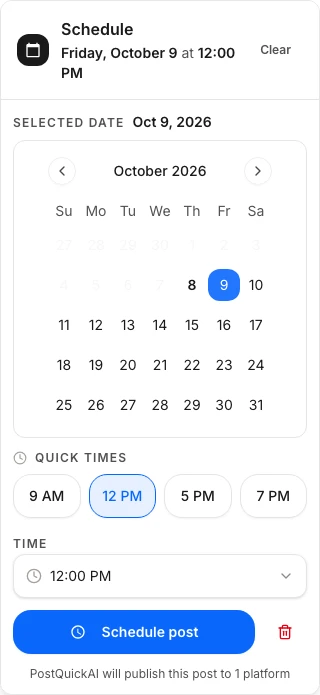
How to schedule Instagram posts using PostQuickAI (tool workflow)
If you’re scheduling Instagram as part of a broader content system (planning + creation + publishing), a scheduler can save hours each week.
PostQuickAI supports Instagram scheduling and auto-publishing for: - Single-image feed posts - Carousel posts (multi-image) - Reels (video) (Important limitation: Instagram Stories scheduling/publishing is not supported.)
You can also use PostQuickAI’s Instagram Feed Planner / Grid Preview tool to plan your grid visually before you schedule. Internal tool page: /tools/instagram-feed-planner (marketed as free and no login required).
Pricing note (accurate): PostQuickAI plans start at $8/month, and include a 7-day free trial. Source: /pricing.
A simple PostQuickAI workflow for Instagram scheduling
- Prepare your media (single image, carousel, or Reel)
- Draft your caption (optionally using AI assistance like caption generation / tone adjustments)
- Schedule it to publish at the right time
Pro tip: If your content quality is good but consistency is the problem, scheduling is usually the highest-ROI fix.
Step-by-step: the “batch and schedule” process (the system most people actually need)
If you only schedule one post at a time, you’ll still feel busy. The bigger win is batching.
Step 1: Pick 3–5 content pillars (so you don’t waste time deciding)
Examples: - Educational (tips/how-tos) - Proof (testimonials, case studies, before/after) - Product/service (offers, features, FAQs) - Personal/behind-the-scenes - Community (questions, polls—note: polls are typically Stories, not feed posts)
Step 2: Build a one-week post plan (template)
Here’s a starter schedule you can copy:
- Mon: Carousel (educational “how-to”)
- Tue: Single image (behind-the-scenes or quote)
- Wed: Reel (tutorial or quick tip)
- Thu: Carousel (FAQ / myth-busting)
- Fri: Single image (offer, testimonial, product highlight)
- Sat/Sun: Optional Reel or carousel (depending on capacity)
Step 3: Create in batches (60–90 minutes)
- Write all captions in one sitting
- Create or select all visuals in one sitting
- Then schedule everything in one sitting
This is how agencies stay consistent across multiple accounts without living in publishing tabs.
Step 4: Schedule with intention (don’t just pick random times)
Use: - Your Instagram Insights (best case) - Or platform studies as a baseline (good starting point)
Buffer’s analysis references 2 million+ Instagram posts for timing insights. Source: buffer.com/resources/when-is-the-best-time-to-post-to-instagram/
Best practices when you schedule a post on Instagram
1) Don’t schedule so far ahead that you become irrelevant
Yes, you can schedule up to 75 days in advance (official). Source: help.instagram.com/439971288310029
But scheduling too far ahead can create problems: - Promotions change - Trends shift - Your caption references outdated context
Practical rule: Schedule 1–2 weeks out, and leave room for timely posts.
2) Write captions for humans (especially if you used AI to draft)
AI can speed up drafting, but you still need: - A strong hook (first line) - A clear payoff - A single call to action (comment/save/share/click link in bio)
If you use a tool like PostQuickAI, treat AI as a first draft and edit to match your voice.
3) Optimize carousels for saves (not just likes)
Carousels often win when they’re: - Step-by-step - Checklist-based - “Do this, not that” - Swipeable storytelling
Try ending with: - “Save this for later” - “Comment ‘CHECKLIST’ and I’ll DM you the template” (only do this if you can actually follow through)
4) Reels: plan for the current length reality
Instagram’s own creator comms have referenced that Reels up to 3 minutes can be eligible for recommendation (with earlier emphasis on shorter durations). Source: creators.instagram.com
Practical approach: - Aim for short when possible - Go longer only if you can hold attention (tutorials, storytelling)
5) QA every scheduled post like it’s going out right now
Before you schedule: - Check the first line of the caption (does it hook?) - Check tags/mentions - Confirm correct account/client - Confirm the media crop (especially for carousels)
This one habit prevents most “oh no” publishing moments.
Common mistakes to avoid (and what to do instead)
Mistake 1: “Schedule option not showing” → assuming scheduling is gone
Usually it’s one of these:
- You’re on a personal account (scheduling requires professional account per Meta)
Source: facebook.com/business/help/3294660970775616
- You’re not in the right menu (look under Advanced settings / More options)
- Your app needs an update
- Instagram is rolling out the feature unevenly
Fix: Confirm you’re a Business/Creator account, update the app, and try again.
Mistake 2: Scheduling everything, then never being online to engage
Scheduling doesn’t replace engagement.
Plan a 15-minute “comment window” after posting: - First 15–30 minutes: reply to comments - Pin a strong comment if it helps context - Share reactions to Stories manually (if you’re using Stories)
Mistake 3: Posting the same caption format every time
If every post is:
- Long caption + 30 hashtags + same CTA
…it gets stale.
Rotate formats: - Short punchy - Story-style - Bullet points - Q&A - Mini case study
Mistake 4: Confusing Stories scheduling with feed/Reels scheduling
This guide focuses on “schedule a post instagram” (feed posts, carousels, Reels).
Tool limitation note (important): PostQuickAI does not support Instagram Stories scheduling/publishing.
Troubleshooting: why your scheduled Instagram post isn’t working
Issue: “I can’t find Scheduled content”
Try:
1. Profile → Menu (☰) → Scheduled content
2. If missing, look under professional/account tools menus
Meta documentation still references access via Scheduled content. Source: help.instagram.com/439971288310029
If you recently switched account types, log out/in and update the app.
Issue: “Why can’t I schedule posts on Instagram anymore?”
Most common causes:
- You’re not on a professional account (required)
Source: facebook.com/business/help/3294660970775616
- Feature rollouts/bugs
- You hit a limit (e.g., too many scheduled for that day)
Issue: “My scheduled post didn’t publish”
Do a quick audit:
- Confirm the post still appears under Scheduled content
- Check if you scheduled beyond allowed range (75 days) or exceeded daily caps (25/day)
Source: help.instagram.com/439971288310029
- If using a third-party tool, confirm account connection/permissions are still valid
Issue: “Do scheduled posts get less reach?”
There’s a persistent myth about scheduling hurting reach.
A practical answer: - There’s no reliable evidence that scheduling itself is a penalty - What often changes is behavior: people schedule and then don’t engage, or post at weaker times
If you’re worried, run a clean test for two weeks: - 5 posts scheduled - 5 posts posted manually - Same content quality, similar times - Track reach, saves, shares, comments
Tools to help you schedule Instagram posts (honest options)
Here are common categories, with what they’re best for:
-
Instagram app (native scheduling): Best for simple scheduling, mobile-first workflows.
Official doc: help.instagram.com/439971288310029 -
Meta Business Suite: Best for free desktop scheduling and calendar/planner workflows.
Official doc: facebook.com/business/help/942827662903020 -
PostQuickAI: Best if you want a scheduling workflow that supports Instagram feed posts (single image), carousels, and Reels, plus creation helpers (e.g., caption drafting and tone tools) and an Instagram grid preview tool.
- Instagram scheduler page: /instagram-scheduler
- Free grid preview tool: /tools/instagram-feed-planner
- Pricing: plans start at $8/mo with a 7-day free trial: /pricing
Limitation: Instagram Stories scheduling/publishing is not supported.
Key takeaways
- Instagram scheduling (officially) supports up to 25 posts/day and up to 75 days ahead—for professional accounts. Source: facebook.com/business/help/3294660970775616
- You can schedule via:
- Instagram app (mobile)
- Meta Business Suite (desktop)
- Third-party schedulers (best for batch workflows)
- The best scheduling strategy is a system: content pillars → batch production → schedule 1–2 weeks ahead → engage after posting
- If “Scheduled content” or the schedule toggle disappears, it’s usually an account type/menu/app version issue—not that scheduling is gone
FAQ (People Also Ask-style)
Why can’t I schedule posts on Instagram anymore?
Most often, because your account isn’t a professional account (Business/Creator), or Instagram’s scheduling UI moved/updated. Meta’s documentation states you must have a professional account to schedule, and describes where Scheduled content lives. Source: facebook.com/business/help/3294660970775616
Is it free to schedule Instagram posts?
Scheduling inside the Instagram app and through Meta Business Suite is generally available without paying for third-party tools (assuming you meet requirements like having a professional account). Third-party schedulers may be paid. (Always check the tool’s current pricing.)
Where do I find my scheduled posts on Instagram?
Go to your profile → Menu (☰) → Scheduled content. From there you can reschedule, share now, or delete. Source: help.instagram.com/439971288310029
Can you schedule Instagram posts from desktop?
Yes—commonly via Meta Business Suite on desktop (Content/Planner → Create post → Schedule). Source: facebook.com/business/help/942827662903020
Does scheduling Instagram posts hurt reach?
Scheduling itself isn’t the thing that usually hurts performance. What matters more is content quality, timing, and engagement after posting. If you’re unsure, run a 2-week controlled test (scheduled vs manual) with similar content and posting times.
How far in advance can I schedule Instagram posts?
Meta’s help documentation says you can schedule content up to 75 days in advance. Source: help.instagram.com/439971288310029
How many posts can I schedule per day?
Meta’s help documentation says you can schedule up to 25 posts per day. Source: facebook.com/business/help/3294660970775616
Can PostQuickAI schedule Instagram Stories?
No. PostQuickAI does not support Instagram Stories scheduling/publishing. It supports scheduling for Instagram feed posts (single image), carousels, and Reels.