Back to Blog
Instagram Schedule a Post: Complete Guide for 2026 (App, Desktop & Third-Party)
tutorialJanuary 16, 2026

Instagram Schedule a Post: Complete Guide for 2026 (App, Desktop & Third-Party)

Learn how to schedule a post on Instagram using the app, desktop, and third-party tools. Complete guide with limits and best practices.

Kodenark
Kodenark

Author

Instagram Schedule a Post: The Complete Guide for 2026 (So You Can Stop Posting Manually)

If you’re still posting “whenever you get a second,” you’re competing against creators and teams who batch content and publish on a calendar.

That matters because the feed is crowded: there were 5.04 billion social media users at the start of 2024, according to DataReportal. (HIGH confidence — https://datareportal.com/reports/digital-2024-deep-dive-5-billion-social-media-users)

And even when your content is good, consistency is usually what makes the algorithm “notice” you over time. Scheduling is the operational system that makes consistency realistic.

In this guide, you’ll learn: - How to schedule a post on Instagram in the app (step-by-step) - How to schedule using Meta Business Suite (desktop workflow) - When to use an Instagram scheduling tool (and what to look for) - Troubleshooting fixes for the most common scheduling problems - Best practices + ready-to-use checklists and example calendars


Quick answer: How do I schedule a post on Instagram?

You can schedule a post on Instagram in three main ways:

  1. In the Instagram app (native scheduling)
    Create a post → open Advanced settings / More options → toggle Schedule this post → pick date/time → Schedule.

  2. Meta Business Suite (desktop)
    Create a post in Business Suite → choose Instagram as the destination → select Schedule → pick date/time.

  3. A third-party scheduler
    Create your post in a tool → choose a time on a calendar → auto-publish (or publish via a reminder, depending on the tool).

Instagram’s Help Center says you must have a professional account, and you can schedule up to 25 posts per day and up to 75 days in advance. (HIGH confidence — https://help.instagram.com/439971288310029/)


What does “schedule a post” mean on Instagram?

Scheduling means you prepare the content now (media, caption, settings) and choose a future date/time for Instagram to publish it automatically (or for a tool to publish it via the Instagram API).

Common scheduling terms (so guides don’t get confusing)

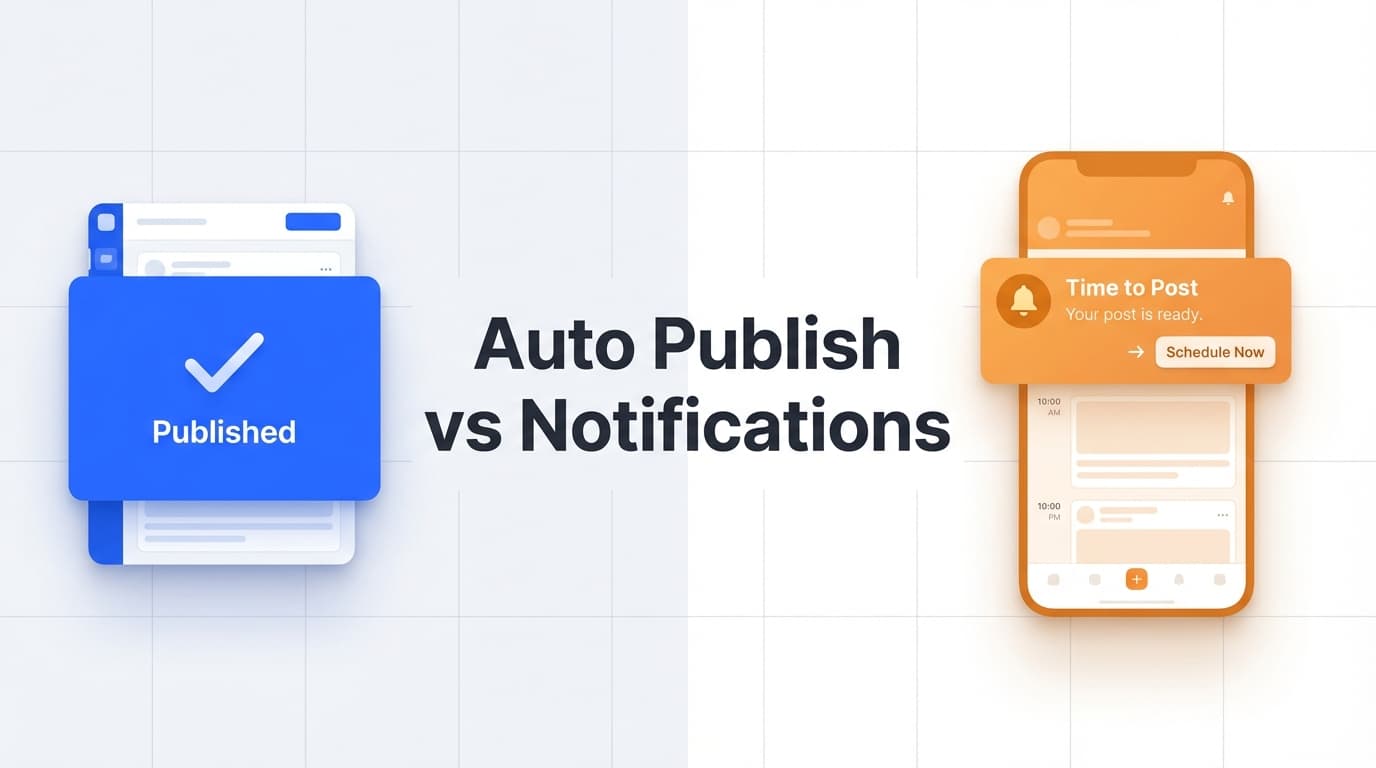
  • Auto-publish: the post publishes automatically at the scheduled time (no phone notifications needed).
  • Notification publishing / reminders: the tool sends you a reminder at the scheduled time; you still have to tap “publish” on your phone.
  • Native scheduling: scheduling inside the Instagram app itself.
  • Meta Business Suite: Meta’s dashboard where you can plan content for Facebook + Instagram.

Why scheduling matters in 2026 (beyond “saving time”)

Scheduling isn’t just convenience—it’s control.

Here are a few data points that show why this matters:

  1. Instagram allows scheduling, but with limits
    Instagram’s Help Center states you can schedule up to 25 posts/day and up to 75 days in advance (professional accounts only). (HIGH confidence — https://help.instagram.com/439971288310029/)

  2. Your audience is online a lot—but not all at once
    DataReportal (via GWI) reports the “typical” social media user spends 2 hours and 23 minutes per day on social platforms. Scheduling lets you show up during your audience’s windows. (HIGH confidence — https://datareportal.com/reports/digital-2024-deep-dive-the-time-we-spend-on-social-media)

  3. Format + cadence are measurable at scale
    Metricool’s 2024 Instagram study analyzed 391,490 accounts and millions of posts across Feed, Reels, and Stories—meaning performance patterns aren’t random, and it’s worth planning intentionally. (HIGH confidence — https://metricool.com/instagram-research-study/)

  4. Timing research exists at meaningful scale
    Buffer references analyzing 2M+ Instagram posts to understand posting time patterns. Use studies like this as a starting point, then test what’s true for your niche. (MEDIUM confidence — https://buffer.com/resources/when-is-the-best-time-to-post-on-instagram/)

  5. Instagram rolled out in-app scheduling to professional accounts
    The in-app scheduling rollout for professional accounts (posts, Reels, carousels) was widely reported when it launched. (HIGH confidence — TechCrunch: https://techcrunch.com/2022/11/08/instagram-scheduling-tool-all-professional-accounts/)


Before you schedule: requirements (and why scheduling sometimes “disappears”)

If the scheduling toggle isn’t showing up, it’s usually one of these issues.

Requirement #1: You need a professional account (Business or Creator)

Instagram’s Help Center is explicit: “You must have a professional account on Instagram.” (HIGH confidence — https://help.instagram.com/439971288310029/)

How to check your account type - Instagram → Profile - Menu (three lines) → Settings and activity - Look for account type (Business/Creator vs Personal)

If you’re on a personal account and don’t want to switch, you’ll likely need to use a different workflow (e.g., a tool with reminders) instead of native scheduling.

Requirement #2: You must be within Instagram’s scheduling limits

Instagram states: - Up to 25 posts per day - Up to 75 days in advance (HIGH confidence — https://help.instagram.com/439971288310029/)

If you’re trying to schedule too far ahead, it can feel like scheduling is “broken,” but it’s actually a hard limit.

Requirement #3: App version and feature rollouts can matter (sometimes)

Instagram features can roll out unevenly by region/app version. If you’re missing the option: - Update the Instagram app - Log out and back in - Try again after 24–48 hours

(Confidence: MEDIUM — common troubleshooting advice; not always the root cause.)


Method 1: Schedule a post in the Instagram app (native scheduling)

This is the fastest method if you’re: - A solo creator or small business - Scheduling a modest volume of posts - Okay working mainly on mobile

Instagram’s official instructions for scheduling are in their Help Center. (HIGH confidence — https://help.instagram.com/439971288310029/)

Step-by-step: How to schedule a photo post (single image)

  1. Open Instagram and tap +
  2. Choose Post and select your photo
  3. Tap Next → edit your image → tap Next
  4. Write your caption (and add location/tags if you want)
  5. Scroll down and open: - Advanced settings (iOS) or
    - More options (Android)
  6. Toggle Schedule this post on
  7. Choose date/time (within the allowed window)
  8. Tap Done → go back → tap Schedule

The flow is the same, but when selecting media: 1. Tap the “select multiple” icon 2. Choose your images in order 3. Continue to Advanced settings / More optionsSchedule this post

Carousel pro tip: double-check the order before scheduling. Once a carousel goes live, you can edit caption/alt text, but you can’t “reorder” the carousel itself.

Step-by-step: How to schedule a Reel

Instagram supports scheduling Reels in-app for professional accounts. (HIGH confidence — Instagram Help Center: https://help.instagram.com/439971288310029/)

The steps are similar: 1. Tap + → choose Reel 2. Upload/edit your video 3. Add caption + cover 4. Open Advanced settings / More options 5. Toggle Schedule this post → pick time → schedule

Reel pro tip: don’t skip the cover. The cover influences: - Feed preview - Grid aesthetics - Click-through when people browse your profile


Method 2: Schedule a post using Meta Business Suite (desktop)

Meta Business Suite is useful if you: - Prefer scheduling from a laptop - Are managing a Page + Instagram account - Want a planning view for both Facebook and Instagram

Meta provides official instructions for scheduling posts using Business Suite. (HIGH confidence — https://www.facebook.com/business/help/942827662903020)

Step-by-step: How to schedule an Instagram post in Meta Business Suite

  1. Open Meta Business Suite
  2. Go to Planner or Content
  3. Click Create post
  4. Select Instagram as the destination (choose the correct IG account)
  5. Upload media and write your caption
  6. Choose Schedule and pick date/time
  7. Confirm and save

Common Meta Business Suite issues (and fixes)

Issue: Instagram isn’t selectable - Confirm your Instagram is a professional account (Business/Creator) - Confirm it’s connected properly inside Meta’s account setup

(Confidence: MEDIUM — exact fix depends on how your assets are configured.)

Issue: Scheduled posts “don’t show” between app and Meta Sometimes posts scheduled in one place don’t appear in the other exactly the same way. If you scheduled via Meta, verify in Meta’s Planner first.

(Confidence: MEDIUM — common user complaint; UI varies.)


Method 3: Use an Instagram scheduling tool (best for batching, calendars, and multi-account workflows)

A third-party scheduler can be a better fit when: - You schedule in batches (weekly/monthly) - You want a clear content calendar - You manage multiple Instagram accounts (or multiple platforms)

Auto-publish vs notifications (important)

Not all tools publish everything automatically. Some post types or account setups may require reminders.

Buffer’s help docs, for example, explicitly explain “automatic vs notification publishing” depending on post type and setup. (HIGH confidence — https://support.buffer.com/article/657-scheduling-instagram-posts-and-reels)

When you compare tools, ask: - Does it auto-publish carousels? - Does it auto-publish Reels? - Does it support first comment publishing (hashtags)? - Does it support Stories (and is that auto-publish or reminders)?

Where PostQuickAI fits (accurate capabilities)

If you want a tool specifically for scheduling Instagram content, PostQuickAI supports scheduling and auto-publishing: - Instagram feed single-image posts - Instagram carousel (multi-image) posts - Instagram Reels (video)

PostQuickAI does not support scheduling/publishing Instagram Stories. (HIGH confidence — product constraints)

You can learn more here: - Instagram scheduling page: /instagram-scheduler - Pricing (plans + trial): /pricing

Pricing note (to keep this accurate): PostQuickAI plans start at $8/month (Basic) and $20/month (Pro), and include a 7-day free trial. (HIGH confidence — product constraints referencing /pricing)

Bonus: Visual planning your grid before you schedule

If your brand cares about grid aesthetics (or you’re a creator with a strong visual style), it helps to preview your next 9–12 posts before they publish.

PostQuickAI provides an Instagram Feed Planner / Grid Preview tool that is marketed as free and no login required: - /tools/instagram-feed-planner (HIGH confidence — product constraints)


Which scheduling method should you use? (Decision guide)

Use this quick guide:

Use Instagram in-app scheduling if…

  • You post a few times per week
  • You’re fine scheduling on mobile
  • You don’t need a bigger workflow or cross-platform calendar

Use Meta Business Suite if…

  • You want a desktop workflow
  • You’re managing a business presence inside Meta already
  • You want an official Meta tool for FB + IG together

Use a scheduler tool if…

  • You batch content weekly/monthly
  • You manage multiple accounts
  • You want a calendar-first workflow and faster creation + scheduling

How to manage scheduled posts (view, edit, reschedule, delete)

Scheduling is only helpful if you can manage changes (because plans always change).

Find scheduled posts in Instagram

Many accounts can find scheduled posts under: - Profile → Menu (three lines) → Scheduled content

(Confidence: MEDIUM — UI labels can vary by app version, but this location is widely referenced.)

What can you edit after scheduling?

Typically, you can: - Edit caption - Change scheduled time - Delete the scheduled post

But you usually can’t: - Replace media inside a scheduled carousel (varies by method/tool) - “Convert” a scheduled post into a different format

Best practice: if media might change (e.g., a last-minute product update), schedule a draft in a tool first, then schedule the final version after approval.


Scheduling best practices that actually move results

Scheduling sets you up to win, but results come from your packaging + your consistency system.

1) Batch content, but schedule engagement time too

Scheduling gives you your time back—but if your post goes live when you’re unavailable for hours, you miss early comments and DMs.

Do this: - Schedule posts for times you can be online for 15–30 minutes after publishing - If you can’t, schedule at least one “engagement block” per day

2) Use research as a baseline, then test your own best times

Data studies are useful, but every audience is different.

Two-week timing test (simple but effective) - Week 1: post at Time A (same format mix) - Week 2: post at Time B (same format mix) Compare: - Reach - Shares - Saves - Profile visits

3) Plan formats intentionally (don’t schedule everything as the same type of post)

Metricool’s 2024 Instagram study covers performance patterns across feed posts, Reels, and Stories at scale. (HIGH confidence — https://metricool.com/instagram-research-study/)

That’s a good reminder to plan variety:

  • Carousels: great for saves/shares (education, checklists, step-by-steps)
  • Reels: great for reach (hooks, demos, behind-the-scenes)
  • Single images: great for brand moments and clean visuals

4) Write captions for “the first 2 seconds” and “the first 2 lines”

On Instagram, you’re fighting for attention fast.

Checklist: - First line has a clear hook (no filler) - CTA is explicit (“Save this”, “Comment ‘guide’”, “DM me ‘template’”) - Hashtags are relevant (avoid stuffing)

If you want help drafting faster, PostQuickAI supports AI caption generation you can edit before scheduling. (HIGH confidence — product constraints)

5) Schedule with your grid in mind (if aesthetics matter)

If your grid matters, schedule with a visual preview tool before publishing.

Use: - /tools/instagram-feed-planner to preview and rearrange your upcoming feed posts before scheduling. (HIGH confidence — product constraints)


Common mistakes to avoid (and how to fix them)

Mistake 1: “Schedule this post” option is missing

Most common fix: switch to a professional account. Instagram requires it. (HIGH confidence — https://help.instagram.com/439971288310029/)

Mistake 2: Trying to schedule more than Instagram allows

If you’re scheduling far out: - Instagram’s limit is 75 days ahead and 25 posts/day. (HIGH confidence — https://help.instagram.com/439971288310029/)

Mistake 3: Confusing Stories scheduling with feed scheduling

Different tools support different types.

Important if you’re evaluating PostQuickAI: - It supports feed posts, carousels, and Reels - It does not support Instagram Stories publishing (HIGH confidence — product constraints)

Mistake 4: Scheduling posts you can’t support with engagement

If you schedule everything for midnight because “that’s what a tool study said,” but you never respond to comments, you’re leaving results on the table.

Schedule for times that fit your actual life/workflow.

Mistake 5: Assuming scheduling hurts reach (without testing)

There’s ongoing debate in creator communities about whether scheduled posts perform differently.

What you can do reliably: - Test manual vs scheduled posts on your own account for two weeks - Keep format and topic consistent - Compare reach, saves, and shares—not just likes

(Confidence: MEDIUM — debate exists; testing is the most actionable path.)


Troubleshooting: “Instagram schedule a post not working” (diagnosis checklist)

If scheduled posts aren’t publishing, use this ordered checklist.

1) Confirm you’re eligible (professional account)

Instagram requires a professional account to schedule. (HIGH confidence — https://help.instagram.com/439971288310029/)

2) Confirm you’re inside the 25/day and 75-day limits

Instagram states the limits directly. (HIGH confidence — https://help.instagram.com/439971288310029/)

3) Check where you scheduled it (app vs Meta vs tool)

  • If scheduled in Instagram, check Scheduled content
  • If scheduled in Meta Business Suite, check Meta’s Planner
  • If scheduled in a tool, check that tool’s calendar and publish logs

(Confidence: MEDIUM — common cause of “it disappeared” is checking the wrong place.)

4) If a tool can’t auto-publish, verify whether it uses reminders

Some tools use notification publishing for certain post types or setups. Buffer documents this “automatic vs notification publishing” distinction. (HIGH confidence — https://support.buffer.com/article/657-scheduling-instagram-posts-and-reels)

5) Reels troubleshooting (format constraints)

If your Reel fails to publish in a tool, common causes include: - File type/encoding issues - Aspect ratio issues - Duration issues

If you’re using PostQuickAI specifically, it includes Reels compliance checks and enforces a Reel duration message of 90 seconds or less in its publishing flow. (HIGH confidence — product constraints)


Tools to help with Instagram scheduling (honest recommendations)

Below is a practical “what it’s good for” list—without pretending one tool is perfect for everyone.

Instagram native scheduling (in-app)

Best for: solo creators, small businesses, low volume
Pros: simple, official
Cons: mobile-first; limited workflow features
Source for limits/requirements: Instagram Help Center. (HIGH confidence — https://help.instagram.com/439971288310029/)

Meta Business Suite

Best for: Meta-first businesses, desktop scheduling
Pros: official desktop workflow, Planner view
Cons: setup/permissions can be frustrating
Official help doc: (HIGH confidence — https://www.facebook.com/business/help/942827662903020)

PostQuickAI

Best for: creators and teams who batch content and want a calendar workflow
Instagram support (accurate): - Feed single-image posts: yes - Carousels: yes - Reels: yes - Stories: no (HIGH confidence — product constraints)

Helpful extras: - AI caption generation (draft faster; you still edit) (HIGH confidence — product constraints) - Free Instagram Feed Planner / grid preview tool: /tools/instagram-feed-planner (HIGH confidence — product constraints)

Pricing: starts at $8/mo, Pro $20/mo, includes 7-day free trial. (HIGH confidence — /pricing via product constraints)

Tools like Planable, Sprout Social, Later, Agorapulse, Buffer, etc. can support Instagram scheduling (capabilities vary by plan and by content type). When comparing, look specifically for: - Auto-publish vs reminders - Carousel support - Reels support - Team workflows if you need approvals

(Confidence: MEDIUM — true generally, but details vary by tool.)


Copy/paste templates: weekly schedule + posting checklist

A simple 7-day Instagram schedule (example)

Use this as a starting point and adjust to your niche:

  • Mon: Carousel (how-to checklist)
  • Tue: Reel (quick win tip)
  • Wed: Single image (brand story / behind-the-scenes photo)
  • Thu: Reel (tutorial/demo)
  • Fri: Carousel (before/after or case study)
  • Sat: Reel (trend or “reply to a comment” style)
  • Sun: No post (or recap/roundup)

Pre-schedule checklist (copy/paste)

  • [ ] Correct account selected
  • [ ] Caption proofread
  • [ ] First line hook is clear (before “…more”)
  • [ ] CTA included (save/comment/DM)
  • [ ] Hashtags relevant (not stuffed)
  • [ ] Location/tagging added (optional)
  • [ ] Reel cover selected (if Reel)
  • [ ] Carousel order verified (if carousel)
  • [ ] Timezone confirmed
  • [ ] Scheduled post visible in calendar / scheduled content list

Key takeaways

  • Instagram scheduling is real and official—but requires a professional account and has hard limits like 25 posts/day and 75 days ahead. (HIGH confidence — https://help.instagram.com/439971288310029/)
  • You can schedule via the Instagram app, Meta Business Suite, or a third-party tool—choose based on volume and workflow.
  • If your scheduling option is missing, the #1 fix is verifying your account type and eligibility.
  • If you want to schedule Instagram feed posts, carousels, and Reels (but not Stories), you can use PostQuickAI: /instagram-scheduler.

FAQ (People Also Ask-style)

Why can’t I schedule a post on Instagram?

The most common reason is you’re not using a professional account (Business/Creator). Instagram’s Help Center says you must have a professional account to schedule posts. (HIGH confidence — https://help.instagram.com/439971288310029/)

Is it free to schedule Instagram posts?

Scheduling inside the Instagram app is a built-in feature for professional accounts (no separate fee). (HIGH confidence — Instagram Help Center)

Third-party schedulers may be paid, freemium, or trial-based depending on the tool.

How far in advance can I schedule a post on Instagram?

Instagram’s Help Center states you can schedule content up to 75 days in advance. (HIGH confidence — https://help.instagram.com/439971288310029/)

How many posts can I schedule per day on Instagram?

Instagram’s Help Center states you can schedule up to 25 posts per day. (HIGH confidence — https://help.instagram.com/439971288310029/)

Can I schedule Instagram posts from desktop?

Yes—commonly via Meta Business Suite on desktop. (HIGH confidence — Meta Business Suite scheduling help: https://www.facebook.com/business/help/942827662903020)

Where do I find my scheduled posts on Instagram?

Many users can access them via: Profile → Menu (three lines) → Scheduled content.
If you scheduled via Meta Business Suite or a third-party tool, check the calendar there instead. (MEDIUM confidence — UI varies by method/app version)

Do scheduled Instagram posts get less reach?

There’s ongoing debate, especially in forums. The most practical approach is to test scheduled vs manual posts on your own account (same formats/topics) and compare reach, saves, and shares. (MEDIUM confidence)

Can PostQuickAI schedule Instagram Stories?

No. PostQuickAI does not support publishing Instagram Stories. It supports scheduling and auto-publishing Instagram feed posts (single image), carousels, and Reels. (HIGH confidence — product constraints)

What’s the fastest way to schedule a week of Instagram posts?

Batch create 5–7 pieces of content in one sitting, then schedule them in a calendar view. If grid aesthetics matter, preview your upcoming grid first using an Instagram feed planner tool like /tools/instagram-feed-planner. (HIGH confidence for tool availability; MEDIUM confidence for outcome)


#instagram scheduling#schedule posts#instagram app#instagram tools#scheduling guide