How to Schedule a Post on Instagram in 2026 (Mobile and Desktop): Complete Guide
Learn how to schedule a post on Instagram in 2026 on mobile and desktop with step-by-step instructions, current limits (25 posts/day, up to 75 days), troubleshooting, and tool recommendations.

Author
How to Schedule a Post on Instagram in 2026 (Mobile and Desktop)
Instagram scheduling isn’t just a “nice to have” anymore—it’s the difference between staying consistent and living inside the app.
That matters because the audience is huge: Instagram’s advertising resources indicate 1.74 billion global users (ad reach) as of January 2025 (DataReportal). Confidence: Medium (DataReportal cites Instagram’s ad planning resources, but “users” here is ad reach, not necessarily MAU/DAU. Still widely used by marketers. Source: https://datareportal.com/essential-instagram-stats)
And on the business side, Instagram has stated that 90% of people on Instagram follow at least one business. Confidence: Medium (published as an Instagram post, but frequently cited across marketing resources. Source: https://www.instagram.com/p/CW_GZmLsWa-/)
In this guide, you’ll learn how to schedule Instagram posts in 2026:
- From mobile (inside the Instagram app)
- From desktop (Meta Business Suite)
- With a third-party scheduler (when you need a faster workflow, a calendar, or cross-posting)
You’ll also get: - The current scheduling limits (so you don’t hit the “limit reached” wall) - Troubleshooting fixes for missing scheduling options - A best-practices checklist so scheduled posts still perform well
What “scheduling a post on Instagram” means (and what it doesn’t)
Scheduling means you create the post now, choose a future date/time, and Instagram publishes it later—without you having to remember to post manually.
Scheduling doesn’t automatically mean: - Better performance (it mainly improves consistency and efficiency) - You can schedule everything (some formats/features have restrictions depending on the method) - You can ignore final checks (typos, tags, and cropping mistakes still happen)
Instagram scheduling requirements in 2026 (before you start)
1) You need a professional Instagram account
Instagram’s own help documentation states you must have a professional account to schedule posts (Business or Creator). Confidence: High (official Instagram Help).
Source: https://help.instagram.com/439971288310029/
How to check: - Instagram app → Profile → Menu (☰) → Settings and activity - Look for Account type and tools (or similar wording) - If you see “Switch to professional account,” you’re not on one yet
2) Know the scheduling limits (so you don’t waste time)
Instagram’s help documentation states:
- Up to 25 scheduled posts per day
- Up to 75 days in advance
Confidence: High (official Instagram Help).
Source: https://help.instagram.com/439971288310029/
Reality check: Some users report the limit behaving inconsistently during rollouts/bugs. Treat 25/day and 75 days as the documented limits, but if you hit issues, skip to the troubleshooting section.
3) Carousel limits (important if you use schedulers)
Instagram’s help center historically documented carousels as up to 10 photos/videos per post. Confidence: High (official Instagram Help).
Source: https://help.instagram.com/269314186824048/
Note: Instagram has tested/rolled out higher carousel counts in some regions/versions in recent years, but many scheduling workflows/tools still cap carousels at 10 due to platform/API constraints. If “20-slide carousels” matter to you, confirm inside your own app/workflow before building templates.
The 3 best ways to schedule Instagram posts in 2026 (quick answer)
If you want the fastest route, use this decision tree:
-
Scheduling from your phone and you only need Instagram?
→ Use Instagram app scheduling (native) -
You want scheduling from a desktop and don’t mind using Meta tools?
→ Use Meta Business Suite on desktop -
You manage multiple accounts, need a calendar workflow, or want a faster creation-to-scheduling process?
→ Use a third-party scheduler (like PostQuickAI)
How to schedule a post on Instagram in 2026 (Mobile: iPhone + Android)
Instagram supports scheduling from the mobile app, but the exact button labels can differ slightly on iOS vs Android.
Step-by-step: schedule an Instagram feed post (mobile)
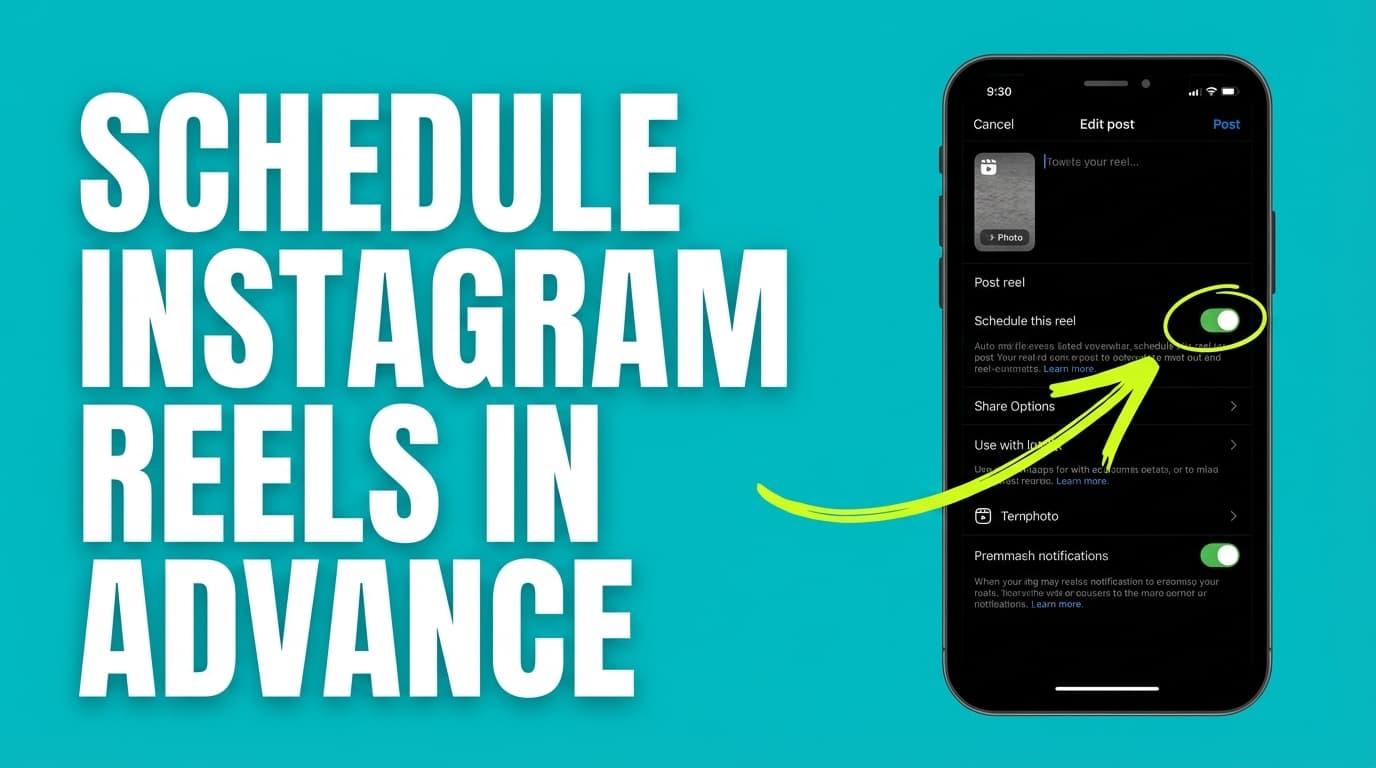
Instagram’s help documentation describes the process like this:
- Create a post
- Open More options (Android) or Advanced settings (iOS)
- Toggle Schedule this post
- Pick date/time (up to 75 days)
Confidence: High (official Instagram Help).
Source: https://help.instagram.com/439971288310029/
Step 1: Create your post as normal
- Tap + (Create)
- Choose Post
- Select your photo(s) or video
- Tap Next
- Edit (crop, filters, etc.)
- Tap Next to reach the caption screen
Step 2: Open scheduling settings
On the final screen (caption + tagging), find: - Advanced settings (common on iOS), or - More options (common on Android)
Step 3: Turn on “Schedule this post”
- Toggle Schedule this post
- Choose your date and time (within the allowed window)
- Tap Done
Step 4: Publish (it will queue instead of posting now)
You’ll complete the normal publish flow—but it won’t go live immediately.
How to view, edit, or delete scheduled posts (mobile)
Instagram’s help documentation says you can manage scheduled content from:
- Profile → Menu (☰) → Scheduled content
…and then use the Options menu next to the scheduled post/Reel.
Confidence: High (official Instagram Help).
Source: https://help.instagram.com/439971288310029/
Tip: If you scheduled a post and can’t find it later, go to: - Profile → ☰ → Your activity / Settings and activity → Scheduled content (wording varies)
How to schedule an Instagram post in 2026 (Desktop: Meta Business Suite)
If your main goal is “schedule Instagram posts from my computer,” Meta Business Suite is the most common native desktop route.
Meta’s business help documentation includes instructions for scheduling Facebook and Instagram content using Meta Business Suite desktop. Confidence: Medium (official Meta help exists, but access/UX changes frequently and some help pages can be region/login gated).
Example help page surfaced in SERPs: https://www.facebook.com/business/help/942827662903020
Step-by-step: schedule in Meta Business Suite (desktop)
The exact UI changes often, but the flow is usually consistent:
Step 1: Log into Meta Business Suite
- Go to Meta Business Suite (desktop web experience)
- Ensure your Instagram account is connected to the correct business assets
Step 2: Open Planner or Content
Look for sections like: - Planner (calendar view) - Content (posts list / publishing hub)
Step 3: Create a post
- Click Create post (or “Create” with a dropdown)
- Select Instagram as the destination (and Facebook too if you’re cross-posting)
Step 4: Add media + caption
- Upload photo/video
- Paste caption
- Add location/tags (if available)
Step 5: Schedule instead of publish
- Choose Schedule
- Pick your date/time
- Confirm
Desktop scheduling best use cases: - You write captions faster on a keyboard - You’re planning a week/month ahead in a calendar - You’re managing multiple brand assets under Meta
Method #3: Schedule Instagram posts with a third-party tool (when native scheduling is too slow)
Native scheduling works, but it’s often clunky when you’re doing real-world volume: batching posts, reusing formats, collaborating, or planning a feed visually.
When a third-party scheduler is worth it
Use a third-party tool if you: - Batch-create content weekly/monthly - Manage multiple accounts (clients, brands, creators) - Want a clean calendar experience - Need help producing captions/hashtags faster - Want to plan your Instagram grid before posts go live
Where PostQuickAI fits (accurate capabilities only)
If you want a tool-based workflow, PostQuickAI supports scheduling:
- Instagram feed posts (single image)
- Instagram carousels (multi-image) (practical limit often 10 items)
- Instagram video
- Reels auto-publishing (listed as supported on the Instagram scheduler page)
- Not Instagram Stories
Confidence: High for “Stories not supported” and supported formats list (product constraint evidence from the Instagram scheduler marketing page in repo; see product_constraints.md).
You can also use PostQuickAI’s supporting tools for faster prep:
- Instagram Feed Planner (grid preview): /tools/instagram-feed-planner
- Caption Generator: /tools/caption-generator
- Hashtag Generator: /tools/hashtag-generator
Pricing note (important): PostQuickAI is a paid subscription product; Basic starts at $8/month. Pro pricing is inconsistent across internal docs vs UI, so the safest language is: check the pricing page for current details.
Source constraint: product_constraints.md (pricing discrepancy warning). See: /pricing
Scheduling limits & rules you should know (2026)
Instagram’s documented limits (native scheduling)
From Instagram Help:
- Schedule up to 25 posts per day
- Schedule up to 75 days in advance
- Must have a professional account
Confidence: High (official Instagram Help).
Source: https://help.instagram.com/439971288310029/
Carousel limit (practical reality)
- Instagram Help historically states carousels can include up to 10 photos/videos.
Confidence: High (official Instagram Help). Source: https://help.instagram.com/269314186824048/ - Some accounts see higher carousel limits in-app, but schedulers and APIs may still enforce lower caps.
Confidence: Medium (reported widely; varies by tool and Instagram API policies; verify in your workflow).
Best practices: how to schedule posts without hurting performance
Scheduling itself is not automatically “bad,” but it can lead to lazy posting—same format, same hooks, no engagement plan.
1) Don’t confuse “scheduled” with “finished”
Before scheduling, run this quick QA:
- Caption has a clear hook in the first 1–2 lines
- CTA matches your goal (save/comment/click)
- Tags/mentions are correct
- Location is correct (if used)
- Carousel order is correct (especially slide 1 and slide 2)
- Video cover frame looks good in the grid
2) Schedule to support consistency (not randomness)
A benchmark can help you set expectations.
Rival IQ’s benchmark reporting commonly cites median Instagram engagement rates for brands (varies by industry and time). For example, Rival IQ’s benchmark materials report medians around the sub-1% range across industries. Confidence: Medium (credible industry report, but engagement benchmarks vary heavily by niche and methodology).
Source hub: https://www.rivaliq.com/benchmark-reports/
Related page surfaced in search: https://www.rivaliq.com/blog/good-engagement-rate-instagram/
Practical takeaway: don’t chase “perfect timing” so hard you stop posting consistently. Use scheduling to hit your cadence reliably.
3) Build an engagement plan around scheduled posts
If your content posts while you’re in meetings, asleep, or traveling, you still want to be available around publish time.
Simple plan: - 10 minutes before publish: be available to reply quickly - 0–30 minutes after publish: respond to early comments - 2–4 hours after: reply again and save good comments for future content ideas
4) Avoid repetitive, “templated” captions
If you batch-schedule, you’re at risk of: - Same opening line every time - Same CTA every time - Same hashtag block every time
Use a rotation: - Hook types: question, contrarian statement, “how to,” mistake, myth-bust - CTAs: save, comment with keyword, share, DM prompt (if appropriate)
If you want help drafting faster, a caption generator can give you variants to edit and humanize (example internal tool: /tools/caption-generator).
5) “Does scheduling lower reach?” (what we can responsibly say)
People debate this constantly (Reddit threads and creator posts pop up every year). Some creators report lower reach; others see no difference.
- There are also third-party experiments and “myth-busting” posts circulating.
- A responsible approach is: test on your own account with a controlled sample.
Hootsuite has published experiments on third-party scheduling vs performance. Confidence: Medium (credible publisher, but experiments depend on sample size and conditions).
Source: https://blog.hootsuite.com/experiment-third-party-scheduling-instagram/
Testing framework (2 weeks): - Week 1: post natively at your normal times (same content quality) - Week 2: schedule the same types of posts at the same times Track: reach, saves, shares, comments, profile visits.
Common mistakes to avoid (and how to fix them)
Mistake 1: “I don’t see the Schedule option”
This is one of the most common issues.
Likely causes: - You’re not on a professional account (Business/Creator) - App is outdated - Feature rollout bug (happens) - You’re looking in the wrong menu (scheduling toggle is often inside Advanced settings / More options during publishing)
Fix checklist:
1. Confirm you’re on a professional account (Instagram Help requires it).
Source: https://help.instagram.com/439971288310029/
2. Update Instagram app
3. Log out/in
4. Try scheduling from the publishing screen (Advanced settings / More options)
5. If mobile is buggy, schedule from Meta Business Suite on desktop
Mistake 2: Hitting “limit reached” even when you didn’t schedule much
Some users report “limit reached” glitches (Reddit threads mention this). Confidence: Low (anecdotal, inconsistent).
Action: reduce the number scheduled that day, try again later, or schedule via Meta Business Suite / a third-party tool.
Mistake 3: Scheduling too far ahead with time-sensitive content
If your post references: - “today” - trending news - “last chance” …don’t schedule it weeks out.
Fix: schedule evergreen content in batches; keep time-sensitive content closer to publish.
Mistake 4: Forgetting the grid aesthetic (especially for creators)
A scheduled post can break your grid if you don’t preview the sequence.
Fix: use a feed planner before scheduling. If you use PostQuickAI, the Instagram Feed Planner tool is here: /tools/instagram-feed-planner.
Mistake 5: Carousels that exceed your tool’s limit
Even if some accounts can post more than 10 slides, many scheduling flows/tools still cap carousels at 10.
Fix: design your carousel templates in 10-slide chunks unless you’ve confirmed otherwise in your exact workflow.
Step-by-step: a “batch scheduling” workflow (what agencies and busy creators actually do)
If you manage multiple accounts (or you’re just tired of daily posting), use this weekly workflow.
Step 1: Pick 3–5 content pillars
Examples: - Educational “how-to” - Behind the scenes - Social proof/testimonials - Product/service highlights - Personal/brand story
Step 2: Create 10 post ideas in 20 minutes
Use prompts like: - “3 mistakes people make when ” - “The checklist for ” - “Before/after: ” - “Myth vs fact: ”
Step 3: Produce assets in a batch
- Create 5–8 carousels
- Clip 2–4 videos
- Prepare 2–4 single images
Step 4: Write captions and hashtags
If you want speed, draft variants using a caption/hashtag generator, then edit heavily for brand voice:
- Caption Generator: /tools/caption-generator
- Hashtag Generator: /tools/hashtag-generator
Step 5: Preview your grid (optional but powerful)
- Feed planner:
/tools/instagram-feed-planner
Step 6: Schedule everything
Pick your method: - Mobile native scheduling (fast for single-account creators) - Meta Business Suite (desktop planning) - Third-party scheduler (calendar + faster workflow)
Tools to help schedule Instagram posts (honest recommendations)
Here are common tool categories and what each is good for:
1) Instagram native scheduler (mobile)
Best for: simple scheduling for one account
Tradeoffs: can be slower for batching; UI can vary by device/version
Source: Instagram Help scheduling documentation: https://help.instagram.com/439971288310029/
2) Meta Business Suite (desktop)
Best for: scheduling from desktop, cross-posting IG + FB
Tradeoffs: Meta UI changes; setup can be confusing if assets aren’t connected properly
Source example: Meta Business help page (desktop scheduling): https://www.facebook.com/business/help/942827662903020
3) PostQuickAI (scheduler + planning tools)
Best for: planning and scheduling Instagram feed posts, carousels, videos, and Reels in one workflow
Not for: Instagram Stories scheduling (not supported)
Pricing: paid subscription; Basic starts at $8/month; see /pricing for current plan details
Relevant links:
- Instagram scheduling: /instagram-scheduler
- Grid preview: /tools/instagram-feed-planner
4) Other third-party schedulers (general)
Best for: teams, calendars, multi-platform scheduling
Tradeoffs: pricing, learning curve, feature differences by platform, and varying API limits
Key takeaways
- Instagram scheduling in 2026 is easiest if you choose the right method:
- Mobile: Instagram app scheduling (Advanced settings / More options → Schedule)
- Desktop: Meta Business Suite (Planner/Content → Create → Schedule)
- Scale: third-party schedulers for batching and calendar workflows
- Instagram’s documented scheduling limits are 25 posts/day and up to 75 days in advance (professional accounts only).
Source: https://help.instagram.com/439971288310029/ - Carousels are commonly limited to 10 items in many workflows/tools.
Source: https://help.instagram.com/269314186824048/ - Scheduling doesn’t automatically “kill reach,” but content quality + engagement follow-through still matter—test on your own account if you’re concerned.
FAQ (People Also Ask-style)
Why can’t I schedule posts on Instagram?
Most commonly, you’re not on a professional account (Business/Creator), or you’re not finding the toggle in the right place. Instagram says scheduling requires a professional account. Confidence: High.
Source: https://help.instagram.com/439971288310029/
How far in advance can you schedule Instagram posts in 2026?
Instagram’s help documentation states you can schedule content up to 75 days in advance. Confidence: High.
Source: https://help.instagram.com/439971288310029/
How many posts can you schedule per day on Instagram?
Instagram’s help documentation states you can schedule up to 25 posts per day. Confidence: High.
Source: https://help.instagram.com/439971288310029/
Can you schedule Instagram posts from desktop?
Yes. A common native method is using Meta Business Suite on desktop (Planner/Content → Create → Schedule). Confidence: Medium (official Meta help exists but UX changes).
Source example: https://www.facebook.com/business/help/942827662903020
Where do I find Scheduled Content on Instagram?
Instagram documents that you can access it from your profile menu (☰) under Scheduled content, where you can edit/reschedule/delete. Confidence: High.
Source: https://help.instagram.com/439971288310029/
Does Instagram penalize scheduled posts?
There’s no universally applicable “yes/no” that fits every account, because performance depends on content quality, timing, audience behavior, and engagement follow-through. There are published experiments and lots of anecdotal reports; if this is a major concern, run a simple two-week A/B test (native vs scheduled) on your account. Confidence: Medium (based on credible third-party discussions/experiments, but outcomes vary).
Source example: https://blog.hootsuite.com/experiment-third-party-scheduling-instagram/
Can I schedule Instagram Stories?
Instagram scheduling capabilities vary by method and region, but PostQuickAI does not support Instagram Stories scheduling. If Stories scheduling is a must-have, confirm the exact method/tool you plan to use supports it. Confidence: High (PostQuickAI constraint from product_constraints.md).
What’s the safest way to schedule carousels?
Assume 10 slides unless your exact workflow confirms a higher limit. Instagram’s help documentation has historically referenced carousels up to 10 items. Confidence: High for the documented limit, Medium for “some accounts have higher limits.”
Source: https://help.instagram.com/269314186824048/