Schedule Instagram Reels in Advance: Best Tools, Limits & Workflows for 2026
How to schedule Instagram Reels in advance: the real limits (25 a day, 75 days ahead), the tools that auto-publish, and fixes for audio issues.

Author
If you’re trying to stay consistent on Instagram without being glued to your phone, scheduling Reels in advance is the habit that will save you the most time. As soon as you start batching content, a few questions come up:
- What are the actual scheduling limits?
- Why do some scheduled Reels fail to publish?
- Can you schedule with trending audio?
- What’s the best tool for your workflow (solo vs agency vs multi-account)?
Instagram does provide native scheduling, but platform rules, API limits and audio restrictions decide whether your calendar runs smoothly or you spend every week asking why a Reel didn’t post.
This guide covers: - Instagram’s real limits for scheduling Reels in advance (daily cap, advance window, API publishing limits) - The best tools to schedule Reels (Instagram app, Meta Business Suite, and third-party schedulers) - A step-by-step batch → schedule → QA workflow you can repeat weekly - A troubleshooting playbook for missing options, failed publishing, and audio restrictions - FAQ answers pulled from common search questions (desktop scheduling, limits, reach, trending audio)
Quick answer: Can you schedule Instagram Reels in advance?
Yes. Instagram’s Help Center states you can schedule posts and Reels:
- Up to 25 posts per day
- Up to 75 days in advance
- Using a professional account (Business or Creator)
Source: Instagram Help Center, “How to create and manage scheduled posts and Reels on Instagram”
https://help.instagram.com/439971288310029/
What “schedule Instagram Reels in advance” actually means (and the 2 scheduling types)
When people say “schedule Reels,” they usually mean one of two workflows:
1) Auto-publish scheduling (best-case)
You upload your Reel, set caption/cover, choose a date/time, and the tool publishes automatically.
2) Notification / reminder scheduling (common with trending audio)
You schedule the post, but at publish time you get a reminder to finish posting in the Instagram app (often to add music/effects that can’t be applied through API publishing).
Many “Reels scheduling problems” turn out to be audio/effects limitations rather than problems with scheduling.
Why scheduling Reels matters (with data)
Scheduling keeps you posting when the work piles up. A few numbers that show why Reels are worth planning:
1) Instagram ads reached 1.74 billion users in January 2025, according to DataReportal’s essential Instagram stats page.
Source: DataReportal: https://datareportal.com/essential-instagram-stats
2) Reels can be a reach engine. Metricool reports Instagram Reels have the highest reach rate (~37.87%) among Instagram content types (as listed on their Instagram statistics page).
Source: Metricool: https://metricool.com/important-instagram-statistics/
3) Engagement benchmarks vary by format. A Metricool benchmark announcement reported Carousels at 10.15% engagement vs Reels at 6.27% (in their report summary).
Source: PR Newswire release about Metricool’s 2024 benchmark report:
https://www.prnewswire.com/news-releases/metricool-unveils-2024-instagram-benchmark-report-stories-reels-and-carousels-drive-brands-marketing-campaigns-302242081.html
What this means in practice: Many accounts use Reels for reach and carousels for saves/shares. Scheduling lets you run that mix consistently instead of posting only when you remember.
Instagram Reels scheduling limits (native and API)
To schedule Instagram Reels in advance reliably, you need to know both the Instagram app limits and the publishing API limits that affect third-party tools.
Limit #1: Instagram’s native scheduling limit (25/day, 75 days)
Instagram states:
- Up to 25 posts per day
- Up to 75 days in advance
Source: https://help.instagram.com/439971288310029/
Practical implications - If you batch 30 Reels for one client, you may need to schedule across two days. - If you manage 20 accounts, your workflow should plan around daily caps.
Limit #2: Instagram Content Publishing API limit (100 API-published posts / rolling 24 hours)
Meta’s developer docs state:
- Instagram accounts are limited to 100 API-published posts within a 24-hour moving period (carousels count as one post).
Source: Meta for Developers, Instagram Content Publishing
https://developers.facebook.com/docs/instagram-platform/content-publishing/
Practical implications - If you publish across multiple tools (or multiple automations), you can hit caps faster than you expect. - “Rolling 24 hours” means it’s not “midnight to midnight.” It’s a moving window.
Limit #3: Reels publishing API limit (30 / rolling 24 hours)
Meta’s Reels publishing documentation states:
- Reels API is limited to 30 API-published posts within a 24-hour moving period.
Source: Meta for Developers, Reels Publishing Guide
https://developers.facebook.com/docs/video-api/guides/reels-publishing/
Practical implications - High-volume agencies can hit Reels-specific caps even if general post limits aren’t reached. - Some third-party tools will queue/delay publishing when limits are hit; others show an error.
Limit #4: Audio/effects restrictions (why “scheduled Reel won’t post” happens)
Audio restrictions cause a lot of scheduling frustration:
- Buffer explains that due to API limitations, they’re not able to add trending music to posts or Reels (their Instagram connection help doc).
Source: Buffer Help Center, “Using Instagram with Buffer”
https://support.buffer.com/article/554-using-instagram-with-buffer
Other schedulers describe similar constraints and workarounds (often “use reminders”):
- Planoly’s help content notes you can’t add trending audio through auto-posting, and recommends scheduling a reminder for those cases.
Source: Planoly Help Center (Reels planner/autopost)
https://help.planoly.com/knowledge/reelsplannerautopost
- Hootsuite’s help center notes an Instagram limitation: you can’t search for trending audio within their composer (and other stickers/effects limitations).
Source: Hootsuite Help Center
https://help.hootsuite.com/hc/en-us/articles/1260804249750-Create-an-Instagram-post-story-or-reel
Best tools to schedule Instagram Reels in advance (and which one to choose)
The right tool depends on how you work:
- Are you scheduling on mobile or desktop?
- Do you need multiple accounts?
- Do you need auto-publish, or are reminders acceptable?
- Are you heavily using trending audio?
The best tools (by scenario)
1) Instagram app (native scheduling)
Best for: Solo creators / small teams who want the simplest, lowest-friction option.
Pros - Native workflow inside Instagram - No third-party connection steps
Cons
- Mobile-first workflow (harder for bulk scheduling)
- Still subject to 25/day and 75 days limits
Source: https://help.instagram.com/439971288310029/
2) Meta Business Suite
Best for: People managing Instagram + a Facebook Page who want a desktop planning environment.
Pros - “Official” Meta ecosystem tool - Useful for desktop planning
Cons - UI changes frequently - Some users report inconsistent publishing, so have a backup plan
3) Third-party schedulers (Buffer, Planoly, Publer, etc.)
Best for: Agencies, multi-account managers, and anyone batching content who needs a calendar and a set process.
Pros - Calendar view, queues, bulk workflows - Easier to keep multiple brands consistent
Cons
- Audio/effects limitations often require reminder workflows
(e.g., Buffer trending music limitation: https://support.buffer.com/article/554-using-instagram-with-buffer)
4) PostQuickAI (for scheduling Reels + cross-platform planning)
Best for: Creators and teams who want to schedule Instagram Reels and also plan/schedule other platforms from one place.
What it supports - Instagram Reels publishing/scheduling: supported - Instagram feed posts (images/video) + carousels: supported - Instagram Stories scheduling: supported
If you want a dedicated Instagram scheduling workflow, see: - /instagram-scheduler
If you want to visually plan your grid along with your Reel cadence: - /tools/instagram-feed-planner
Pricing
- Plans start at $15/month
- A 7-day free trial on your first plan (card required)
(See /pricing for current details.)
/pricing
How to schedule Instagram Reels in advance (3 methods, step-by-step)
Method 1: Schedule a Reel inside the Instagram app (native)
Requirements
- Must have a professional account (Business or Creator)
Source: https://help.instagram.com/439971288310029/
Steps
1. Create a Reel (record or upload your video).
2. Edit, add caption, choose cover (as available).
3. On the final screen, tap:
- Advanced settings (iOS) or
- More options (Android)
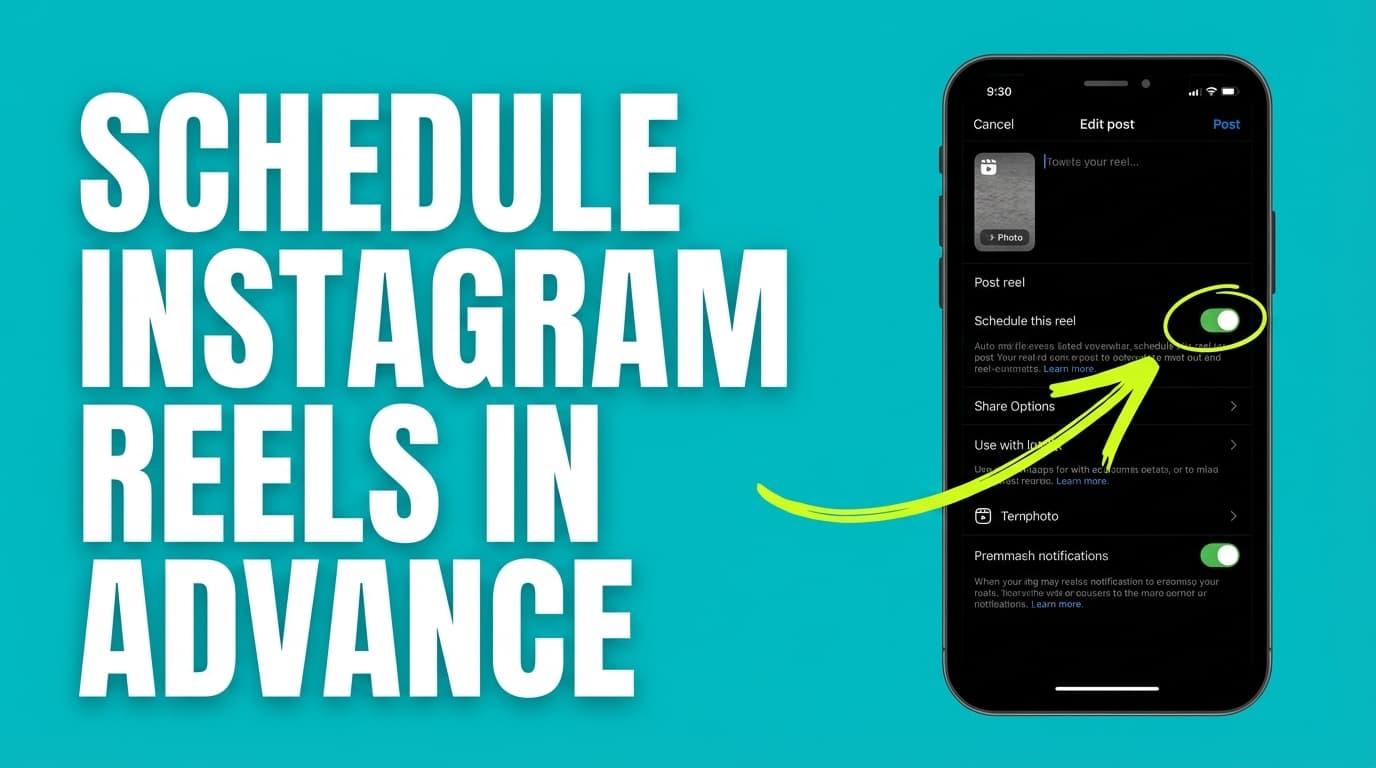
4. Toggle Schedule this post (or “Schedule this Reel”).
5. Select a date/time (up to 75 days away).
6. Tap back → share/schedule.
Manage scheduled Reels
- Go to your profile → menu → Scheduled content
Source: https://help.instagram.com/439971288310029/
Pro tip: After scheduling, verify the post actually appears in Scheduled content. If it doesn’t, re-check account type and app version.
Method 2: Schedule Reels using Meta Business Suite (desktop-friendly)
When to choose this - You want desktop scheduling - You’re coordinating between a Facebook Page and Instagram
Practical best practice - Keep a “publishing QA” habit: check scheduled items the day before they publish (especially for key campaigns).
Method 3: Schedule Reels with a third-party scheduler (best for batching)
Why people prefer this - Calendar view - Easier bulk workflows - Standardized process across many accounts
But plan around the biggest constraint: audio. If you need trending audio, expect to use: - Reminder/notification publishing, or - A workflow where the audio is already baked into the video (voiceover + external editing)
Example limitation documentation:
- Buffer: trending music can’t be added due to API limitations
https://support.buffer.com/article/554-using-instagram-with-buffer
The most reliable batching workflow (create a week of Reels in one session)
This workflow is for when posting every day feels impossible.
Step 1: Build a 7-Reel plan (15 minutes)
Pick 3–5 content pillars. Example for a business account:
- Education (how-to, tips, mistakes)
- Proof (case studies, testimonials)
- Product (demo, FAQ)
- Personality (founder POV, behind-the-scenes)
- Community (UGC, reply-to-comment)
Then plan 7 Reels: - 3 Education - 2 Proof/Community - 2 Product/Personality
Pro tip: Keep 1 slot open for trend/reactive content.
Step 2: Write hooks first (30 minutes)
Write 7 hook lines (first 1–2 seconds). Use these patterns:
- “3 mistakes that are killing your ___”
- “If you’re doing ___, do this instead”
- “I tried ___ for 30 days. Here’s what happened”
- “Watch this if you want ___”
This makes filming faster because each Reel has a clear target.
Step 3: Batch film (60–120 minutes)
Film all A-roll in one setup: - Same lighting - Same mic - Same framing
Then batch B-roll separately.
Agency note: This is where you save the most time, because you set up once and switch tasks less.
Step 4: Batch edit + export (60–180 minutes)
Create a template: - Caption style - Font/safe margins - Cover style
Avoid a common failure mode: export consistently (same resolution and frame rate) to reduce upload and publishing issues across tools. Some scheduler docs mention minimum requirements (e.g., Planable notes minimum 30 FPS and 720p in its Reel publishing documentation).
Source: https://help.planable.io/hc/en-us/articles/21715245506332-Reels-publishing
Step 5: Schedule + QA (45–60 minutes)
Before you schedule each Reel, check:
- Caption (typos, line breaks)
- Hashtags (relevant, not spammy)
- Cover image (readable on grid)
- Audio plan:
- If it needs trending audio → schedule as reminder workflow
- If it’s original audio or baked-in audio → auto-publish is more likely to work
“Best tools” decision checklist (pick in 2 minutes)
Use this to choose your scheduling setup quickly:
Choose Instagram app if:
- One account
- You don’t need a content calendar
- You want simplest native scheduling
Choose Meta Business Suite if:
- You want desktop planning
- You manage Facebook + Instagram together
Choose a third-party scheduler if:
- You manage multiple brands
- You need a calendar and bulk workflows
- You want a standardized “upload → schedule → publish” process
Choose PostQuickAI if:
- You want to schedule Instagram Reels (supported) and also plan/schedule across multiple platforms
- You want an Instagram grid planning tool to pair with scheduling
Links: /instagram-scheduler and /tools/instagram-feed-planner
Pricing: plans start at $15/month with a 7-day free trial on your first plan (card required; see /pricing)
Common mistakes when scheduling Instagram Reels (and how to fix them)
Mistake 1: “Schedule this Reel” option not showing
Likely causes - Not a professional account - Feature not available on that account yet - App not updated
Fix
- Confirm you’re on a professional account
Source: https://help.instagram.com/439971288310029/
- Update Instagram
- Log out/in
- Try Meta Business Suite or a third-party tool as a workaround
Mistake 2: Scheduled Reel fails to publish
Common causes - Connection/auth issues (account needs reconnecting) - Media file/export issues - Audio/effects limitation (trending audio is the big one)
Fix - Reconnect account in your scheduling tool - Re-export and try again - If you need trending audio, switch to reminder workflow (many tools recommend this approach; see Buffer + Planoly documentation examples)
Mistake 3: Over-scheduling without leaving space for trends
If you schedule 75 days out, you can lock yourself out of timely content.
Fix - Schedule evergreen Reels ahead - Leave 20–30% of calendar flexible
Mistake 4: Hitting limits without realizing it
Limits you might hit:
- Instagram native: 25/day, 75 days ahead
Source: https://help.instagram.com/439971288310029/
- API publishing: 100/rolling 24h
Source: https://developers.facebook.com/docs/instagram-platform/content-publishing/
- Reels API: 30/rolling 24h
Source: https://developers.facebook.com/docs/video-api/guides/reels-publishing/
Fix - Spread scheduling across multiple days - Reduce bulk publishing spikes - Use a calendar so you can see volume density
Does scheduling Reels hurt reach or views?
People ask this a lot. The short answer:
- There’s no official Instagram statement that scheduled posts get suppressed because they’re scheduled.
- Performance differences are usually caused by:
- Posting at the wrong time
- Hook quality and retention
- Missing in-app features (like certain trending audio/effects) that change content performance
- Lack of engagement around publish time
Bad timing and uneven creative hurt reach. Scheduling itself doesn’t.
Tools that help beyond scheduling (caption + hashtag workflow)
If your bottleneck is writing, not posting, use a simple “batch caption” process before you schedule.
Within PostQuickAI’s toolset, there are standalone tools that can help speed up prep: - AI caption generator: /tools/caption-generator - Hashtag generator: /tools/hashtag-generator
(Use these to draft options, then edit for your brand voice before scheduling.)
Key takeaways
- Instagram lets professional accounts schedule up to 25 posts/day and up to 75 days in advance.
Source: https://help.instagram.com/439971288310029/ - Third-party schedulers are affected by Meta publishing limits like 100 API-published posts/rolling 24 hours, and Reels-specific limits in Meta’s docs.
Sources: https://developers.facebook.com/docs/instagram-platform/content-publishing/ and https://developers.facebook.com/docs/video-api/guides/reels-publishing/ - Trending audio is a common reason auto-publishing fails; tools like Buffer document the limitation and recommend workflows like notifications/reminders.
Source: https://support.buffer.com/article/554-using-instagram-with-buffer - The best tool depends on your workflow: native app (simple), Meta Business Suite (desktop), third-party schedulers (batching), or PostQuickAI (Reels and Stories scheduling + cross-platform planning).
- A repeatable batching workflow (plan → hooks → film → edit → schedule → QA) is what lets you keep posting week after week.
FAQ
How far in advance can you schedule Instagram Reels?
Instagram states you can schedule content up to 75 days in advance.
Source: https://help.instagram.com/439971288310029/
How many Reels can you schedule per day?
Instagram states you can schedule up to 25 posts per day (this includes posts and Reels).
Source: https://help.instagram.com/439971288310029/
How do I schedule Instagram Reels on desktop?
Common desktop methods include Meta Business Suite and third-party scheduling tools. If you don’t see desktop options inside Instagram itself, that’s normal. Native scheduling is mainly an in-app workflow, while desktop scheduling is typically handled through Meta tools or approved schedulers.
Why can’t I schedule Instagram Reels anymore?
Most common reasons:
- Your account isn’t a professional account (Business/Creator)
- The scheduling option isn’t available on your account yet
- App/version/account issues
Start by confirming the official requirements and steps here: https://help.instagram.com/439971288310029/
Can you schedule Reels with trending audio?
Often not via auto-publish. Many tools document that trending music/audio can’t be added through API publishing, so you may need reminder/notification publishing to add audio in the Instagram app.
Example: Buffer documentation: https://support.buffer.com/article/554-using-instagram-with-buffer
Does scheduling Reels affect views on Instagram?
There’s no official Instagram statement that scheduling itself reduces reach. Most performance differences come from timing, creative quality, and whether scheduled workflows prevent you from using in-app audio/effects.
Can PostQuickAI schedule Instagram Stories?
Yes. PostQuickAI schedules Instagram posts, carousels, Reels, and Stories.
/instagram-scheduler
To post on a schedule, use PostQuickAI's Instagram scheduler: write once, pick a time, and it publishes from our servers.