Twitter Schedule Tweets: The Complete Guide for 2026 (Native Scheduling, Best Times & Tools)
Learn how to twitter schedule tweets with step-by-step instructions for native X scheduling, X Pro, and third-party tools. Includes timing benchmarks, templates, and troubleshooting. 2026 guide.

Author
If you’ve ever stared at your calendar thinking, “I can either do the client work or sit in the X app all day,” you’re not alone. You can schedule tweets (X posts). The harder part is doing it reliably, without awkward timing, while still sounding like you’re there in real time, which is what X is for.
One reason timing and consistency matter: Metricool says it analyzed over 2 million X posts in its X/Twitter study. That’s enough to show patterns, and also that no single time works for everyone. (Source: Metricool study page: https://metricool.com/twitter-study/)
This guide covers:
- The main ways to schedule tweets: native X scheduling, X Pro, X Ads, and third-party schedulers
- Exactly where scheduled tweets live (and why people can’t find them)
- A repeatable tweet scheduling system (weekly template + batching workflow)
- Timing benchmarks from major studies, and how to find your best time
- Common scheduling mistakes (and a “pause your queue” checklist)
- Tools that help, including what PostQuickAI can and can’t do for X
Quick facts
These facts come up throughout the guide.
-
X video file size limit: 512MB
X’s developer documentation states video file size must not exceed 512 MB.
Source: X Developer Platform, Media best practices: https://developer.x.com/en/docs/x-api/v1/media/upload-media/uploading-media/media-best-practices -
X Ads scheduled posts can require adding a credit card; scheduling “appears after entering a credit card,” and there’s “no spend required” just to add it
Source: X Business help, Scheduled Posts: https://business.x.com/en/help/campaign-editing-and-optimization/scheduled-tweets -
Large timing studies exist (e.g., Buffer uses “1M+ posts” in its best-time research)
Buffer claims its cross-platform timing research includes analysis of “over 1 million posts” for X/Twitter timing guidance.
Source: Buffer, Best time to post on social media: https://buffer.com/resources/best-time-to-post-social-media/ -
Metricool’s X study references “over 2 million X posts” analyzed
Source: Metricool X/Twitter Study: https://metricool.com/twitter-study/ -
Estimates of X total users vary widely by source
Example: Backlinko reports 561M monthly active users (July 2025), while Business of Apps reports 388M monthly active users (figures and methodology can differ). Treat any count of X users as an estimate.
Sources:
- Backlinko: https://backlinko.com/twitter-users
- Business of Apps: https://www.businessofapps.com/data/twitter-statistics/
What does “twitter schedule tweets” mean (in plain English)?
Scheduling tweets means writing an X post now, choosing a future date/time, and having it publish automatically later, so you don’t have to be online at that moment.
A good scheduling workflow helps you:
- Maintain consistency (even during busy weeks)
- Coordinate announcements (launches, events, client campaigns)
- Post across time zones (without waking up at 3 a.m.)
- Batch your writing (one focused session instead of daily scrambling)
Why scheduling tweets matters in 2026
1) X rewards “being there,” but you can’t be there 24/7
X moves fast. Even strong posts can disappear if your audience isn’t online. Scheduling gets your post out at a good time. Then you show up after it goes out to reply and quote-tweet, so the account doesn’t feel robotic.
2) A calendar prevents “oops” moments
Scheduling saves time, and it also helps you catch mistakes before they go out.
Common scheduling disasters include:
- Posting something cheery during a breaking news tragedy
- Launching a promo while your website is down
- Accidentally tweeting the draft version of an announcement
A visible calendar/queue makes these easier to catch.
3) You can find your best posting time, but you have to test
Industry benchmarks give you a place to start. Testing with your own account tells you more, and there’s a simple test later in this guide.
For benchmarks, Sprout Social publishes platform-level “best time” guidance and generally emphasizes weekday daytime windows for X.
Source: Sprout Social best-time research (overview page for X): https://sproutsocial.com/insights/best-times-to-post-on-twitter/
And Buffer publishes “best time” research for X based on large-scale post analysis.
Source: Buffer: https://buffer.com/resources/best-time-to-post-social-media/
How to schedule tweets (X posts): 4 main methods
Each method suits a different situation:
- Native scheduling on X (desktop web): good for occasional scheduling
- X Pro (formerly TweetDeck/PostDeck): better for power users and columns
- X Ads / ads.x.com scheduling: often used for campaigns; has account requirements
- Third-party schedulers: best for calendar workflows, batching, and cross-platform needs
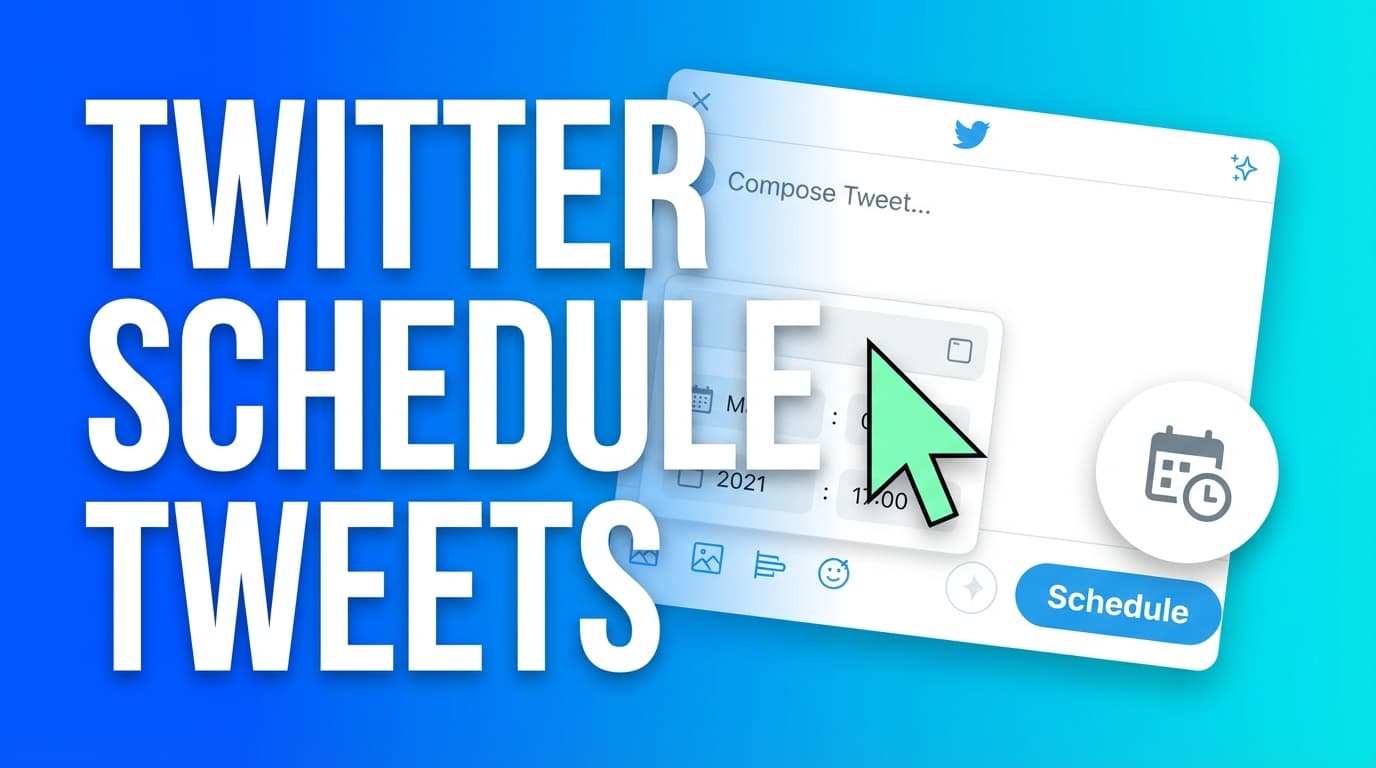
Method 1: Schedule tweets natively on X (desktop web)
Many guides note that X’s native scheduler is available on desktop (and users often struggle to find it on mobile). For example, Sprout Social explicitly states native scheduling is available on desktop.
Source: Sprout’s scheduling guide: https://sproutsocial.com/insights/how-to-schedule-tweets/
(You can also see frequent user confusion in Reddit threads about mobile scheduling changes.)
Step-by-step: native scheduling on X
- Log in to X on a desktop browser (x.com)
- Click Post (compose) and write your tweet
- Look for the calendar/schedule icon in the composer
- Choose date + time
- Confirm, then schedule
Where do you find scheduled tweets afterward?
Most how-to guides point you to your Drafts area and then a Scheduled tab/section (wording varies by UI changes). Sprout Social’s guide describes accessing scheduled posts via a link at the bottom of the scheduling popup that takes you to Drafts with a Scheduled tab.
Source: https://sproutsocial.com/insights/how-to-schedule-tweets/
Pro tip: Right after you schedule a post, immediately verify it appears in your scheduled list. If it doesn’t, assume it didn’t save.
Method 2: Schedule tweets using X Pro (power-user workflow)
X Pro (the tool formerly known as TweetDeck in many people’s minds) is often referenced as a way to manage columns and scheduled posts.
X’s help center lists “schedule posts for posting in the future” among X Pro’s features.
Source: X Help Center, “How to use X Pro”: https://help.x.com/en/using-x/how-to-use-x-pro
When X Pro is worth it
Use X Pro if you:
- Monitor multiple keywords/mentions via columns
- Want a more “operations” style dashboard
- Want to watch several feeds and your scheduled posts on one screen
Scheduling tip: Whatever tool you use, have a person check posts before they go out (see the checklist later). The more you schedule, the easier it is for something to slip through.
Method 3: Schedule tweets via X Ads (ads.x.com)
This route is official but easy to miss. X’s business documentation explains how scheduling works in the Ads interface, with a few conditions:
- Scheduling appears after entering a credit card
- No spend is required just to add a credit card for scheduling access (per their wording)
- It walks through creating and managing scheduled posts inside the ads interface
Source: X Business, Scheduled Posts: https://business.x.com/en/help/campaign-editing-and-optimization/scheduled-tweets
When X Ads scheduling makes sense
Use this method if you:
- Already manage campaigns on X
- Need to align organic posts with campaigns
- Want to keep activity centralized in Ads workflows
The downside
For many creators and small teams, Ads-based scheduling is more steps than you want for day-to-day posting.
Method 4: Use a third-party scheduler (best for batching + calendar control)
Third-party tools are popular because they typically offer:
- Calendar views
- Easier bulk/batch workflows
- Collaboration and approvals (tool-dependent)
- Cross-posting (tool-dependent)
- Draft libraries / content recycling (tool-dependent)
Common ones include Buffer, Hootsuite, Sprout Social, Typefully, Hypefury, Hopper HQ, SocialPilot and Planable.
Where PostQuickAI fits
If your main goal is scheduling and auto-publishing to X, PostQuickAI can help you publish:
- Text posts to X
- Image posts to X (up to 4 images per post)
- Video posts to X (with a 512MB max video size limit)
These limits match X constraints and PostQuickAI’s platform guardrails. (X’s 512MB video guidance is documented by X Developer docs: https://developer.x.com/en/docs/x-api/v1/media/upload-media/uploading-media/media-best-practices)
Thread publishing: PostQuickAI supports publishing a composed X thread as a linked reply chain. Compose your multi-part thread (hook + follow-ups) and PostQuickAI publishes each part as a reply on X.
Pricing: Plans start at $15/month and your first plan starts with a 7-day free trial (card required).
- Pricing page: /pricing
- X scheduling page: /x-scheduler
How to build a tweet scheduling system
Most “how to schedule tweets” articles stop at “click the calendar icon.” What helps more is a routine you repeat every week, especially if you manage several accounts or clients. This one works for solo creators and agencies.
Step-by-step: The weekly tweet scheduling workflow (60–120 minutes/week)
Step 1: Pick your “posting promise” (frequency you can actually keep)
Instead of “tweet 5 times a day,” choose something sustainable:
- 3 posts/week (minimum viable consistency)
- 1 post/day (strong baseline)
- 2 posts/day (for high-output brands)
- More than 2/day (only if you have people to write the posts and answer replies)
Rule: Never schedule so much content that you can’t show up to respond. On X, replies and follow-up engagement often matter as much as the original post.
Step 2: Choose 3–5 content pillars (so you’re not reinventing the wheel)
For a brand account, content pillars might look like:
- Education (how-to, frameworks, checklists)
- Proof (case studies, results, testimonials)
- Point of view (hot takes, industry commentary)
- Product (features, updates, use cases)
- Community (questions, replies, shout-outs)
For an agency manager, you can standardize pillars across clients and customize examples.
Step 3: Plan your mix (so you don’t become “link-only”)
A simple weekly mix (adjust as needed):
- 2 educational posts
- 1 opinion/POV post
- 1 proof/portfolio post
- 1 question/post that invites replies
- 1 promotional post (if relevant)
That way your feed doesn’t read like a sales email sequence.
Step 4: Batch-write 7–14 posts in one sitting (the “content sprint”)
Use a timer:
- 10 minutes: brainstorm headlines/hooks
- 35 minutes: draft posts quickly
- 10 minutes: add media/links
- 10 minutes: edit + check for risks
Pro tip: Write the first line of every tweet first. That line decides whether people stop, and the rest only has to back it up.
Step 5: Schedule using a calendar (and leave gaps for real-time posts)
Don’t schedule every slot. Leave “white space” so you can:
- react to news
- share timely client wins
- jump into trending conversations
A common approach is scheduling 60–80% of your ideal output and leaving the rest flexible.
A practical 7-day tweet content calendar template (copy/paste)
Use this as a starting point and repeat weekly.
| Day | Slot 1 (Primary) | Slot 2 (Optional) | Engagement task (non-negotiable) |
|---|---|---|---|
| Mon | Educational “how-to” | Question/poll alternative* | Reply to 10 relevant posts |
| Tue | POV / industry observation | Proof (screenshot/result) | Engage for 15 minutes after posting |
| Wed | Educational framework | Soft promo/use case | Reply + quote-tweet 1 conversation |
| Thu | “Behind the scenes” | Question | Follow up with commenters |
| Fri | Roundup / resources | Community shout-out | Recap week + ask one question |
| Sat | Light insight / meme (on-brand) | Optional | Minimal, but don’t ghost replies |
| Sun | Planning post / teaser | Optional | Draft next week’s hooks |
*Polls may require special handling depending on the tool you use. Some schedulers support polls; others don’t. If you can’t schedule a poll, schedule a question post instead.
Best time to post on X (Twitter): benchmarks + a simple testing plan
What the big studies suggest (a starting point)
-
Sprout Social publishes best-time guidance for X and generally points toward weekday daytime windows (and provides updated research periodically).
Source: https://sproutsocial.com/insights/best-times-to-post-on-twitter/ -
Buffer publishes best-time guidance based on large-scale post analysis and includes a specific “best time” recommendation for X/Twitter in its best-time research.
Source: https://buffer.com/resources/best-time-to-post-social-media/ -
Metricool publishes an X study and states it analyzed 2M+ posts; it also publishes timing suggestions.
Source: https://metricool.com/twitter-study/
The problem with “best time” charts
They usually average across:
- industries
- account sizes
- geographies/time zones
- content types (text vs image vs video)
- follower activity patterns
So use them to pick a starting window, then test.
The 2-week “find your best time” testing plan (simple + measurable)
You can do this with the numbers X already shows you.
Week 1: Establish a baseline
- Pick one content type (e.g., educational posts)
- Post at the same time each weekday (e.g., 10:00 a.m.)
- Track per-post: - impressions - likes - replies - profile visits (if visible) - link clicks (if you use UTM links)
Week 2: Shift the time window
Repeat the same format, but shift the time:
- Week 1: 10:00 a.m.
- Week 2: 4:00 p.m.
Compare averages.
What “winning” looks like on X
Depending on your goals:
- For awareness: higher impressions
- For community: higher replies
- For demand: higher link clicks/profile visits
Pick one primary metric so you don’t chase noise.
How to schedule tweets without sounding automated
Scheduled posts can feel canned if they ignore what’s going on. A few ways to avoid that:
1) Write “today language,” not “sometime language”
Bad (feels canned):
“Consistency matters now more than ever.”
Better (feels current):
“If you’re juggling 3 priorities this week, here’s the simplest posting plan that still works.”
2) Build posts that invite replies
X is conversational. Try:
- “What’s the hardest part about ___?”
- “Choose one: A or B (and why)”
- “Hot take: ___ (agree/disagree?)”
3) Schedule follow-up posts as well as one-offs
Alongside native thread publishing (supported in PostQuickAI), you can also stretch a topic into a mini-series:
- Mon: “Framework”
- Wed: “Example”
- Fri: “Checklist”
Each post stands alone, but the series builds familiarity.
Media rules that affect scheduling (images + video)
Images (common hard limit: 4)
Many X publishing integrations (and X itself) enforce up to 4 images per post. If you use a scheduler like PostQuickAI, it also supports up to 4 images for X posts.
Workflow tip: If you have 6 screenshots, don’t cram them. Turn them into:
- 1 collage image (best)
- or 2 posts (split into Part 1 / Part 2)
Video: respect the 512MB ceiling
X’s developer documentation states video file size must not exceed 512MB.
Source: https://developer.x.com/en/docs/x-api/v1/media/upload-media/uploading-media/media-best-practices
Scheduling tip: Export smaller than the max (e.g., 200–300MB) so you’re not flirting with upload failures.
Common mistakes to avoid when scheduling tweets
Most “scheduled tweets not posting” problems start here.
Mistake 1: Scheduling during breaking news (no “pause” plan)
Fix: Use a pause checklist:
- If major news hits your industry: 1. Review next 24 hours of scheduled posts 2. Pause anything that could be tone-deaf 3. Replace with a neutral post (or go quiet briefly)
Mistake 2: Scheduling too far ahead without freshness checks
Even if your tool lets you schedule far out, content can become outdated.
Fix: Keep long-term scheduling to evergreen posts (timeless frameworks), and schedule timely content within a closer window.
Mistake 3: Publishing without an engagement plan
If you schedule and disappear, you miss the replies that help a post keep spreading.
Fix: Put “engagement blocks” on your calendar: - 10 minutes after a post goes live - 10 minutes later the same day
Mistake 4: Forgetting time zones
Scheduling tools usually let you choose time zones, but mistakes happen when you manage multiple clients.
Fix: - Standardize: “All client schedules are in the client’s local time zone.” - Label your calendar: “Client A (EST), Client B (PST), Client C (GMT)”
Mistake 5: Treating scheduling as “set and forget”
Even a perfectly scheduled week needs live tweaks: - update a link - correct a typo - adjust timing if a post underperforms
Fix: Do a 5-minute daily scan of your queue.
Troubleshooting: why you can’t schedule tweets (and what to do)
Issue: “I can’t find the schedule option on mobile”
This is one of the most common complaints on Reddit. Many guides state native scheduling is primarily available on desktop web, and some note mobile scheduling may depend on X Pro or other workflows.
Sources:
- Sprout scheduling guide: https://sproutsocial.com/insights/how-to-schedule-tweets/
- Brandwatch guide includes a section: “Scheduling posts on mobile (X Pro only)” (tool-dependent and subject to X changes): https://www.brandwatch.com/blog/how-to-schedule-posts-on-x/
Fix: Try: - Desktop browser scheduling - X Pro (if applicable) - A third-party scheduler if you need mobile-friendly planning
Issue: “My scheduled tweets aren’t showing”
Fix checklist: - Confirm you’re looking in the right place (Drafts/Scheduled) - Try desktop web (UI differs) - Ensure you actually hit “Schedule” and not “Save draft”
(If you’re using a tool, check its “Scheduled” tab/calendar view and confirm time zone.)
Issue: “My scheduled tweet didn’t publish”
Likely causes: - Media upload failed (especially large video) - Account authorization expired (common with connected apps) - Post violated a platform policy or rate limit
Fix: - Reduce media size (especially video) - Reconnect your account - Try publishing a simple text post as a test
Tools to help with scheduling tweets (honest rundown)
Native X scheduling
Best for: occasional scheduling, single-account users
Limitations: workflow friction, discoverability, and UI changes
X Pro
Best for: power users who live in columns
Limitations: not built as a full content calendar for teams
X Ads scheduling
Best for: campaign-aligned brands
Limitations: account requirements and more complexity
Source: https://business.x.com/en/help/campaign-editing-and-optimization/scheduled-tweets
PostQuickAI (third-party scheduler)
Best for: planning and auto-publishing X posts as part of a broader content workflow
What it supports for X: - Schedule and auto-publish text - Schedule and auto-publish images (up to 4) - Schedule and auto-publish video (subject to 512MB max)
It also supports: - Publishing a composed X thread as a native thread, each part as a linked reply
Helpful related tools inside PostQuickAI: - Caption generator: /tools/caption-generator - Hashtag generator: /tools/hashtag-generator
Pricing note: Plans start at $15/month and your first plan starts with a 7-day free trial (card required) (see /pricing).
How to schedule tweets faster (advanced workflows)
Workflow A: “Content library” batching (best for agencies)
- Create a shared bank of: - hooks - CTAs - proof points - evergreen tips
- Each week, assemble 7–14 tweets from the bank
- Customize examples for each client/brand
- Schedule, then do a final “risk scan” (see next section)
Workflow B: The “evergreen + timely” split
- Evergreen queue: frameworks, tips, principles
- Timely queue: news reactions, event promos, launches
That way the whole calendar doesn’t go stale at once.
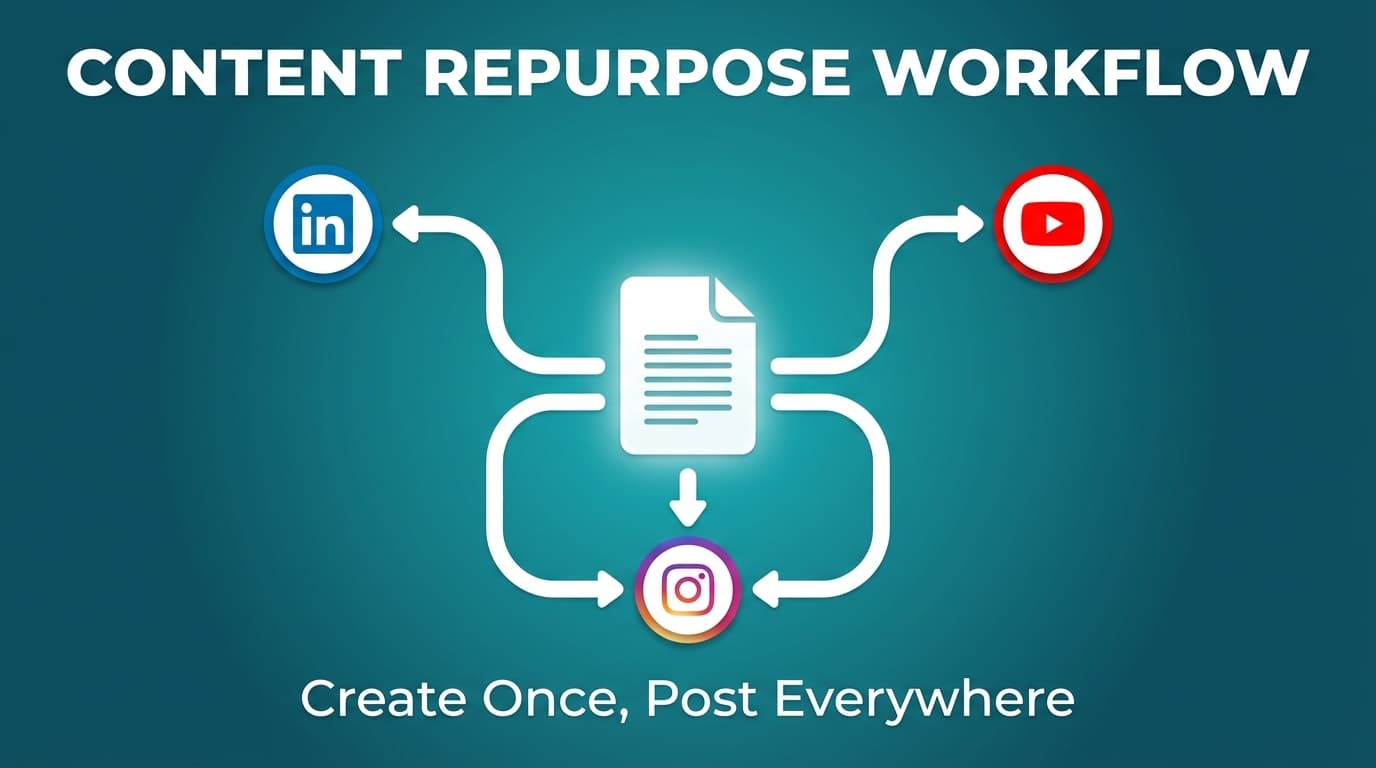
Workflow C: Repurpose one asset into 5 tweets
Start with: - a blog post - a webinar - a case study - a client win
Then create: 1. Key insight tweet 2. Contrarian takeaway 3. Checklist tweet 4. Short story/case result 5. Question to invite replies
Schedule across the week as a mini-series.
The pre-flight checklist (use this before you hit “schedule”)
Run this checklist on every scheduled post:
- [ ] Is the claim accurate and current?
- [ ] Could this be tone-deaf if news breaks?
- [ ] Does this need context (or will it confuse people)?
- [ ] If there’s a link: does it work? (open it)
- [ ] If there’s media: is it the right format and under size limits?
- [ ] Is the first line strong enough to stop the scroll?
- [ ] Did you schedule in the correct time zone?
If you manage multiple accounts: add
- [ ] Is this scheduled on the correct profile?
Key takeaways
- “Twitter schedule tweets” can mean desktop native scheduling, X Pro, X Ads scheduling, or a third-party scheduler. Choose the one that fits how you work.
- Use “best time to post” research (Sprout, Buffer, Metricool) as a starting point, then run a simple 2-week timing test.
- Build a repeatable system: content pillars → batching → scheduling → engagement blocks.
- Respect platform limits, especially video ≤ 512MB (X developer docs).
- If you use PostQuickAI for X: you can schedule text, up to 4 images, or video, and native threads where each part publishes as a linked reply.
FAQ (People Also Ask–style)
Do scheduled tweets get less views on Twitter (X)?
There’s no universal rule that scheduled posts inherently get fewer views. Many marketers argue consistency and good timing matter more than whether you clicked “schedule.”
If you do see lower performance, it’s often because scheduled content is more promotional or because the account isn’t engaging after posting. The scheduling itself usually isn’t the cause.
A relevant discussion: Buffer addresses this question broadly and argues scheduling doesn’t inherently reduce engagement.
Source: https://buffer.com/resources/scheduled-posts/
Where do I find my scheduled tweets on Twitter (X)?
Most guides instruct you to look in your Drafts area and then open the Scheduled tab/list. Sprout Social’s guide describes using the “Scheduled Posts” link that routes you to Drafts with a Scheduled tab.
Source: https://sproutsocial.com/insights/how-to-schedule-tweets/
Can you schedule tweets on mobile?
Many users report the native schedule option isn’t consistently available in the standard mobile experience, and several guides state native scheduling is available on desktop web. Some workflows may be available through X Pro depending on your setup.
Sources:
- Sprout guide (desktop availability): https://sproutsocial.com/insights/how-to-schedule-tweets/
- Brandwatch guide includes “Scheduling posts on mobile (X Pro only)” section: https://www.brandwatch.com/blog/how-to-schedule-posts-on-x/
Can I edit a scheduled tweet?
Usually, yes. Scheduled posts can be edited before they go live (the UI may require opening the scheduled item from your scheduled list and editing). If you can’t edit directly, the common workaround is: delete the scheduled post and reschedule a corrected version.
How do I delete a scheduled tweet?
Adweek outlines a common approach: open the scheduled tweets list from the composer (calendar icon → scheduled), then edit/delete the scheduled item.
Source: https://www.adweek.com/performance-marketing/twitter-heres-how-to-delete-a-scheduled-tweet-on-twitter-com/
Why can’t I schedule tweets?
Common reasons: - You’re trying to schedule on mobile where the option may not appear - You’re not in the right interface (desktop web vs Ads vs X Pro) - Account restrictions or UI changes
Try desktop scheduling first, then consider X Pro or a third-party scheduler.
Can you automate Twitter posts?
Yes, scheduling is a form of automation. Automate the publishing, but keep the conversation human: show up to reply, quote-tweet, and join in.
Next step (if you want a cleaner workflow): If you’re looking for a calendar-based way to schedule and auto-publish X posts (text, up to 4 images, or video), you can use PostQuickAI’s X scheduler: /x-scheduler. For pricing and the 7-day free trial details, see /pricing.