What is Post Bridge and How Does It Work? Complete Guide for 2026
Learn what Post Bridge is and how it works for cross-posting content across social media platforms. Features, benefits, and alternatives.

Author
If you’ve ever posted the same video to TikTok, Instagram, YouTube Shorts, and X/Threads, you already know the pain: export → upload → write caption → add hashtags → publish → repeat. Multiply that by several accounts or clients, and posting turns into a full-time job.
That’s why people search “what is post bridge and how does it work”: they want a faster, repeatable way to publish everywhere without juggling five separate apps.
Social is big enough that distribution matters:
- There were 5.04 billion social media user identities at the start of 2024, 62.3% of the world’s population.
Source: https://datareportal.com/reports/digital-2024-deep-dive-5-billion-social-media-users - The “typical” social media user spends 2 hours and 23 minutes per day on social platforms.
Source: https://datareportal.com/reports/digital-2024-deep-dive-the-time-we-spend-on-social-media - In HubSpot’s 2024 survey, 25% of social media marketers said YouTube provided the highest ROI in the past year.
Source: https://blog.hubspot.com/marketing/state-of-social-media - Sprout Social reports 68% of consumers follow brands on social to stay informed about new products or services.
Source: https://sproutsocial.com/insights/social-media-interaction/ - Sprout Social also states that 76% of people say social media (ads, influencer posts, brand content, etc.) has influenced some percentage of their purchases.
Source: https://sproutsocial.com/insights/impact-of-social-media-on-business/
This guide covers: - What Post Bridge is (and what it’s designed to do) - How Post Bridge works behind the scenes (OAuth, cross-posting mechanics, limitations) - A step-by-step setup + posting workflow you can copy - Best practices to avoid duplicate-content issues and failed publishes - Common mistakes (and how to fix them fast) - Tools and alternatives, and what to look for depending on your workflow
What Is Post Bridge?
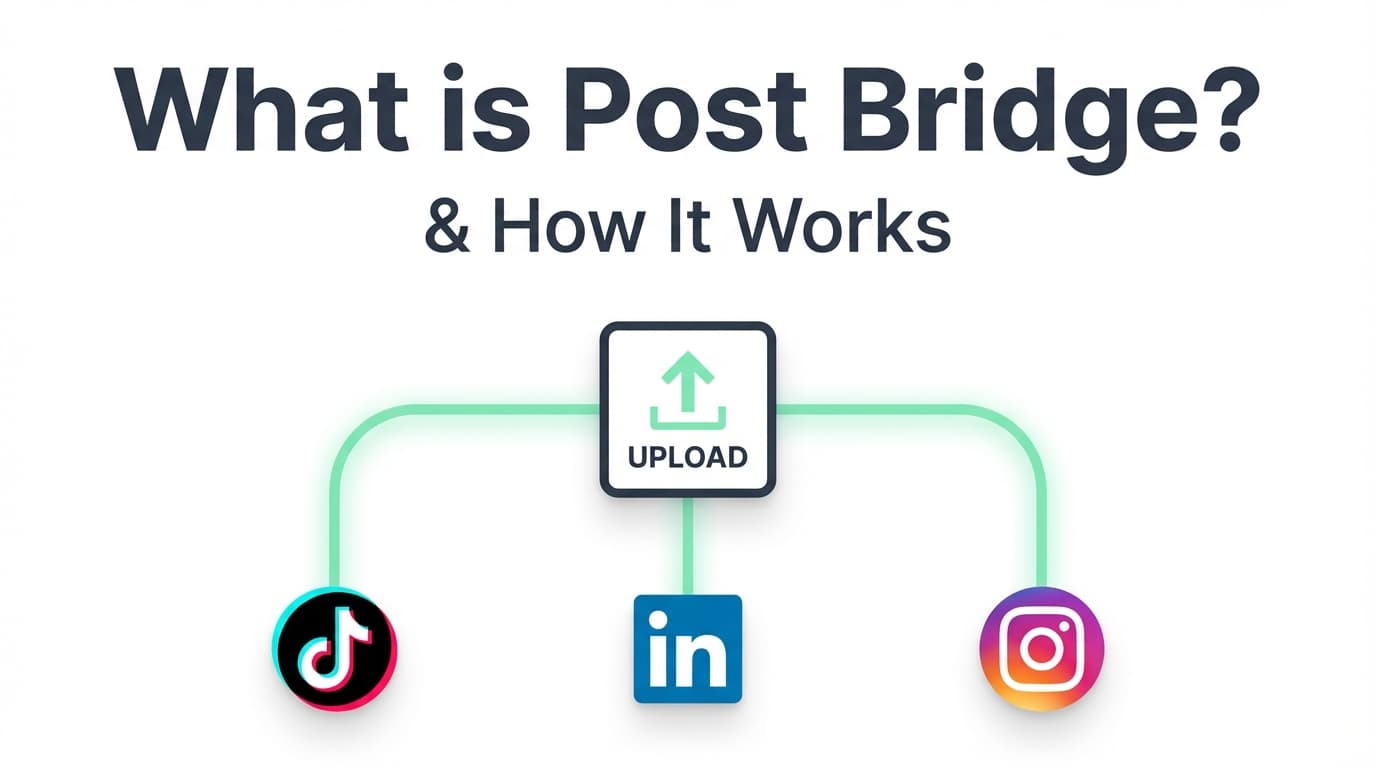
Post Bridge (often written as “PostBridge” or “post bridge”) is a social media scheduling tool built around cross-posting: you upload content once and then publish/schedule it across multiple connected platforms.
Instead of treating each network as a separate workflow, Post Bridge is designed to bridge your content from one upload to many destinations.
What Post Bridge is best for
From its public help docs and positioning, Post Bridge is typically used for:
- Cross-posting short-form video across multiple social platforms
- Scheduling content so it publishes later (so you can batch work)
- Connecting accounts securely via OAuth (no password sharing)
Post Bridge connects through official connections and permissions rather than asking for your passwords.
Post Bridge states it uses OAuth authentication to connect to social accounts without requiring your passwords.
Source: https://support.post-bridge.com/faq/how-post-bridge-connects-to-your-social-media-accounts
What “Cross-Posting” Means
Before you decide whether Post Bridge fits, it helps to define what cross-posting is.
- Buffer defines cross-posting as sharing the same content across multiple social platforms.
Source: https://buffer.com/social-media-terms/cross-posting - SocialPilot similarly defines cross-posting as sharing a post/image/video from one platform to another, manually or through tools.
Source: https://www.socialpilot.co/social-media-terms/cross-posting
Good cross-posting is rarely pure copy/paste. The best results usually come from one core asset + platform-specific packaging (caption, hook, hashtags, title, thumbnail, timing).
Why Post Bridge (and Cross-Posting Tools) Matter in 2026
1) Your audience is not on one platform anymore
Even if you’re “TikTok-first,” people still discover you through Instagram Reels, YouTube Shorts, Threads/X, LinkedIn, and niche networks.
People spend about 2h23 a day on social, and where you post is the part you control.
2) Consistency drives growth
Most teams have enough ideas. They stall because posting by hand is too much work to keep up.
A cross-posting tool makes posting a routine: - batch creation - scheduled distribution - fewer last-minute uploads
3) Social content impacts business outcomes
If 76% of people say social influences their purchases (Sprout), showing up consistently affects revenue as well as brand awareness.
How Does Post Bridge Work? (A Clear, Non-Technical Explanation)
Post Bridge works like most scheduling tools, with the emphasis on “upload once → distribute everywhere.” In short:
- You connect accounts (Instagram, TikTok, etc.) using OAuth authorization.
- You upload content into Post Bridge (uploading the file itself, rather than linking to a video hosted elsewhere).
- You select destinations (which platforms to publish to).
- Post Bridge posts/schedules via official APIs (per their documentation).
- You handle platform restrictions like duplicate-content limitations and per-platform rules.
Post Bridge describes its automatic cross-posting as distributing your content to multiple connected platforms when you upload once and connect accounts.
Source: https://support.post-bridge.com/social-media-connections/how-post-bridge-handles-cross-posting-to-multiple-platforms
How Post Bridge Connects to Your Accounts (OAuth + Permissions)
Post Bridge states it uses OAuth, which is the standard authorization method used by major platforms.
Why OAuth matters
OAuth typically means: - You don’t give the tool your password. - You can revoke access later from the platform side. - Permissions are scoped (e.g., publish content, read profile basics).
Post Bridge’s help center explains OAuth and the connection process.
Source: https://support.post-bridge.com/faq/how-post-bridge-connects-to-your-social-media-accounts
If posting fails, it’s often a permissions issue (expired token, revoked permissions, wrong account connected) rather than a broken scheduler.
How Post Bridge Handles Cross-Posting (What Actually Happens When You Upload)
Post Bridge’s documentation emphasizes that:
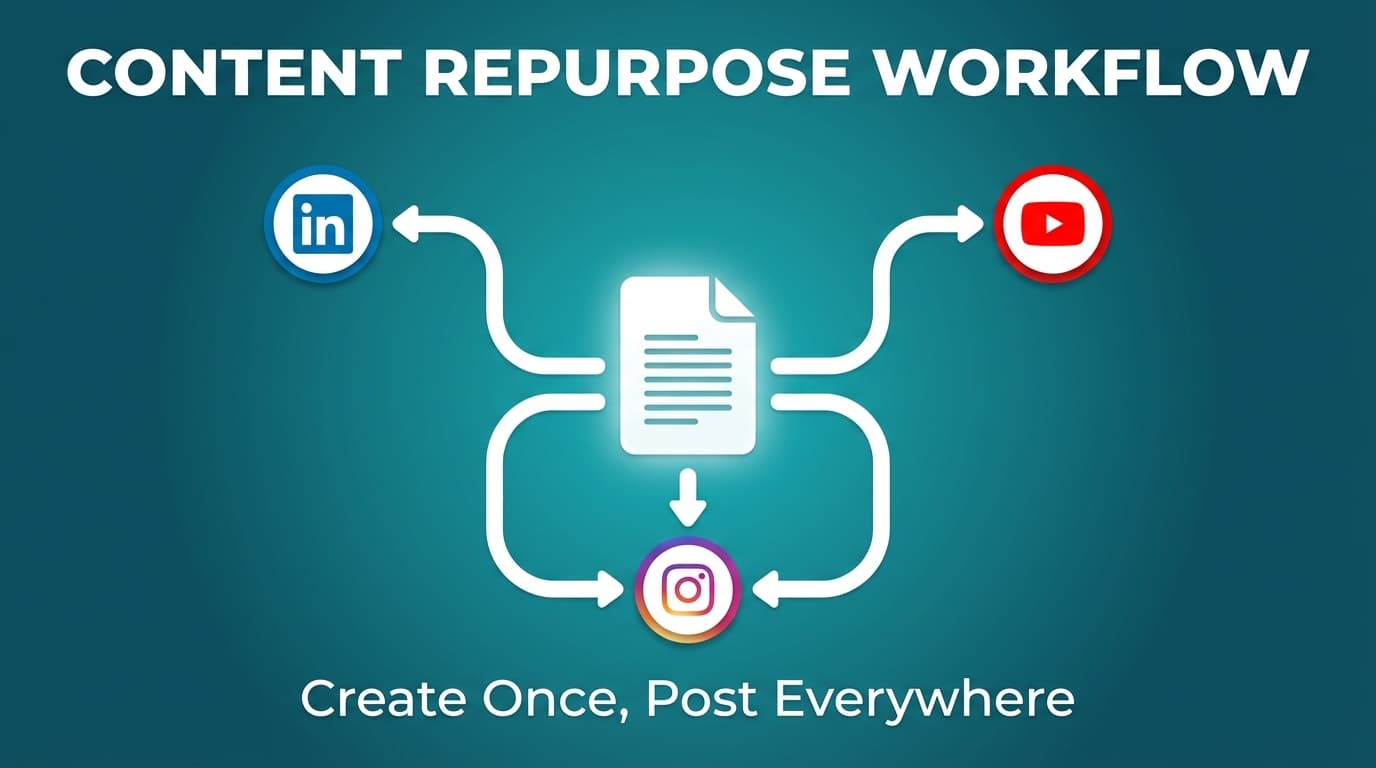
- Cross-posting is triggered when you upload content directly to Post Bridge.
- Post Bridge then distributes the uploaded content to connected platforms.
That “upload directly” detail matters. In many schedulers, linking to a video hosted somewhere else can behave differently from uploading the actual file.
Step-by-Step: How to Use Post Bridge (Setup → Publish → Schedule)
This walkthrough is written for the most common use case: a creator, founder, or agency manager who wants to post the same core content across multiple networks quickly.
Step 1: Connect your platforms (using OAuth)
- Log into Post Bridge.
- Choose “Connect” for each platform you want to publish to.
- Complete the OAuth permission flow (you’ll be redirected to the platform and back).
Pro tip: Use a browser profile where you’re already logged into the correct social accounts to avoid connecting the wrong handle.
Troubleshooting shortcut: If you get repeated errors, disconnect/reconnect and confirm permissions on the platform side.
Step 2: Create one “master post” (media + message)
Start with a single master asset: - a short-form video (most common) - or an image/carousel, depending on your workflow
Then add: - a master caption - your CTA
Pro tip: Write three caption variants: - Short: 1–2 lines + minimal hashtags (TikTok/Reels vibe) - Medium: punchy + conversational (Threads/X) - Structured: more context + credibility (LinkedIn, YouTube description)
Even if Post Bridge enables posting everywhere quickly, your results usually improve when the packaging matches the platform.
Step 3: Upload content directly to Post Bridge
Post Bridge’s cross-posting documentation notes content must be uploaded directly for automatic cross-posting.
Source: https://support.post-bridge.com/social-media-connections/how-post-bridge-handles-cross-posting-to-multiple-platforms
Pro tip: Keep a “clean export” master file (no watermark) so you can cross-post without looking recycled.
Step 4: Select destinations (which platforms/accounts to post to)
This is where many users get tripped up: platforms have restrictions, especially on posting identical content across several accounts.
Post Bridge’s help center states: you can post to multiple platforms simultaneously, but you’re limited to one account per platform for each post.
Source: https://support.post-bridge.com/social-media-scheduling/social-media-platform-posting-limitations-multiple-accounts-and-duplicate-content
That means your workflow typically becomes: - one post → one Instagram account - one post → one TikTok account - etc.
(Exact behavior can change, so always verify inside your account.)
Step 5: Schedule vs “post now” (and when to do each)
Post now is great for: - timely trends - announcements - reactive content
Schedule is better for: - batching work (record once, post all week) - consistency (posting even when you’re busy) - avoiding “I forgot to post” gaps
Pro tip: If you’re cross-posting the same video, consider staggering publish times across platforms (e.g., TikTok first, Reels later) to reduce the “spammy mirror” effect.
Step 6: Monitor failures and fix fast
Common cross-posting failure causes: - expired permissions (OAuth tokens) - wrong connected account - platform upload constraints - duplicate-content restrictions - missing required settings (varies by platform/tool)
Your fastest fix loop: 1. Re-check destination selection 2. Reconnect account 3. Verify media format requirements (ratio, duration, file size) 4. Adjust caption/metadata and reattempt
Post Bridge Limitations You Should Know
Post Bridge openly documents limitations that are important for agencies and multi-account operators:
- One account per platform per post limitation (as noted above)
- Guidance about multiple accounts and duplicate content restrictions
Why these limitations exist
Platforms restrict automation, and tool providers have to protect their API access. Blasting identical content across 20 accounts can put at risk: - your accounts - the tool’s platform permissions
Build variation into your workflow. It protects you and usually improves performance too.
Post Bridge Pricing and Paid Plans
Post Bridge has an official pricing page. When we checked, it showed: - plan pricing (e.g., “Creator” and “Pro” tiers appear on the pricing page) - paid plans mention (including “View plans”)
Source: https://www.post-bridge.com/pricing
Post Bridge API add-on pricing (from their help center)
Post Bridge offers an API and documents pricing for it:
- Standard rate: $5/month add-on (in addition to your plan subscription)
Source: https://support.post-bridge.com/api/post-bridge-api-overview-access-and-pricing
If you’re considering Post Bridge for automations (e.g., WordPress → social posting), this API pricing detail matters.
Post Bridge API: What It Is and When You’d Use It
Post Bridge provides an API for automation workflows. Their help center frames it as enabling automation of posting and management tasks, with official API usage.
Source: https://support.post-bridge.com/api/post-bridge-api-overview-access-and-pricing
Who the API is for
Common use cases (in general) include: - auto-posting when a blog goes live - connecting internal tools - agencies building custom workflows
If you’re non-technical you may never touch the API, but it matters if you want publishing built into your own systems.
Examples: 3 Cross-Posting Workflows
Example 1: Solo creator (Shorts/Reels/TikTok distribution system)
Goal: Turn 1 video into 4 posts across platforms with minimal extra work.
Workflow: 1. Record 1 short (9:16). 2. Export a clean version (no watermark). 3. Create 3 caption variants (short/medium/structured). 4. Upload once, distribute across platforms. 5. Schedule follow-up posts: - Day 1: TikTok + IG Reels - Day 2: YouTube Shorts - Day 3: Threads/X teaser linking back to the video idea
Why it works: you spread the posts out over a few days instead of reposting the same thing everywhere at once.
Example 2: Agency manager (multi-client, fewer mistakes)
Goal: Publish consistently across client channels without manual posting.
Workflow: 1. Standardize per-client “content pillars” (3–5 topics). 2. Batch produce weekly assets per client. 3. Use a checklist per platform: - video length rules - aspect ratios - caption style 4. Schedule one week ahead, with a review gate. 5. Use variations for near-duplicate posts (caption + hook).
Why it works: fewer last-minute mistakes, and you can post more without things getting messy.
Example 3: WordPress publisher (blog → social automation)
Goal: Automatically post whenever a new article publishes.
Options: - Use Post Bridge API (if you have dev resources) - Use an integration (e.g., a plugin) that connects via API key
A publicly listed WordPress plugin describes connecting to the Post Bridge API using an API key to fetch profile IDs and send WordPress posts.
Source: https://wordpress.org/plugins/post-bridge-social-poster/
10 Best Practices for Post Bridge (and Any Cross-Posting Scheduler)
These best practices combine vendor-documented constraints (where applicable) and widely recommended cross-posting guidance.
1) Customize captions by platform (at least the first line)
Iconosquare recommends customizing captions because platforms have different tones and conventions.
Source: https://www.iconosquare.com/blog/6-best-practices-for-cross-posting-on-social-media
Rule of thumb: change your first line + CTA, even if the video is the same.
2) Avoid “same second, same caption, same hashtags” publishing
It can look spammy to users and may trigger platform scrutiny.
Safer alternative: stagger publishing times and vary copy.
3) Keep a clean master export (no watermark)
Watermarks make content feel recycled, and on some platforms they can reduce performance.
4) Build “variation templates” so you don’t reinvent copy
For example, create reusable templates: - “Hot take + why + question” - “3 steps + example + CTA” - “Mistake → fix → CTA”
5) Use scheduling to protect deep work time
If you’re spending 30–60 minutes/day just uploading, scheduling gives you that time back.
6) Sequence your content across platforms
Instead of posting the same asset everywhere, consider: - a teaser post on X/Threads - the full video on TikTok/Reels/Shorts - a text breakdown on LinkedIn
7) Keep platform-native formatting in mind
Even with tools, you still need to respect basics: - aspect ratio (9:16 for short-form) - titles (YouTube Shorts) - professional framing (LinkedIn)
8) Track what changes improve performance
Even simple notes help: - Which hook worked? - Which caption format got saves/comments? - Which platform drove profile visits?
(You don’t need a full analytics suite to start learning.)
9) Don’t over-automate community
Automate the posting, and reply to people yourself.
10) For multiple accounts, prioritize safety over speed
Post Bridge documents limitations around multiple accounts and duplicate content; work within those rules instead of trying to get around them.
Common Mistakes to Avoid (and How to Fix Them)
Mistake 1: Trying to post identical content to multiple accounts on the same platform
Post Bridge documents restrictions related to duplicate content and multiple accounts.
Source: https://support.post-bridge.com/social-media-scheduling/social-media-platform-posting-limitations-multiple-accounts-and-duplicate-content
Fix: Keep the same core asset, but vary: - the first 1–2 seconds (text overlay) - caption first line - hashtags - publishing time
Mistake 2: Connecting the wrong account (especially for agencies)
If you’re logged into multiple handles, it’s easy to authorize the wrong one.
Fix: Use dedicated browser profiles (or a clear account naming convention) for each client.
Mistake 3: Assuming “it posted” means “it posted correctly”
Sometimes the post goes live but: - caption formatting breaks - hashtags don’t match platform norms - thumbnail/title looks wrong
Fix: Always do a quick QA pass on each platform (especially for paid/brand-sensitive content).
Mistake 4: Scheduling without a content calendar
Scheduling random posts faster still produces random results.
Fix: Create a weekly plan: - 3–5 content pillars - 2–3 formats (tips, story, proof, behind-the-scenes) - a consistent cadence
Mistake 5: Ignoring platform-native engagement
If you publish and disappear, you lose early traction.
Fix: Block 10 minutes after posting to reply and pin key comments.
Tools to Help With Cross-Posting
No tool is best for everyone. Pick the one that fits your workflow.
Tool option 1: Post Bridge (cross-posting + scheduling + optional API add-on)
Use Post Bridge if your priority is “upload once → distribute everywhere” with documented OAuth connections and cross-posting behavior.
Useful docs: - OAuth: https://support.post-bridge.com/faq/how-post-bridge-connects-to-your-social-media-accounts - Cross-posting behavior: https://support.post-bridge.com/social-media-connections/how-post-bridge-handles-cross-posting-to-multiple-platforms - Multiple accounts/duplicate content: https://support.post-bridge.com/social-media-scheduling/social-media-platform-posting-limitations-multiple-accounts-and-duplicate-content - API add-on pricing ($5/month): https://support.post-bridge.com/api/post-bridge-api-overview-access-and-pricing
Tool option 2: PostQuickAI (multi-platform scheduling + AI writing helpers)
If your workflow needs both publishing and writing support, PostQuickAI is built for creating and scheduling posts across multiple supported platforms, with AI tools that help draft and rewrite content.
What PostQuickAI can do: - Schedule and auto-publish posts server-side (so posts can publish even if you’re offline). - Multi-platform publishing for the same post.
Supported platforms/content types in PostQuickAI:
- Instagram: Feed single image, carousel, video posts, Reels and Stories.
- TikTok: Photo posts (requires 2+ images) and video posting (requires TikTok settings).
- YouTube: Video publishing (YouTube text/image posts are not supported).
- X (Twitter): Text, image (up to 4), video, and native thread publishing (linked reply chain).
- Threads: Text, single image, carousel (up to 10 images), video.
- Bluesky: Text, images (up to 4), video.
- LinkedIn: Text, single image, multi-image, and video; you must choose profile vs company page target (no silent default).
Note: LinkedIn documents/polls/newsletters/articles are not supported.
- Facebook Pages: Text, images, and Page video/Reel publishing (Facebook Groups are not indicated as supported).
AI features in PostQuickAI: - An assistant in the composer that drafts captions and, on request, changes tone, proofreads, or shortens (as suggestions you accept or discard) - AI image generation - AI video caption generation from video content - AI video generation for short clips (credit-based)
Pricing:
- PostQuickAI is a paid subscription with a 7-day free trial on your first plan (card required). Plans start at $15/month.
It also offers separate free public tools (no signup) like caption/hashtag tools, but the scheduler is not a free plan.
Explore: - Compare PostQuickAI vs Post Bridge: /comparisons/postbridge - See the scheduler hub: /social-media-scheduler - Pricing: /pricing
Other tools you may see in “Post Bridge alternatives” lists
Depending on your needs, you may also evaluate: - Buffer (widely known for scheduling workflows) - Hootsuite (enterprise-oriented) - Open-source/self-host options (e.g., Postiz appears in alternative lists)
A crowdsourced alternatives directory lists tools like Buffer, Hootsuite, and Postiz as alternatives.
Source: https://alternativeto.net/software/post-bridge/
How to Choose the Right Tool (A Quick Checklist)
Use this checklist to decide between Post Bridge and alternatives.
Choose Post Bridge if you want:
- A cross-posting-first workflow (“upload once → distribute”)
- Documented OAuth connections and cross-posting behavior
- Optional API add-on for automation (documented at $5/month add-on)
Consider an alternative (like PostQuickAI) if you want:
- Scheduling + AI tools to draft/rewrite captions (and keep brand voice consistent)
- Broad multi-platform publishing support with clear platform-specific constraints
- A paid plan starting at $15/month and a 7-day free trial on your first plan, card required (plus separate free public tools)
No matter what tool you choose, validate:
- Supported platforms you actually use
- Media types you publish most (video vs image vs carousel)
- Team/agency requirements (multiple accounts, approval flow, QA)
- Reliability + error handling (what happens when a publish fails?)
Key Takeaways
- Post Bridge is a social media scheduling tool centered on cross-posting: upload once and distribute to multiple connected platforms.
- Post Bridge states it uses OAuth to connect accounts (no passwords required) and documents its cross-posting behavior in its help center.
- Post Bridge documents real operational limits like one account per platform per post and guidance about duplicate content.
- Post Bridge offers an API add-on priced at $5/month (in addition to the subscription), documented in its help center.
- For teams who want help writing faster (captions, tone rewrites, concise versions) alongside multi-platform scheduling, PostQuickAI is an alternative with paid plans starting at $15/month.
FAQ (People Also Ask)
Is Postbridge free?
Post Bridge’s pricing page references paid plans (e.g., “View plans” as shown on the pricing page).
Source: https://www.post-bridge.com/pricing
Plans can change, so check the official pricing page for a current free option.
What is a post bridge?
In this context, “Post Bridge” refers to a social media scheduling/cross-posting tool, not a physical bridge term. It’s designed to help you upload content once and publish/schedule it across multiple platforms.
What is Postbridge known for?
Post Bridge is primarily positioned around fast cross-posting and simple scheduling, based on its website and help center documentation.
Sources:
- https://www.post-bridge.com/
- https://support.post-bridge.com/social-media-connections/how-post-bridge-handles-cross-posting-to-multiple-platforms
How does Post Bridge connect to your social media accounts?
Post Bridge states it connects using OAuth authentication so you don’t need to share passwords, and you retain control over access.
Source: https://support.post-bridge.com/faq/how-post-bridge-connects-to-your-social-media-accounts
How does Post Bridge handle cross-posting to multiple platforms?
Post Bridge states it automatically distributes your content to connected platforms when you upload content directly to Post Bridge and have accounts connected.
Source: https://support.post-bridge.com/social-media-connections/how-post-bridge-handles-cross-posting-to-multiple-platforms
Can I post to multiple accounts on the same platform using Post Bridge?
Post Bridge documents restrictions and notes you can post to multiple platforms simultaneously but are limited to one account per platform for each post.
Source: https://support.post-bridge.com/social-media-scheduling/social-media-platform-posting-limitations-multiple-accounts-and-duplicate-content
What is the Post Bridge API and how much does it cost?
Post Bridge documents an API offering and states pricing as a $5/month add-on (in addition to your plan subscription).
Source: https://support.post-bridge.com/api/post-bridge-api-overview-access-and-pricing
What’s the safest way to cross-post without hurting performance?
Use one core asset, but adjust the wrapper: - customize the first line of the caption - tailor hashtags to each platform - vary publish times (stagger) - keep a clean master export (no watermark)
This aligns with common cross-posting best practices that emphasize customization.
Example source: https://www.iconosquare.com/blog/6-best-practices-for-cross-posting-on-social-media