Schedule Posts From Google Drive to Instagram, TikTok and YouTube Shorts
Paste a Google Drive file or folder link and see every video and image in it. Pick what to copy into your library, then schedule it to Instagram, TikTok, YouTube Shorts, Facebook, LinkedIn, X, Threads and Bluesky.
Your editor drops this week's videos in a shared folder. You bring them in with one link and plan the week.
7-day free trial, then from $15/month. Card required. Cancel before it ends and you pay nothing.
How to Schedule Posts From Google Drive
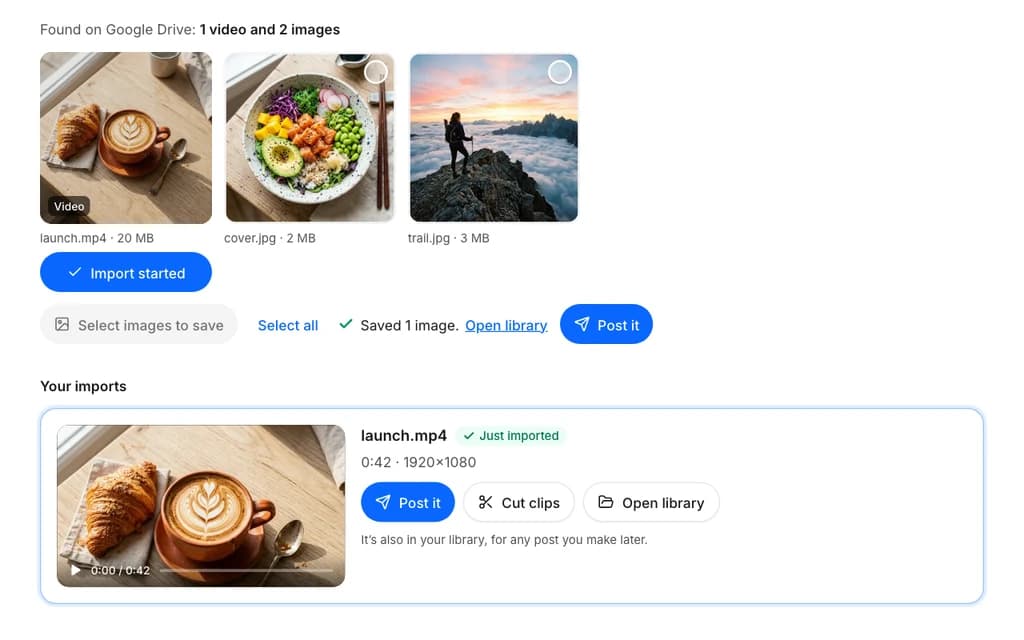
- 1
Paste a Drive link
Copy the share link of a file or a whole folder in Google Drive and paste it on the import page.
- 2
Preview and pick
You see every video and image in it, with names and sizes. Import the videos you want and select the images to save. They are copied into your library.
- 3
Schedule
Open them in a post, ask the assistant for a caption, tick your networks and pick a time. Our servers publish it then.
From Google Drive to Instagram, TikTok and Six More Networks
An imported video can go to several networks in one post. Several imported images open as a carousel.
Why We Copy the File Instead of Linking to It
Posts Don't Depend on Drive
A post scheduled for next month still goes out if someone moves the file, stops sharing the folder, or Drive limits downloads of a busy file.
Networks Get a Real Video File
A network that fetches a Drive link gets Google's web page, not your video, and the post fails. TikTok also only pulls videos from addresses verified for the app, so it fetches from ours.
Which Google Drive Links Work
Links
- A file:
drive.google.com/file/d/<ID>/view - A folder:
drive.google.com/drive/folders/<ID> - Sharing: set to “Anyone with the link”
Limits
- Folders: the 50 newest videos and images, without subfolders
- Videos: up to 500 MB and 30 minutes
- Images: up to 10 MB each
Only import videos and images you made or have permission to use.
More Ways to Fill Your Library
Public Posts and Web Pages
The same import page takes a link to a public post on X, TikTok, Instagram, Facebook or Pinterest and brings in its video or photos. Paste any other web page to save the images on it.
Cut Long Videos Into Clips
Trim an imported video or cut several clips from it in vertical, square or wide. Press Suggest clips and the AI picks moments worth posting. Each clip is saved as its own file. More on clipping.
Automate Google Drive Posting Without Building a Workflow
You don't need to build a workflow that downloads from Drive and re-uploads to each network. Three API calls do it:
POST /v1/media/imports/previewwith the Drive link lists the files, each with its ownimportUrl.POST /v1/media/importswith a video'simportUrlstarts copying it.GET /v1/media/jobs/{jobId}until it is ready, then use its URL in a scheduled video or story.
Prefer to ask an AI assistant? The PostQuickAI MCP server, set up with an API key, gives Claude and other MCP clients the same import and clip tools.
Read the import API docsQuestions About Importing From Google Drive
Yes. Paste the share link of a Drive file or folder, import the videos and images you want, and schedule them as a Reel, a Story, a carousel or a single-image post.
Yes. Import the video from its Drive link, then tick TikTok in the video composer and pick a time. The same post can also go to Instagram Reels and YouTube Shorts.
No. We only read files and folders you have shared as "Anyone with the link". We never ask you to sign in to Google Drive.
No. Importing copies the file into your PostQuickAI library, and your posts use that copy. You can delete or unshare the Drive file afterwards.
The preview shows the folder's 50 newest videos and images. Files inside subfolders are not listed, so paste the subfolder's link on its own. You import videos one at a time and save images up to 10 at a time.
Videos can be up to 500 MB and 30 minutes long. Images can be up to 10 MB. Larger files still show in the preview, marked with the reason they can't be imported.
Yes. Imported videos, images and the clips you cut from them count against your plan's storage. Deleting an import frees its space.
Plans start at $15/month, and every plan includes importing from Google Drive. Your first plan starts with a 7-day free trial (card required).
Plan the Week From One Drive Folder
Paste the folder link, pick this week's videos and images, and schedule them in one sitting.