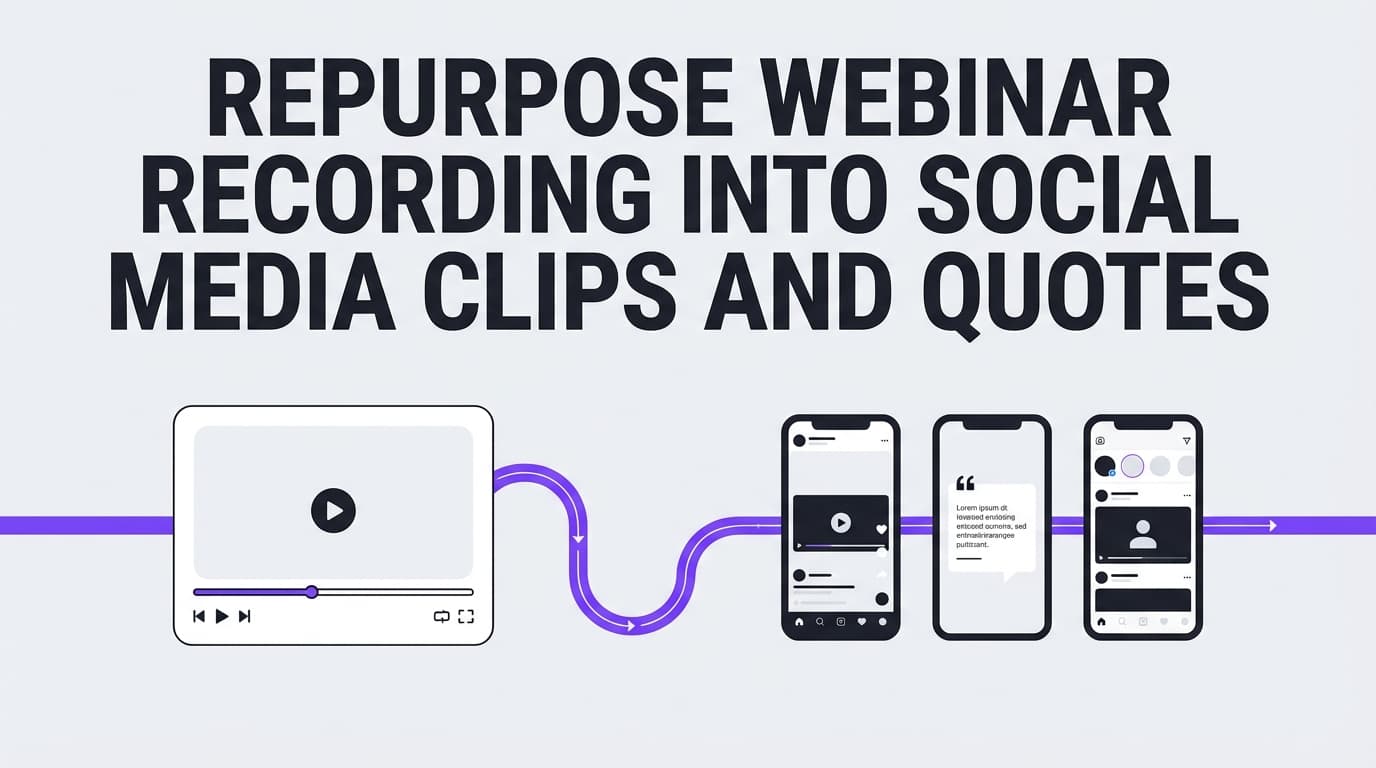
Repurpose Webinar Recording into Social Media Clips and Quotes: Complete Guide for 2026
Learn how to repurpose webinar recordings into social media clips, quotes, and posts. Turn one 60-minute webinar into 30+ pieces of content. 2026 guide.

Author
Don’t treat a webinar replay as an extra. For many webinars, that’s where a large share of the viewing happens.
MarketingCharts reports that 45% of attendees chose to watch webinars on-demand on average (up from 44% in 2023 and 43% in 2022).
Source: https://www.marketingcharts.com/industries/business-to-business-235324
At the same time, teams are under pressure to produce more social content without burning out. HubSpot’s marketing statistics page notes that 48% of social media marketers share similar or repurposed content across platforms with minor modifications, compared with 34% who make unique content for each platform.
Source: https://www.hubspot.com/marketing-statistics
So treat your webinar recording as raw material and pull out the pieces that work in feeds: short clips and quote-based posts.
This guide covers: - A step-by-step workflow to repurpose a webinar recording into social media clips and quote graphics - How to build a Clip Map so you don’t waste hours hunting for timestamps - Clip length guidance backed by marketing benchmarks (and what to post where) - Quote card templates, caption formulas, and a 30-day distribution plan - Tool recommendations, including how PostQuickAI can schedule and publish what you make
What does it mean to “repurpose a webinar recording into social media clips and quotes”?
It means turning one long-form webinar recording (often 30–90 minutes) into multiple short, platform-native assets, typically:
- Short video clips (15–90 seconds) that communicate one idea
- Quote posts (text-only) pulled directly from the webinar
- Quote graphics / quote cards (a memorable line designed as an image)
- (Optional) carousel summaries (key steps, FAQs, frameworks)
Posting the replay link everywhere isn’t the goal. You repackage the best moments so people can watch them in the feed, then decide to watch the replay or take the next step.
Why repurposing webinars matters in 2026 (with stats you can cite)
1) On-demand viewing makes the recording one of your main assets
MarketingCharts’ on-demand figure (45% on average) shows that a large share of webinar viewing happens after the live event.
Source: https://www.marketingcharts.com/industries/business-to-business-235324
2) Short-form clips match how marketers say video performs best
Wyzowl’s 2024 “State of Video Marketing” results report that 39% of marketers say 30–60 seconds is the most effective video length.
Source: https://wyzowl.com/sovm-results-2024/
That’s about right for a clip that makes one point.
3) People watch with sound off, so captions matter
Two commonly referenced data points influence how you should edit and package clips:
- Digiday reported that as much as 85% of Facebook video is watched without sound, citing multiple publishers.
Source: https://digiday.com/media/silent-world-facebook-video/ - 3PlayMedia cites a Facebook internal study: captions can boost video view time by 12% on average.
Source: https://www.3playmedia.com/blog/captions-increase-viewership-for-facebook-video-ads/
Practical takeaway: edit for silent viewing by default (burned-in captions, strong on-screen text, no tiny screen-share text).
4) Very short video can improve completion on LinkedIn
Sprout Social notes: LinkedIn says a video under 30 seconds has a 200% lift in completion rates for brand awareness and consideration.
Source: https://sproutsocial.com/insights/video-length-best-practices/
So it’s worth cutting micro-clips (<30s) as well as 60–90 second teaching edits.
5) Repurposing is how many teams keep up with publishing volume
HubSpot’s stat that 48% of social media marketers repurpose across platforms with minor changes suggests it’s already normal. If your team isn’t doing it, you’re competing with teams that are.
Source: https://www.hubspot.com/marketing-statistics
What other webinar repurposing guides cover
Guides from Wistia, Univid, Airmeet, Descript and others share a few themes: - Turn webinars into clips, blogs, emails, and social posts - Use Q&A moments and key takeaways - Distribute beyond the live audience - Create a repeatable system, not one-off edits
Descript’s guide is the most thorough (and long), with a lot on AI-assisted workflows and repurposing strategy.
Source: https://www.descript.com/blog/article/webinar-repurposing
This guide sticks to clips and quotes, the pieces that work in feeds, with: - a Clip Map template - a moment scorecard - quote card design rules grounded in accessibility guidance (WCAG/Section508) - platform packaging guidance + a 30-day posting calendar
The repurposing workflow (bird’s-eye view)
The steps:
- Define the outcome (what the repurposed content should drive)
- Create a Clip Map (timestamps + themes + moment types)
- Select moments with a scorecard (so you don’t clip everything)
- Produce 3 clip cuts per moment (micro, standard, deep)
- Generate quotes + quote cards from each moment
- Package for each platform (same idea, different framing and specs)
- Schedule a 30-day distribution plan
- Measure and recycle winners (turn your best moment into multiple formats)
How to repurpose a webinar recording into social media clips and quotes (step-by-step)
Step 1: Start with a clear “what are we selling/teaching?” statement
Before you clip, write a single sentence:
“This webinar helps [audience] achieve [result] by [mechanism/framework].”
Example:
“This webinar helps B2B marketers generate more demand by turning one webinar into a month of short-form clips and quote-led posts.”
Use it as a filter: moments that don’t support this promise come second.
Pro tip: If you’re an agency running repurposing as a deliverable, define: - the client’s primary audience segment (and what they care about) - the CTA (replay page, demo, consultation, newsletter, etc.) - the tone (authoritative, tactical, contrarian, etc.)
Step 2: Build your Clip Map
A Clip Map is a spreadsheet that makes clipping systematic.
Clip Map columns (copy this into a sheet)
- Timestamp start
- Timestamp end
- Topic
- Moment type (Hook / Framework / Quick win / Mistake / Objection / Proof / Story / Q&A)
- “Money line” (exact quote)
- What’s the viewer takeaway?
- Best clip length (micro / standard / deep)
- Best platform(s)
- Notes (visuals needed? b-roll? slide shown?)
How to fill it quickly without rewatching everything in real time
- Watch at 1.5x–2x speed
- Drop a row anytime you hear:
- a strong contrarian claim (“Everyone does this wrong…”)
- a numbered framework (“There are three parts…”)
- a measurable statement (“We saw a 12% lift…”)
- a clear mistake (“Don’t do X… do Y…”)
- a punchy line that would work as a quote card
Step 3: Use a moment scorecard
Not all segments deserve a clip. Use a simple scorecard (0–2 points each):
1) Standalone clarity (does it make sense without the full webinar?)
2) Specificity (examples, steps, numbers, strong claim)
3) Hook strength (first 1–2 seconds can grab attention)
4) Relevance (fits your ICP’s pain points)
5) Emotion (surprise, relief, urgency, conviction)
Interpretation: - 8–10 = must-clip - 6–7 = optional (maybe use as text/quote) - <6 = leave it for long-form (blog/email), not social
Step 4: Cut 3 versions of each moment (micro, standard, deep)
You get more posts out of each moment without lowering quality.
Micro clip (15–25 seconds)
Best for: quick consumption, high completion potential
Use when: the moment has a strong punchline
Standard clip (30–60 seconds)
Best for: “single teaching point” clips
Supports Wyzowl’s 2024 benchmark where 30–60 seconds is most effective according to 39% of marketers.
Source: https://wyzowl.com/sovm-results-2024/
Deep clip (60–90 seconds)
Best for: one concept + example + “what to do next”
Use when: you need a bit more context to avoid misunderstanding
Step 5: Edit for silent viewing (captions + on-screen context)
If viewers are watching without sound (commonly cited for Facebook) and captions can lift view time (3PlayMedia), edit for people watching on mute first.
Muted-first checklist: - Burned-in captions (the player’s auto captions aren’t enough) - A headline in the first second (3–7 words) - Remove dead air and filler - If a slide is shown, zoom into the key part (screen shares are often unreadable on mobile)
Supporting sources: - Silent viewing (Facebook): https://digiday.com/media/silent-world-facebook-video/ - Captions lift view time: https://www.3playmedia.com/blog/captions-increase-viewership-for-facebook-video-ads/
Step 6: Extract quotes (the “quote bank” method)
While you clip, build a quote bank in a doc or sheet. Create headings like:
- Mistakes
- Rules of thumb
- Contrarian takes
- Definitions
- Framework steps
- Proof/metrics
- Objections (and responses)
- Audience Q&A
For each quote, capture: - Exact quote - Timestamp - Speaker name/title - One-line context (“when does this apply?”)
This makes quote cards and text posts easy to generate later.
Step 7: Turn quotes into quote cards that are readable on mobile
Quote cards fail when they’re hard to read or too generic.
Quote card design rules (so they’re legible)
Use accessibility and typography guidance as your baseline:
- Prefer high contrast and legible type (Section508 provides guidance on typography and accessibility considerations).
Source: https://www.section508.gov/develop/fonts-typography/ - Follow WCAG contrast guidance for text legibility (WCAG 2.2 is the standard reference).
Source: https://www.w3.org/TR/WCAG22/ - Practical “design it fast” guidance for quote graphics (Canva guide is helpful operationally).
Source: https://www.canva.com/learn/how-to-design-a-creative-quote-for-social-media/
Quote card structure (simple and effective)
1) Main quote (8–18 words) 2) Context line (what it’s about / who it’s for) 3) Attribution (speaker name + brand) 4) (Optional) CTA line (“Full replay link in comments”)
Step 8: Write captions that convert (3-part formula)
The clip delivers the idea; the caption gets people to act.
Caption formula:
1) Hook (pain, surprise, contrarian line)
2) Context (what the clip explains)
3) CTA (comment, click, save, share, replay)
Example (LinkedIn): - Hook: “Posting your replay link once isn’t distribution.” - Context: “Here’s the clip framework we use to turn a webinar into 20–50 assets without losing the thread.” - CTA: “Want the Clip Map template? Comment ‘CLIP MAP’.”
Step 9: Package for each platform (clips + quotes + specs)
Video specs and aspect ratios (practical guidance)
For platform specs and best practices, guides like Hootsuite and Sprout Social are useful references.
Sources:
- Hootsuite video specs guide: https://blog.hootsuite.com/social-media-video-specs/
- Sprout Social video specs guide: https://sproutsocial.com/insights/social-media-video-specs-guide/
In general for webinar clips: - 9:16 vertical performs best for Reels-style placements - 1:1 or 4:5 can work well for feed placements where vertical isn’t required - 16:9 is fine if your clip is screen-share heavy (but consider zooming/cropping for mobile)
Platform packaging suggestions (clip + quote)
LinkedIn
- Use: micro clips (<30s), standard clips (30–60s), quote cards, carousels
- Micro clips are supported by LinkedIn completion-rate claims cited via Sprout Social.
Source: https://sproutsocial.com/insights/video-length-best-practices/
Instagram - Use: vertical clips with captions; quote cards as feed posts; carousel summaries
Facebook (Pages)
- Use: 30–90s clips, quote cards, discussion-starting text posts
- Lean hard into captions due to silent viewing and cited view-time improvements.
Sources: Digiday, 3PlayMedia (above)
X - Use: short clips + punchy text posts - Keep copy tight (single idea)
Threads - Use: short clips + quote cards + conversational text prompts
Bluesky - Use: short clips + tight text posts + quote graphics
TikTok (important limitation) - If you’re scheduling with PostQuickAI: it publishes TikTok videos and photo carousels (2+ images), so webinar clips can go out as TikTok videos and quote cards as carousels.
The 30-day webinar clip + quote posting plan (copy/paste)
This plan assumes you extracted: - 12 “must-clip” moments (each with micro + standard) - 12 quote cards - 12 text-only posts
That’s 36 assets, enough for a month.
Week 1: Awareness + hooks
- Day 1: Micro clip #1 (bold claim)
- Day 2: Quote card #1 (same idea, different phrasing)
- Day 3: Text post #1 (mistake)
- Day 4: Micro clip #2 (quick win)
- Day 5: Quote card #2
- Day 6: Text post #2 (definition)
- Day 7: Standard clip #1 (teaching)
Week 2: Framework + education
- Day 8: Micro clip #3 (framework step 1)
- Day 9: Quote card #3 (rule of thumb)
- Day 10: Text post #3 (FAQ)
- Day 11: Micro clip #4 (framework step 2)
- Day 12: Quote card #4
- Day 13: Text post #4 (contrarian take)
- Day 14: Standard clip #2 (teaching + CTA)
Week 3: Objections + proof
- Day 15: Micro clip #5 (objection handling)
- Day 16: Quote card #5 (objection punchline)
- Day 17: Text post #5 (cost of not doing this)
- Day 18: Micro clip #6 (proof/metric)
- Day 19: Quote card #6
- Day 20: Text post #6 (mini case study)
- Day 21: Standard clip #3 (example + CTA)
Week 4: Recycling winners + replay push
- Day 22: Repost best micro clip (new hook)
- Day 23: Quote card of the best-performing moment
- Day 24: Text post: “3 takeaways from our webinar”
- Day 25: Micro clip #7 (new moment)
- Day 26: Quote card #7
- Day 27: Text post #7 (Q&A)
- Day 28: Standard clip #4 (deep teaching)
- Day 29: Compilation post (3 micro clips stitched or threaded)
- Day 30: “Replay is still relevant because…” post + CTA
Tip: If you manage multiple platforms, keep the idea consistent but rewrite the hook/CTA per platform.
Quote card templates (ready to use)
Template 1: “Contrarian truth”
Quote: Stop posting your webinar replay link once. That’s not distribution.
Context: Turn one webinar into clips + quotes + posts for 30 days.
Attribution: Name, Company
Template 2: “Rule of thumb”
Quote: If a clip needs a disclaimer, it’s not a clip.
Context: Pick moments that stand alone in the feed.
Attribution: Name, Company
Template 3: “Mistake callout”
Quote: Your recording isn’t the asset. Your highlights are.
Context: Extract moments people can consume in 30 seconds.
Attribution: Name, Company
Template 4: “Framework”
Quote: One webinar → (1) clips → (2) quotes → (3) a month of posts.
Context: Same ideas, packaged for each platform.
Attribution: Name, Company
Clip caption templates (LinkedIn, Instagram, X)
LinkedIn caption template (authority)
Hook: Most teams waste their best webinar moment.
Context: Here’s the simplest way to turn one recording into a month of useful posts.
CTA: Want the Clip Map template? Comment “CLIP MAP.”
Instagram caption template (save/share)
Hook: Save this if you’re sitting on a webinar replay.
Value: 3 ways to turn one webinar into clips + quote posts this week:
1) Pull 5 “mistake” moments
2) Cut each into 20s + 45s versions
3) Turn the punchline into a quote card
CTA: Share with your team.
X caption template (tight)
Posting the replay link once isn’t repurposing.
Clip the punchline, caption it, and you have 30 days of posts.
Common mistakes to avoid (and what to do instead)
Mistake 1: You clip “the setup,” not “the payoff”
Symptom: Your clip is 60 seconds of context and no conclusion.
Fix: Start with the outcome line first; then add 1–2 sentences of explanation.
Mistake 2: Your clips require the full webinar to understand
Symptom: Comments like “What does that mean?” from the wrong audience.
Fix: Use the scorecard and prioritize standalone clarity.
Mistake 3: Quote cards are unreadable on mobile
Symptom: Low engagement despite “good quotes.”
Fix: Design for legibility using accessibility typography guidance (Section508 / WCAG).
Sources:
- https://www.section508.gov/develop/fonts-typography/
- https://www.w3.org/TR/WCAG22/
Mistake 4: You post everywhere with identical copy
Symptom: “Meh” performance everywhere.
Fix: Keep the moment, change the hook and CTA per platform.
Mistake 5: You don’t recycle winners
Symptom: Constantly creating, rarely improving.
Fix: Turn one winning moment into:
- micro clip
- quote card
- text post
- carousel
- “3 takeaways” roundup
Tools to help you repurpose a webinar recording into clips and quotes
Editing + clipping tools
- Descript: strong for transcript-based editing and repurposing workflows (also publishes extensive repurposing strategy guidance).
Source: https://www.descript.com/blog/article/webinar-repurposing - OpusClip (and similar): AI-assisted highlight detection (review carefully; quality varies).
- Any NLE (Premiere/Final Cut/CapCut): best if you have editors and want full control.
Quote graphic tools
- Canva: fast quote templates and social sizing.
Source: https://www.canva.com/learn/how-to-design-a-creative-quote-for-social-media/
Scheduling + publishing tools (where PostQuickAI fits)
If your bottleneck is distribution (getting clips/quote cards out consistently), a scheduler helps you batch your month of posts in one sitting.
PostQuickAI can help you schedule and auto-publish posts across supported platforms, including video clips and quote graphics, with server-side scheduled publishing (posts can publish even if your browser is closed).
What it supports:
- Instagram: supports publishing feed videos, single-image posts, carousel image posts, and Stories.
/schedule-instagram-posts - LinkedIn: supports text, single image, multi-image, and video posts; targeting must be set correctly (personal vs organization).
/linkedin-scheduler - Facebook (Pages only): supports Page text, photos, multi-image posts, and video publishing.
/facebook-scheduler - X: supports text posts (280-character cap), images (up to 4), and video (512MB max enforced).
/x-scheduler - Threads: supports text, images, and video publishing (video is best-effort; may fall back to text if upload fails).
- Bluesky: supports text, images (up to 4), and video.
/bluesky-scheduler - TikTok: supports videos and photo carousels (carousels need 2+ images), so you can publish webinar clips as TikTok videos.
/tiktok-scheduler
Pricing: PostQuickAI is a paid product with plans starting at $15/month. Your first plan starts with a 7-day free trial (card required).
Free tools (no signup): - Caption generator: /tools/caption-generator - Hashtag generator: /tools/hashtag-generator
(These tools are free; the scheduler itself is paid.)
Key takeaways
- On-demand viewing is significant: MarketingCharts reports 45% of attendees watch webinars on-demand on average. (MarketingCharts)
- Marketers commonly repurpose content across platforms: HubSpot cites 48% doing so with minor modifications. (HubSpot)
- Clip length sweet spot: Wyzowl reports 39% of marketers say 30–60 seconds is most effective. (Wyzowl)
- Captions matter: Digiday reports heavy silent viewing on Facebook; 3PlayMedia cites +12% view time from captions. (Digiday, 3PlayMedia)
- Build a repeatable system: Clip Map → scorecard → micro/standard/deep cuts → quote bank → 30-day plan.
- If distribution is your bottleneck, use a scheduler to batch, cross-post, and publish consistently (and check each platform’s supported formats).
FAQ (from real SERP “People Also Ask” patterns)
How do you repurpose webinar content?
Create a Clip Map with timestamps, select the best standalone moments, cut them into short clips (15–60 seconds), extract quotes into text posts and quote cards, then schedule a multi-week distribution plan that points back to the replay or your CTA.
What is an example of repurposed content from a webinar?
A simple example: - 10 short video clips (20–60 seconds) - 10 quote cards (images) - 10 text-only posts (mistakes, frameworks, FAQs) - 1 compilation/recap post with the top takeaways
How long should webinar clips be for social media?
A practical range is 15–90 seconds depending on the platform and moment type. Wyzowl reports 39% of marketers say 30–60 seconds is most effective.
Source: https://wyzowl.com/sovm-results-2024/
How long should video clips be on LinkedIn?
Short clips often do well. Sprout Social reports LinkedIn’s claim that videos under 30 seconds can have a 200% lift in completion rates for awareness/consideration.
Source: https://sproutsocial.com/insights/video-length-best-practices/
Do webinar clips need captions?
If you want them to perform, yes. Many people watch with sound off (often cited for Facebook), and 3PlayMedia cites a Facebook internal study showing captions can increase view time by 12% on average.
Sources:
- https://digiday.com/media/silent-world-facebook-video/
- https://www.3playmedia.com/blog/captions-increase-viewership-for-facebook-video-ads/
How do you make quote graphics from a webinar transcript?
Pull a short, specific line (8–18 words), add a context line and attribution, then design for mobile readability (high contrast, legible font, plenty of whitespace). Use accessibility guidance as a baseline: - Section 508 typography guidance: https://www.section508.gov/develop/fonts-typography/ - WCAG 2.2: https://www.w3.org/TR/WCAG22/
How do you promote a webinar on social media after it’s over?
Promote the replay by posting: - micro clips with strong hooks - quote cards with punchy lines - a “top 3 takeaways” carousel - Q&A objection-handling posts Then add a clear CTA to the replay page (or the next step) and recycle the best-performing moments over 30 days.
Can I schedule webinar clips and quote posts in advance?
Yes. Batching and scheduling is one of the best ways to stay consistent. With PostQuickAI you can schedule and auto-publish videos and images to supported platforms (Instagram feed, LinkedIn, Facebook Pages, X, Threads, Bluesky, and TikTok videos and photo carousels). PostQuickAI requires a paid plan; plans start at $15/month.