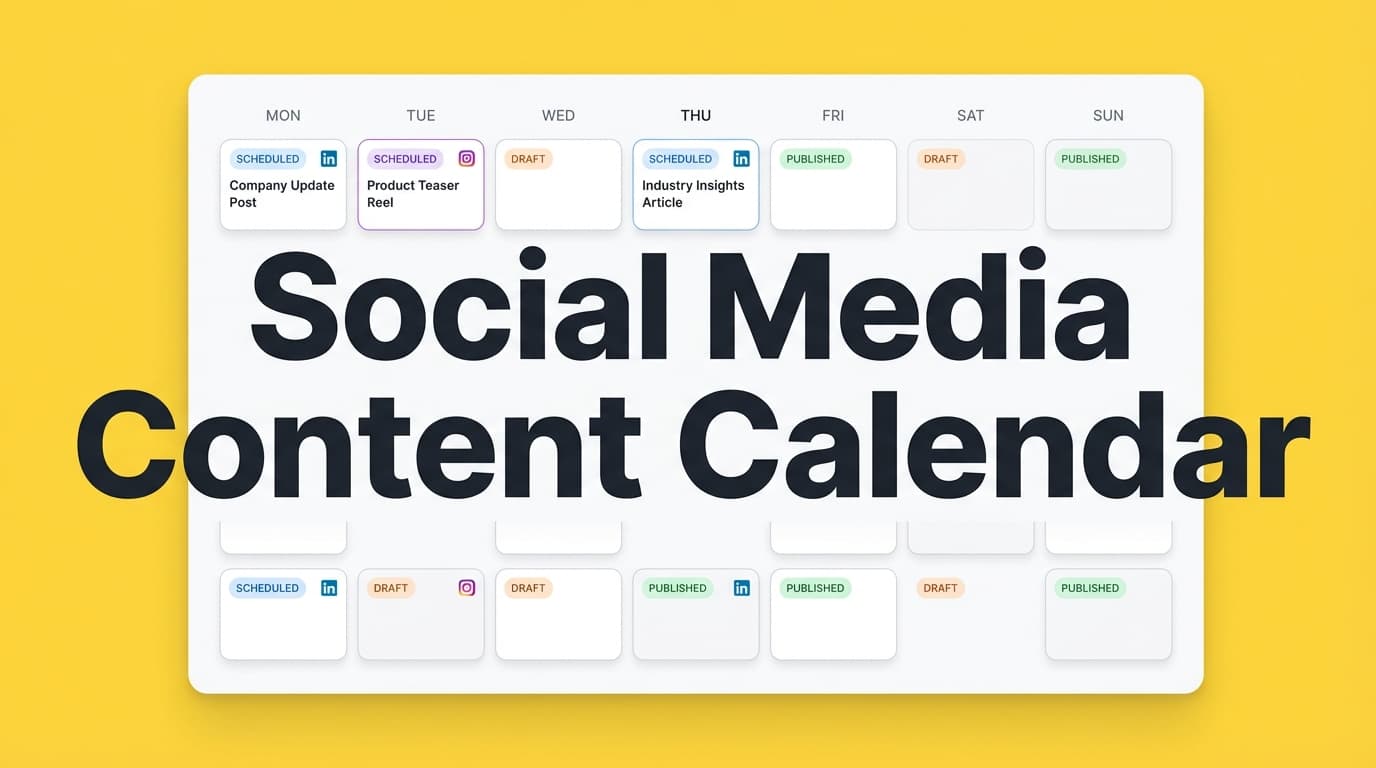
Social Media Content Calendar for Scheduled and Published Posts
A social media content calendar shows what’s going out and when, so you can plan ahead, spot empty weeks and post on a steady schedule across platforms.
Try it now →
Or Start free trial → (7-day free trial, then from $15/mo, card required).
What is a Social Media Content Calendar?
A social media content calendar is a month or week view of your posts, arranged by the date and time they publish. It replaces scattered notes, spreadsheets and last-minute reminders.
In PostQuickAI, the calendar reads from the posts you actually schedule and publish. You can:
- See scheduled content and published/posted content on the same calendar
- Keep standard posts and video posts in one place
- Filter by connected accounts/groups so you can focus on one brand or channel at a time
- Click any day to review what’s planned, open details, and make changes
If you’ve ever searched for “social media content calendar template,” you’ve probably seen lots of spreadsheets. Templates work, but they go out of date when nobody updates them. PostQuickAI’s calendar reads your scheduled and published posts, so it stays current.
How to Use PostQuickAI’s Social Media Content Calendar (Step-by-Step)
Step 1: Create your account (required)
Because the calendar shows your scheduled/published items and connected accounts, you’ll need an account to use it.
- Start free trial →
- PostQuickAI is paid (plans start at $15/month)
Step 2: Connect your social accounts
Connect the platforms you post to (e.g., X, Threads, Bluesky, LinkedIn, Instagram, Facebook Pages, TikTok, YouTube). Once connected, your scheduled items can publish server-side.
Tip: If you manage multiple brands or accounts, connect each one so they’re available for filtering in the calendar view.
Step 3: Create a post (or a video post)
Your calendar can include both:
- Standard posts (text / image / multi-image)
- Video posts (video-specific publishing flow)
Create your content manually or use the AI assistant in PostQuickAI’s composer (caption drafts, proofreading, tone changes, shorter rewrites, and custom edits that you accept or discard).
Step 4: Schedule a date/time
Choose the date/time you want it to publish and schedule it. Scheduled items will appear on the calendar under that day.
What you’ll see on the calendar:
- Scheduled items (planned to publish)
- Posted/Published items (already published)
- Failed items (if a publish attempt didn’t succeed)
Step 5: Review your month at a glance
Use the calendar controls to:
- Move between months (previous / next)
- Jump back to Today
- Scan for gaps (days with no content) or overloaded days
Step 6: Click a day to review details and open posts
Click any calendar day to open a side panel with that day’s items. From there you can:
- See a preview snippet of each item
- See status (Scheduled / Posted / Failed)
- See which platform(s) the item is associated with
- Open the item’s detail view to review/edit
Tip: Look for similar posts bunched together, such as three promos in a row, and spread them out.
Features of Our Social Media Content Calendar
Visual calendar view (scheduled + published)
The calendar lists your posts by date, so you can see what’s planned and what has already gone out, weeks or months ahead.
Status at a glance
Each calendar item is marked with its status:
- Posted/Published
- Scheduled
- Failed
Includes standard posts and video posts in one calendar
Regular posts and video posts appear side by side, so you can see how much video work each week holds.
Filter by connected account/group
A content group filter lets you look at one brand or client at a time, or all of them together.
Daily event panel (click a day to review everything on it)
Click any date to open a panel listing that day’s posts, with platform icons and a short preview.
Streak stats
The calendar shows your current streak, your longest streak and your total days with a post, so you can see how regularly you post.
Social Media Content Calendar Use Cases
For creators who want to schedule ahead
Pick a pace you can keep and schedule posts in advance, so you aren’t posting by hand each day.
Example: Schedule 4 posts/week and use the calendar to ensure you’re not skipping entire weeks.
For founders and small teams shipping while marketing
A calendar helps you map content to launches, updates, and campaigns.
Example: Plan a launch week with announcement → demo → FAQ → customer story spread across different days.
For agencies managing multiple brands
Filtering by content group keeps each client’s calendar separate and makes posting to the wrong account less likely.
Example: Switch between Brand A and Brand B views to spot gaps, then batch-create next week’s posts.
Why Choose PostQuickAI’s Social Media Content Calendar?
| PostQuickAI Calendar | Typical “Free” Calendar Templates / Spreadsheets |
|---|---|
| Connected to scheduled + published items | Goes out of date unless someone updates it |
| Shows item status (scheduled/posted/failed) | Manual checkboxes instead of real publish status |
| Includes video posts and standard posts | Usually just “planned ideas,” not actual scheduled posts |
| Filter by connected accounts/groups | Often requires separate sheets per brand |
| Posts publish from our servers at the scheduled time | Usually still requires manual posting or reminders |
Limits: PostQuickAI has no approval workflow, social inbox or comment and DM automation.
Related Tools
Explore more tools from PostQuickAI:
- Caption Generator: Generate caption options you can refine before scheduling.
- Hashtag Generator: Create hashtag sets for relevant platforms.
- Instagram Feed Planner: Preview a 3×3 grid layout before posting.
- Image Converter: Convert/resize images for easier posting workflows.
- Collage Maker: Create collages for multi-image posts.
FAQ
Is the Social Media Content Calendar really free?
No. The calendar is part of PostQuickAI, which needs a paid plan (from $15/mo). Your first plan starts with a 7-day free trial (card required).
Do I need to create an account to use it?
Yes. The calendar shows your scheduled/published items and connected accounts, so an account is required.
Will posts publish if my laptop is closed?
PostQuickAI supports server-side scheduled publishing, so scheduled posts can publish even if you’re offline.
Does PostQuickAI schedule Instagram Stories or Facebook Stories?
Yes. You can schedule and publish Instagram Stories and Facebook Stories, with images or video.
Can I schedule TikTok photo posts?
Yes. TikTok photo posts need at least 2 images.
Start Using the Social Media Content Calendar Now
PostQuickAI’s Social Media Content Calendar reads your scheduled and published posts, so what you see is what will actually go out.
FAQ
No. The calendar is part of PostQuickAI, which needs a paid plan (from $15/month). Your first plan starts with a 7-day free trial (card required).
Yes. The calendar shows your scheduled/published items and connected accounts, so an account is required.
PostQuickAI supports server-side scheduled publishing, so scheduled posts can publish even if you’re offline.
Yes. You can schedule and publish Instagram Stories and Facebook Stories, with images or video.
Yes. TikTok photo posts need at least 2 images.