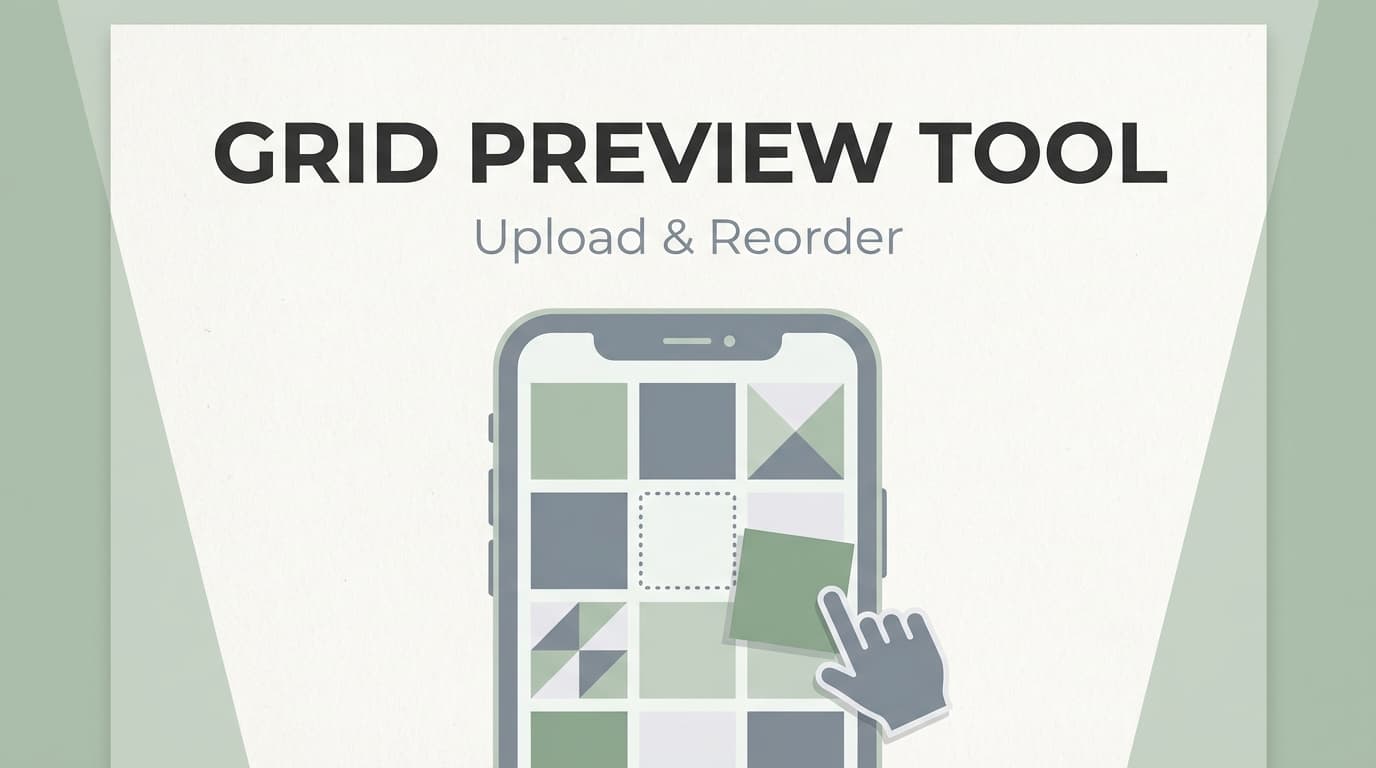
Instagram Grid Preview Tool: Upload and Reorder Photos Before You Post
This Instagram Grid Preview tool lets you upload photos, drag them into a new order and see how your next posts will look on a 3-column grid like your Instagram profile. Tile 1, at the top-left, is where your newest post appears.
What is an Instagram Grid Preview Tool?
An Instagram grid preview tool (also called an Instagram feed planner) lets you see your upcoming posts side by side before you publish them. You can check whether the next three photos clash with the last six and swap them until the top of your profile looks right.
This type of tool is useful for:
- Creators who want a consistent aesthetic (color palette, lighting, font styles)
- Brands planning product drops, launches, or campaigns in “rows of three”
- Social media managers who need to sanity-check variety (faces, products, quotes, UGC) before posting
How to Use PostQuickAI’s Instagram Grid Preview Tool
Step 1: Open the grid preview and choose your row count
Start by choosing how far ahead you want to plan using the Rows selector. You can preview 3–12 rows in a 3‑column grid.
- 3 rows = 9 tiles (classic “top of profile” view)
- 6 rows = 18 tiles (enough to plan a campaign)
- 12 rows = 36 tiles (plan further ahead)
Tip: If your grid is part of your brand, plan at least 6 rows so you can spot repetition (same background color, too many similar product angles, etc.).
Step 2: Upload photos into individual slots
Click any empty tile labeled Add image to add a photo from your device. It appears in that tile, so you can see it next to the photos around it.
Tip: Place your “anchor” visuals first (hero product shot, strongest portrait, or bold graphic), then fill around them.
Step 3: Add several images at once
Click Add images and select several files. They fill the empty tiles in order, starting from the top-left.
Tip: Load the next 5 photos you plan to post and check whether the top rows still look planned.
Step 4: Drag-and-drop to reorder your posts
To rearrange, drag a filled tile onto another tile to swap them, or use the arrows on a tile to move it one place. Use this to try patterns like:
- Checkerboard (alternating photo and quote tiles)
- Row-by-row themes (each row has a color or topic)
- Balanced variety (faces vs. products vs. graphics)
Tip: Plan in full rows of 3, so each row can share a theme.
Step 5: Clear the grid anytime
Click Clear grid to empty the preview. If you clear it by mistake, undo it right away.
Note: The tool doesn’t save or export your grid. If you like a layout, take a screenshot so you can follow the posting order later.
Features of Our Instagram Grid Preview Tool
Upload photos into a 3‑column grid
Add images one tile at a time and see them as square tiles, the way a profile grid shows them. Clashing colors or repeated shots are easy to spot before you post.
Drag-and-drop reorder (swap tiles)
Drag one tile onto another to swap them. If one post looks out of place in the top row, moving it is often enough.
“Newest posts first” grid behavior
Tile 1 sits at the top-left, where Instagram shows your newest post, so you plan in the order visitors see.
Preview 3 to 12 rows
Choose anywhere from 3 to 12 rows, so you can see up to 36 tiles when planning a launch or collection.
Free, no signup required
The grid preview tool is free and needs no account, so you can start right away.
Instagram Grid Preview Tool Use Cases
For creators who want a consistent aesthetic
Preview your next 9 to 18 tiles to check that your profile looks planned. For example:
- Add your next 9 photos
- Drag to alternate bright/dark or warm/cool tones
- Ensure you don’t have three similar backgrounds in a row
For small businesses planning product drops
Use the preview to build a “launch row” sequence:
- Teaser
- Product feature
- Social proof / testimonial
Repeat the pattern over 2 or 3 rows so the launch reads as one campaign on your profile.
For agencies and social media managers
When assets come from multiple stakeholders, grid preview helps you avoid:
- Too many graphics back-to-back
- Repetitive angles (e.g., same product shot 3 times)
- Visual imbalance (no faces, no context shots, no whitespace)
Why Choose PostQuickAI’s Instagram Grid Preview Tool?
| Our Tool | Other Free Tools |
|---|---|
| No signup required | Many require creating an account |
| Drag-and-drop reordering | Varies by tool |
| Preview 3–12 rows | Many show only a 3×3 preview |
| Only the grid, nothing else on screen | Some bundle the grid into a larger app |
Related Tools
Explore more free tools from PostQuickAI:
- AI Caption Generator: Generate captions with tone options and optional emojis/hashtags.
- Hashtag Generator: Generate hashtag sets based on topic/category/platform.
- Image Converter: Convert and resize images (useful for 1080×1080 or 1080×1350 prep).
- Photo Collage Maker: Build simple collages and export a PNG (useful for grid-style designs).
FAQ
Is this Instagram Grid Preview tool really free?
Yes. This grid preview tool is free to use with no signup required.
If you want to schedule and auto-publish Instagram feed posts, that’s part of PostQuickAI’s paid scheduler (7-day free trial on your first plan with a card, then plans start at $15/month).
Do I need to create an account?
No. The tool works without an account.
Can I schedule posts from this grid preview tool?
No. This tool is for previewing and reordering your planned photos. Scheduling is part of the paid PostQuickAI scheduler.
Can I save my layout?
No. The tool doesn’t save your images, so take a screenshot of the grid if you want to keep a layout.
How many posts can I preview at once?
You can preview 3 to 12 rows, which is 9 to 36 tiles.
Start Using the Instagram Grid Preview Tool Now
Upload your photos and move them around until the grid looks the way you want, then post in that order.
FAQ
Yes. This grid preview tool is free to use with no signup required. If you want to schedule and auto-publish Instagram feed posts, that’s part of PostQuickAI’s paid scheduler (7-day free trial on your first plan with a card, then plans start at $15/month).
No. The tool works without an account.
No. This tool is for previewing and reordering your planned photos. Scheduling is part of the paid PostQuickAI scheduler.
No. The tool doesn’t save your images, so take a screenshot of the grid if you want to keep a layout.
You can preview 3 to 12 rows, which is 9 to 36 tiles.