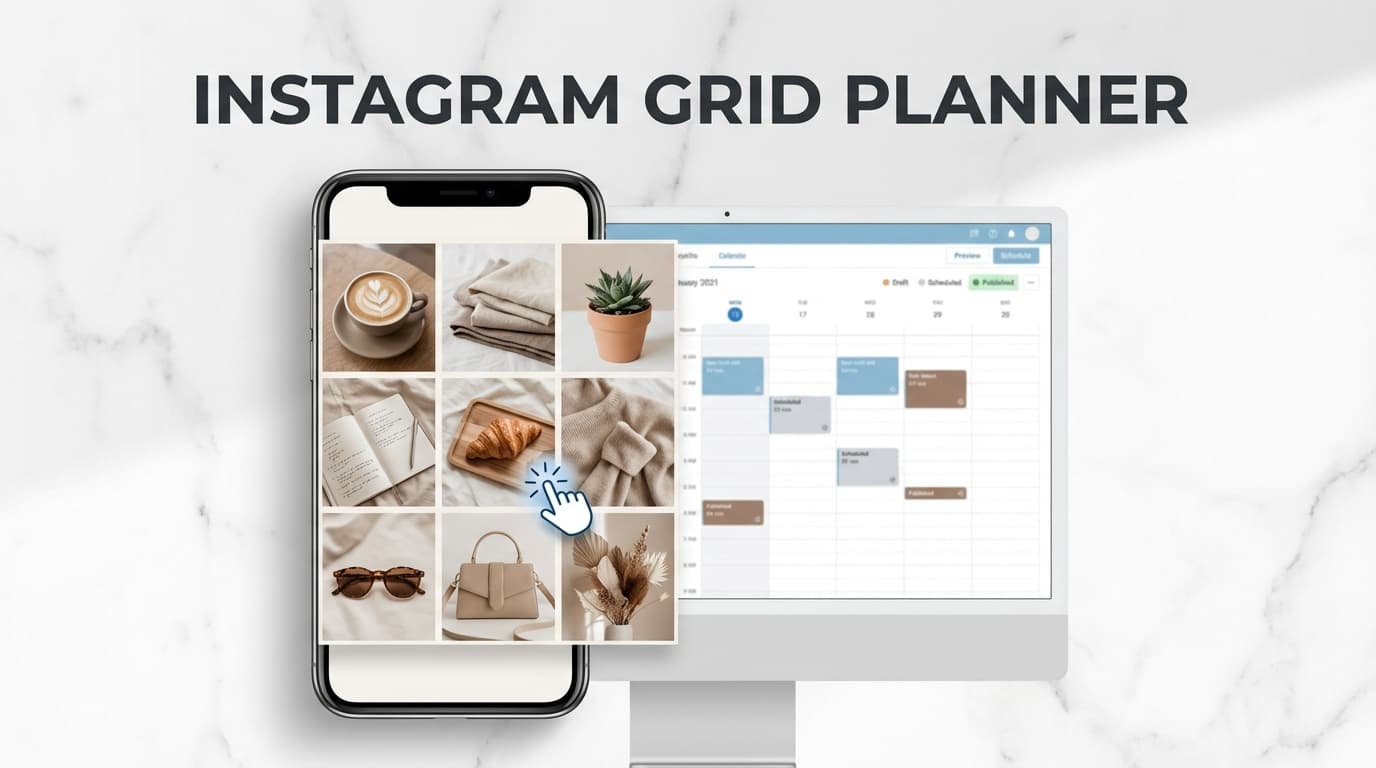
Instagram Grid Planner With Post Preview And Captions

Instagram Grid Planner with Post Preview & Captions

Need post preview and caption generation? PostQuickAI offers individual post previews plus an AI Caption Generator that creates 3 caption variations for every post.

Preview your posts before scheduling. Generate engaging captions with AI. Auto-publish server-side.

Post Preview AI Captions Hashtags Auto-Publish

Plans start at $8/month · 7-day free trial included

Preview & Caption Features

Post Preview

See how posts will look before scheduling:

  • Preview image/video with caption
  • See carousel slides in order
  • Check formatting before posting

AI Caption Generator

Generate captions automatically:

  • 3 caption variations per request
  • Tone controls (casual, professional, etc.)
  • Length controls (short to long)

How the AI Caption Generator Works

Skip writer's block. Generate engaging captions in seconds.

1

Describe Your Post

Enter your topic, product, or describe what's in your image/video. The more detail, the better the captions.

2

Choose Tone & Length

Select your preferred tone (casual, professional, humorous, inspirational) and caption length (short, medium, long).

3

Get 3 Variations

The AI generates 3 different caption options. Pick your favorite or use as inspiration.

4

Edit & Schedule

Customize the caption as needed, preview your post, then schedule for auto-publishing.

AI Hashtag Generator

Generate Relevant Hashtags

The AI Hashtag Generator analyzes your content and creates 5-50 relevant hashtags organized by category:

Niche Hashtags

Tags specific to your industry or content type

Trending Hashtags

Popular tags to boost discoverability

Community Hashtags

Tags to reach engaged communities

Content Types You Can Schedule

Feed Posts

Single image with preview and AI caption

Carousels

Up to 10 images, preview all slides

Reels

Video preview with AI caption

A Note on Grid Preview

PostQuickAI focuses on individual post preview and scheduling rather than visual grid preview (seeing how multiple posts look together in a 3x3 grid). For visual grid planning, many creators use a dedicated grid preview tool alongside PostQuickAI for scheduling and AI captions.

Beyond Instagram

AI captions and scheduling work across all platforms:

Pricing

Start with a 7-day free trial including AI captions:

$8/mo

Basic

$20/mo

Pro

See Full Plan Details

Full Guide

Instagram Grid Planner with Post Preview and Captions

If you’ve ever posted a great photo… then realized it breaks your grid (or you can’t think of a caption), you’re exactly who this is for.

PostQuickAI gives you a simple, practical workflow for instagram grid planning with post preview and captions:

1) Preview your Instagram grid with a drag-and-drop Instagram Feed Planner (web tool).
2) Generate captions (3 options at a time) with tone + length controls, and generate hashtags.
3) When you’re ready, schedule and auto-publish Instagram feed posts, carousels, and Reels from PostQuickAI (paid plans with a 7-day free trial).

Start with the grid preview: /tools/instagram-feed-planner
Generate captions: /tools/caption-generator
Schedule on Instagram: /instagram-scheduler


Why Choose PostQuickAI for an Instagram Grid Planner with Post Preview and Captions?

Most “grid planners” solve only one part of the problem:

  • Some tools help you preview the grid, but don’t help you write.
  • Some tools help you write, but don’t help you see the feed as a whole.
  • Some tools do everything, but can feel heavy when you just want a fast preview + solid captions.

PostQuickAI is built around a simple, high-intent workflow: visual planning + caption readiness + optional scheduling.

What you can do (and what you can’t)

You can: - Preview a 3‑column Instagram grid (and plan multiple rows ahead). - Drag-and-drop to reorder your next posts. - Generate 3 caption options at a time with controls for: - platform (Instagram, LinkedIn, TikTok, X, etc.) - tone (Professional, Casual, Funny, Inspirational, Educational, etc.) - length (short/medium/long) - include emojis / hashtags / CTA toggles - Generate hashtags for Instagram (including choosing up to 30 hashtags in the tool). - Schedule and auto-publish to Instagram: - Single-image feed posts - Carousel posts (multi-image) - Video feed posts - Reels (published via an external publishing service used for Reels delivery)

You can’t (in PostQuickAI): - Schedule Instagram Stories (not supported). - “Save layouts” directly inside the grid preview tool as a built-in feature (the planner is designed as a quick preview tool). - Expect unlimited public-tool generations per hour: the Caption Generator tool is rate-limited (and the Hashtag Generator tool is rate-limited).


The Fastest Way to Plan Your Grid and Finish Captions

Here’s the workflow that matches how creators and small brands actually batch content.

Step 1: Drop your images into the Instagram Grid Preview

Go to: /tools/instagram-feed-planner

Inside the tool you can: - Upload images directly into grid slots - Drag-and-drop posts to reorder the layout - Add multiple images at once using “Add Recent (top)” to quickly fill your newest slots first - Choose how far ahead you want to plan by changing Rows (so you’re not stuck planning only a 3×3)

How the preview behaves: newest posts appear top-left and push older posts down, matching typical Instagram profile grid behavior.

Privacy note: the grid preview tool loads your files locally in your browser (it’s a visual preview tool—no IG login required just to preview).

Step 2: Generate caption options (then edit to sound like you)

Go to: /tools/caption-generator

Pick: - Platform: Instagram - Tone: e.g., Casual, Educational, Storytelling, Promotional - Length: short / medium / long - Toggle: include emojis, include hashtags, include CTA

Then generate 3 different caption options. Choose the best one, copy it, and tweak the opening line to match the visual you’re placing in your grid.

Tip: keep your first 1–2 lines strong. Those lines do the “scroll-stopping” job.

Step 3: Generate hashtags that match the post (and your niche)

Go to: /tools/hashtag-generator

Choose: - Topic - Category (e.g., Business, Fashion, Food, Travel, Fitness, etc.) - Platform: Instagram - Hashtag count: up to 30 (Instagram max)

Generate a mix, then copy all hashtags as a set (or copy individual ones).

Step 4: Schedule and auto-publish when you’re ready (optional, but powerful)

When your grid looks right and your captions are ready, use the PostQuickAI scheduler:

PostQuickAI scheduled publishing runs server-side, so your posts can publish even if your computer is off.


Key Features for “Instagram Grid Planner with Post Preview and Captions”

Feature What It Does Why It Matters
Instagram Feed Planner (Grid Preview) Drag-and-drop preview of a 3-column grid Prevents “oops” posts that break your feed aesthetic
Multi-row planning Change Rows to preview more than 3×3 Plan launches, series, and themed rows ahead of time
Add Recent (top) Bulk add images to the newest slots Faster batching when you already have content ready
AI Caption Generator Generates 3 caption options with tone/length controls Helps you publish consistently without staring at a blank caption box
Hashtag Generator Generates hashtags; supports up to 30 for Instagram Faster discovery + consistent niche targeting
Instagram scheduling + auto-publish (paid) Schedule and auto-publish feed posts, carousels, videos, and Reels Your content goes out on time—even when you’re offline

What Makes a Great Grid Preview (So Your Feed Looks Intentional)

A grid planner isn’t about perfection. It’s about control: - control of pattern - control of pacing - control of brand consistency - control of what a new visitor sees in the first 3 seconds

Below are practical grid rules you can apply immediately with a post preview tool.

The “First 9 Posts” rule (why 3×3 matters)

Most people decide whether to follow from your top rows. Planning your next 9 posts helps you: - avoid clumps of the same content type - distribute promotions evenly - keep covers cohesive (especially carousel covers)

If you’re doing a launch, plan more than 9—use extra rows to preview what the feed will look like after the launch push.

5 grid layout patterns you can plan with a preview tool

These are patterns you can execute without any fancy design system—just consistency.

1) Checkerboard content types

Alternate between two content types (example: photo vs quote graphic). - Works well for educators and personal brands - Helps your grid feel “organized” even with mixed visuals

2) Row-by-row themes (campaign rows)

Each row of 3 posts shares a theme: - Row 1: awareness/education - Row 2: proof/trust - Row 3: offer/promo

This is especially useful if you publish in batches (e.g., every Monday you schedule 3–6 posts).

3) Column structure (your content pillars)

Assign each column a purpose: - Left column: tips - Middle column: personal / BTS - Right column: offers / case studies

The result feels cohesive even if colors vary.

4) Color flow (limited palette)

Pick 2–3 brand colors and repeat them across covers, backgrounds, or props. - Great for product brands - Great for creators with a signature style

5) “Hero post” anchors

Place your strongest visuals as anchors in the grid: - top-left (newest first impression) - middle of row (often draws attention) - bottom-right (sets up the next row)

A grid preview helps you position those hero posts intentionally instead of leaving it to chance.


Caption Planning That Matches Your Grid (Not Generic “Caption Ideas”)

Your keyword includes captions, so let’s be direct: captions should complement the visual sequence you’re planning.

When your grid is: - visually consistent → captions can vary (short vs long) to add rhythm
- visually varied → captions should be more consistent to avoid “chaos”

The 3 caption frameworks that work across most Instagram niches

Framework A: Hook → Value → CTA (best for carousels)

Use when: you’re posting educational content or carousel covers.

Template: - Hook: 1–2 lines that create curiosity
- Value: 3–7 lines (or bullets)
- CTA: save / share / comment / follow

How the PostQuickAI Caption Generator helps:
Generate 3 variations, then choose the hook that best matches the cover you placed in your grid preview.

Framework B: Story → Lesson → Relatable question

Use when: the visual is personal, behind-the-scenes, or a brand moment.

Template: - Story: what happened (keep it specific) - Lesson: what you learned - Question: invite a response

How to make it feel real:
Add one concrete detail (a number, a moment, a customer quote, a mistake you fixed).

Framework C: Short caption + strong CTA (best for visual-first posts)

Use when: the image is doing most of the work.

Template: - One sentence insight or emotion - One line CTA

Examples of CTAs: - “Save this for your next batch day.” - “Comment ‘GRID’ and I’ll share my template.” - “Which one would you post next—1, 2, or 3?”

Use tone intentionally across your planned grid

If you’re planning 9 posts at once, don’t write 9 captions in the same tone.

A simple tone map: - 3 posts: Educational - 3 posts: Casual / Storytelling - 2 posts: Engaging (questions, prompts) - 1 post: Promotional

PostQuickAI’s Caption Generator lets you pick the tone before generating, so you can intentionally vary your captions across the grid.

Caption length: match the goal

  • Short (1–2 lines): maximize readability and speed (great for strong visuals)
  • Medium (3–5 lines): balanced (great for tips, BTS, product angles)
  • Long (6+ lines): deeper story or positioning (great for founders, coaches, educators)

If you batch content weekly, a reliable rhythm is: - 4 short captions - 3 medium captions - 2 long captions


How PostQuickAI’s “Post Preview + Captions” Workflow Beats Common Alternatives

Alternative 1: Preview-only grid tools

Many grid preview tools are great for drag-and-drop layout—but you still have to open another tab to: - write captions - generate hashtags - proofread and tighten copy

PostQuickAI advantage: you can preview the grid and then use dedicated tools to generate captions and hashtags quickly.

Alternative 2: “I’ll just wing it in drafts”

Instagram drafts are fine for one-off posts, but they’re not built for: - visual sequencing across multiple rows - intentional pattern planning - batching captions alongside grid design

PostQuickAI advantage: grid preview first, then caption tools, then scheduling when ready.

Alternative 3: Design tools (Canva/Figma) as your planner

Design tools can be great for designing covers, but grid planning inside them can become a manual process: - too much setup - harder reordering - captions are still separate

PostQuickAI advantage: fast layout preview + caption generation in a workflow designed for posting.


Scheduling: What PostQuickAI Supports on Instagram (Exactly)

If your goal is not just previewing but actually publishing consistently, here’s what PostQuickAI supports for Instagram scheduling + auto-publishing:

Supported

  • Feed post (single image)
  • Carousel (multi-image)
  • Video feed post
  • Reels (published via an external publishing service used for Reels delivery)

Not supported

  • Instagram Stories publishing (not supported)

Why this matters for your planning:
When you preview your grid, you’re primarily planning what will appear on your profile grid—which aligns naturally with feed posts and carousel covers. That makes the “grid planner + scheduler” workflow especially effective.


Advanced: Turn One Grid Plan Into a Cross-Platform Batch (Optional)

If you’re planning an Instagram grid, you may also want to reuse the same content elsewhere.

PostQuickAI supports scheduling to multiple platforms (format-dependent), including Instagram, TikTok, YouTube, LinkedIn, Facebook Pages, Threads, X, and Bluesky. That means you can: - write a core caption once - generate platform-appropriate variations (shorter for X, more professional for LinkedIn) - schedule across networks from one place

Important constraints to remember if you cross-post: - LinkedIn publishing requires choosing a target (personal profile vs organization page). - TikTok photo posts require 2+ images. - X and Bluesky limit multi-image posts to 4 images. - Threads carousel is limited to 10 images.

(If you only care about Instagram right now, ignore this section and focus on the grid + captions flow.)


Pricing

Grid preview + caption tools

Note on tool limits: public tool endpoints are rate-limited (so you may not be able to generate unlimited captions/hashtags in a short time window).

Scheduling + auto-publishing

PostQuickAI is a paid product with a 7-day free trial. Plans start at $8/month.
See details: /pricing


Frequently Asked Questions

How to plan Instagram posts grid?

Use a 3-step approach: 1) Choose 9–18 upcoming posts (at minimum, your next 9). 2) Use a grid preview tool to reorder until the layout feels balanced (colors, content types, covers). 3) Write captions in batches using 2–3 repeatable caption frameworks.

You can do Step 1 and Step 2 in /tools/instagram-feed-planner, then generate captions in /tools/caption-generator.

How to preview Instagram grid for free?

Use PostQuickAI’s Instagram Feed Planner here: /tools/instagram-feed-planner. It’s a fast drag-and-drop grid preview tool that doesn’t require an Instagram login just to preview.

Does PostQuickAI include captions?

Yes—PostQuickAI includes an AI Caption Generator tool that generates 3 caption options at a time with controls for tone, platform, and length: /tools/caption-generator.

Can I write captions inside the grid preview tool?

The grid preview tool is focused on layout preview (upload + drag-and-drop reorder). For captions, use the dedicated Caption Generator tool: /tools/caption-generator.

Can PostQuickAI schedule Instagram posts after I preview my grid?

Yes. Once you’ve planned the layout, you can schedule and auto-publish: - single-image feed posts - carousel posts - video feed posts - Reels (via an external publishing service)

Start here: /instagram-scheduler.

Can PostQuickAI schedule Instagram Stories?

No—Instagram Stories publishing is not supported in PostQuickAI.

Does scheduled publishing work if my computer is off?

Yes. Scheduled publishing runs server-side, so posts can publish even if you’re offline.

How many hashtags should I use?

Instagram supports up to 30 hashtags. PostQuickAI’s Hashtag Generator tool can generate and copy sets up to 30 for Instagram: /tools/hashtag-generator.


Get Started with Your Grid Preview + Captions

1) Preview your Instagram grid (drag-and-drop)

/tools/instagram-feed-planner

2) Generate caption options (3 variations with tone + length controls)

/tools/caption-generator

3) Generate your hashtag set

/tools/hashtag-generator

4) Schedule and auto-publish (7-day free trial; plans start at $8/month)

/pricing

Frequently Asked Questions

Yes! PostQuickAI shows individual post previews when creating content and has an AI Caption Generator that creates 3 caption variations. For visual grid preview (seeing how multiple posts look together), dedicated grid tools specialize in that.

Enter your post topic or describe your image. The AI generates 3 caption variations. You can control tone (casual, professional, humorous) and length (short, medium, long). Edit and refine as needed.

Yes. PostQuickAI shows how individual posts will look with your image/video and caption before you schedule. For full grid preview (how multiple posts appear together), use a dedicated grid tool.

Yes. The AI Hashtag Generator creates 5-50 relevant hashtags organized by category. You can generate hashtags based on your post content or topic.

Instagram feed posts (single image), carousels (up to 10 images), and Reels (video). All with server-side auto-publishing.

Yes. PostQuickAI publishes server-side—posts go live automatically at scheduled times without keeping your browser open.

Yes. 7-day free trial with full access to all features including AI caption generation. Plans start at $8/month.

Instagram, TikTok, LinkedIn, Facebook, X, Threads, YouTube, and Bluesky—all from one dashboard.

Try AI Captions Free

Preview your posts, generate AI captions, and schedule with auto-publishing.