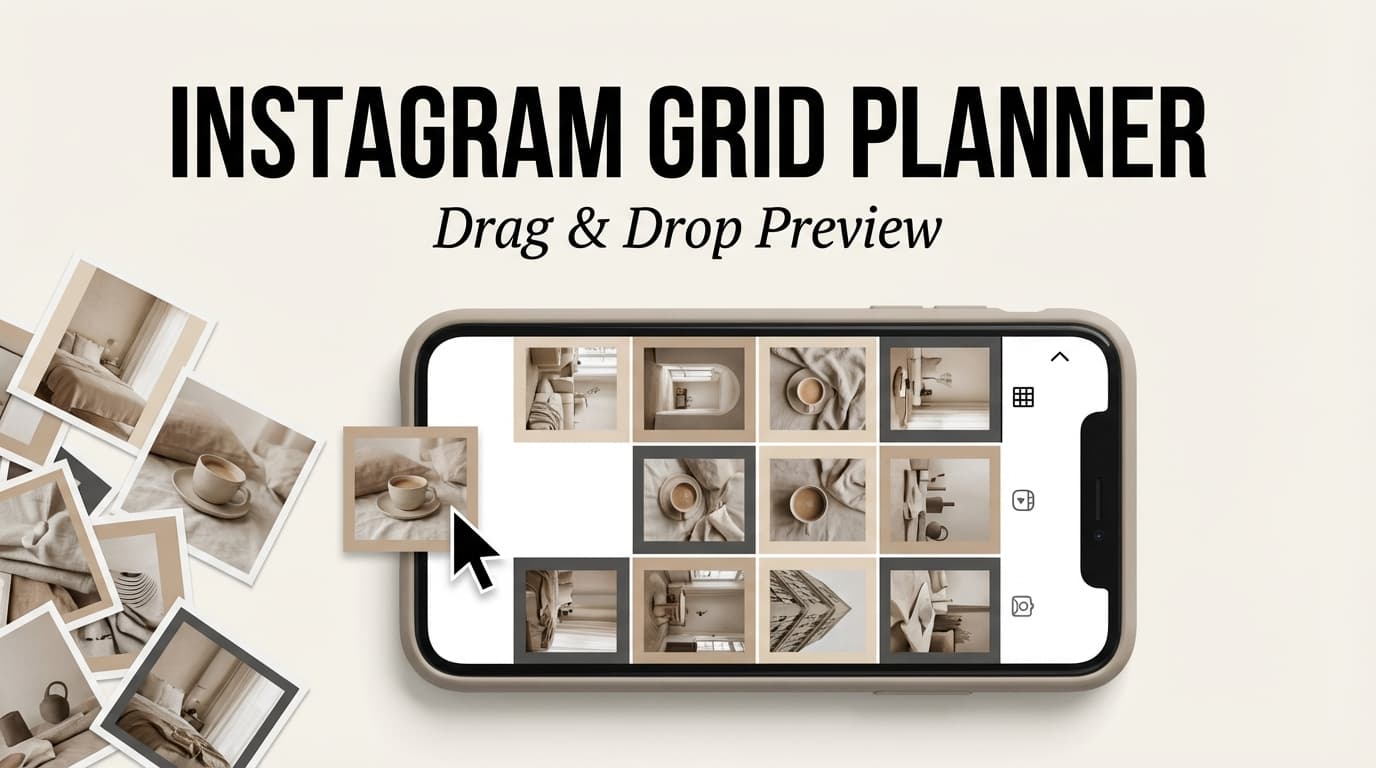
Looking for an Instagram grid planner with drag-and-drop preview? While PostQuickAI focuses on scheduling and auto-publishing rather than visual grid preview, it offers powerful calendar planning and AI tools.
Schedule feed posts, carousels, and Reels. See content on a calendar. Auto-publish server-side.
Plans start at $8/month · 7-day free trial included
Specialize in:
Specializes in:
Pro tip: Use a grid preview tool for visual planning, then PostQuickAI for scheduling and auto-publishing.
While we don't do drag-and-drop grid preview, here's what PostQuickAI brings to your workflow:
See all your scheduled posts by date. Plan your content week or month at a glance.
Posts publish automatically at scheduled times—server-side, no browser required.
Generate 3 caption variations with tone and length controls. Spend less time writing.
Generate 5-50 relevant hashtags organized by category for maximum reach.
Schedule to Instagram, TikTok, LinkedIn, Facebook, X, Threads, YouTube, and Bluesky from one dashboard.
Single image posts with auto-publishing
Multi-image posts (up to 10 slides)
Video content with auto-publishing
Use a dedicated grid preview app to arrange posts visually and plan your aesthetic.
Upload your images/videos. Use AI to generate captions and hashtags.
Pick dates/times in the order you planned. See your schedule at a glance.
Posts go live automatically at scheduled times. Your grid builds itself.
Your Instagram grid is your storefront. People land on your profile, scan the first rows, and decide—fast—whether to follow, browse, or bounce.
PostQuickAI’s instagram grid planner with drag and drop preview helps you preview your next posts in a 3‑column grid, drag-and-drop to reorder, and plan ahead up to 12 rows so your next post doesn’t accidentally throw off your aesthetic.
Open the planner: /tools/instagram-feed-planner
What you can do inside the planner (no fluff): - Upload images by clicking any grid slot - Add multiple images at once with Add Recent (top) - Drag and drop tiles to swap positions - Preview 3–12 rows (not just a 3×3) - See the grid ordered like an Instagram profile: newest posts top-left
Most “grid planning” problems aren’t creative—they’re workflow problems:
PostQuickAI is built to remove those friction points.
Grid planning is basically a sequencing problem: what should appear next to what? Drag-and-drop swapping is the fastest way to solve that.
Instead of re-uploading or rebuilding a mockup, you can reorder in seconds to: - avoid clustering similar visuals - balance bright/dark tiles across a row - test which post should anchor the top-left position
A 3×3 is a start—but it’s not enough if you plan content in batches.
PostQuickAI lets you preview 3 to 12 rows, which helps with: - product drops and campaign rollouts - themed weeks (row-by-row) - longer visual sequences (like gradients)
The planner is clear about how it previews your grid: newest posts appear first (top-left)—the way Instagram profiles work.
That means your key question gets answered accurately:
“If I post this next, what will my profile look like?”
Once your layout is set, you can keep your workflow inside the PostQuickAI ecosystem:
And when you want to publish on a calendar, you can move into the paid scheduler (includes a 7‑day free trial): /pricing
PostQuickAI offers:
- a free Instagram feed planner tool for grid preview
- a paid subscription scheduler with a 7‑day free trial (plans start at $8/month) for scheduling/auto-publishing
That makes it easy to start with the exact feature you searched for, then upgrade only if you need scheduling.
Go to: /tools/instagram-feed-planner
Choose rows based on your goal: - 3 rows: perfect your “first impression” (top 9) - 6 rows: plan a consistent cadence without gaps - 9–12 rows: map launches, collections, and longer themes
You have two practical upload options:
Option A — Click-to-upload (precise placement) - Click any empty tile (“Upload”) - Select an image - Repeat for the slots you want to fill
Option B — Add Recent (top) (fast batch planning) - Use Add Recent (top) - Select multiple images - The newest planned content appears at the top of the grid
When a tile contains an image, it becomes draggable.
This makes it easy to test: - “photo / text / photo” row patterns - alternating product and lifestyle tiles - whether two similar backgrounds are too close together
If you want to restart, hit Clear All and rebuild a fresh layout without reloading the page.
The grid planner is a planning tool. If you want to schedule and auto-publish Instagram feed posts, use the paid app:
PostQuickAI supports scheduling/auto-publishing for Instagram:
- single-image feed posts
- carousel feed posts
- video feed posts
…and publishing Reels via its video publishing workflow.
Instagram Stories publishing is not supported.
| Feature | What It Does | Why It Matters |
|---|---|---|
| Drag-and-drop reorder | Swap two tiles by dragging and dropping | Explore layout options quickly |
| Newest-first behavior | Places newest posts at top-left | Matches Instagram profile grid logic |
| 3-column grid preview | Shows a classic profile grid | Plan what visitors actually see |
| Square tile preview | Displays 1:1 tiles | Helps spot awkward crops before posting |
| Rows selector (3–12) | Expand beyond the “next 9 posts” | Plan campaigns and long sequences |
| Add Recent (top) | Bulk-add multiple images | Speeds up batch planning |
| Clear All | Reset the grid instantly | Iterate without friction |
If your feed is part of your brand identity, the grid preview is a quick insurance policy against: - two overly similar posts in a row - a top row that doesn’t represent your best work - a mismatch in color temperature or brightness across the first 9
When your Instagram profile is effectively a landing page, you want: - a clean grid that signals professionalism - a balanced content mix (product, proof, personality) - predictable patterns (so it looks intentional)
Even if you don’t personally care about the “aesthetic,” clients do. A grid preview helps: - align on a campaign look before anything posts - avoid last-minute “can you swap these?” chaos - keep the top rows consistent across weeks
Grid planning becomes easier when you think in repeatable patterns.
Because newest posts appear top-left, treat that tile like a hero section.
Best practice: keep your “anchor” content consistent: - strongest photo - clearest message tile - most recognizable brand colors
Drag-and-drop use: move different candidates into the top-left position and compare how the entire first row feels.
A checkerboard is a simple way to look intentional without over-designing.
Examples: - product photo ↔ lifestyle photo - quote tile ↔ behind-the-scenes - dark background ↔ light background
Drag-and-drop use: reorder until each row alternates cleanly (no accidental “double product” next to each other).
Plan each row as a unit: - Row 1: problem (pain points) - Row 2: solution (your method/product) - Row 3: proof (reviews/results/UGC)
Why it converts: visitors can scan your profile and immediately understand your value.
Some tiles are visually heavier: - high contrast - faces close-up - big typography
Drag-and-drop use: avoid stacking heavy tiles in one cluster (especially top-left + top-middle). Spread them across rows.
If your brand has 3 content pillars, assign them by column: - left: education - middle: product/service - right: community/story
Why it works: you get consistency without forcing every post to match.
A beautiful grid that doesn’t communicate what you do won’t convert profile visitors.
Fix: use the preview to ensure your first row answers: - what you do - who it’s for - what to do next (DM, link, book, shop)
Text tiles can be powerful, but stacked typography makes a grid feel noisy.
Fix: drag-and-drop to space text tiles out—aim for rhythm: - text → photo → photo or - text → photo → text (with different background weight)
Even if you post portrait in-feed, the profile grid preview is square.
Fix: choose square-safe compositions or resize assets before posting. Use: - /tools/image-converter
A single post can be great and still weaken your profile aesthetic.
Fix: plan the sequence. Sometimes the best move is simply reordering what you already prepared.
Because Instagram profile tiles are square, prepare assets with the grid in mind.
If you want to quickly resize/crop for Instagram formats, use the Image Converter: - /tools/image-converter
If you want a complete posting workflow (without hopping between random tools), here’s a practical sequence using PostQuickAI.
PostQuickAI’s scheduler is a paid subscription with a 7‑day free trial (plans start at $8/month): - /pricing - /instagram-scheduler
Camera roll planning can’t easily simulate: - “newest-first” grid ordering - quick reordering - multi-row campaign previews
A dedicated web grid planner is faster and less error-prone.
Many people confuse grid preview planning with grid posts (splitting one big image into 9 tiles).
If your goal is “does my profile look good after I post these?”, you want a grid preview planner (this page).
Some tools require login, onboarding, and account connections before you can even test your layout.
PostQuickAI’s grid planner is designed to be a quick, browser-based planning step—then you can decide if you want to schedule in the paid product.
Use the tool here: - /tools/instagram-feed-planner
PostQuickAI scheduling is a paid subscription with a 7‑day free trial. Plans start at $8/month. - /pricing
Use PostQuickAI’s Instagram Feed Planner: /tools/instagram-feed-planner. Upload images and preview them in a 3‑column grid before posting.
No. The Instagram Feed Planner tool is designed to be used without signup.
Upload images into the grid, then drag a filled tile and drop it onto another tile to swap their positions. This lets you test different sequences quickly.
The preview uses square (1:1) tiles in a 3‑column layout and places newest posts at the top-left, matching how Instagram profile grids behave.
Yes. You can select 3 to 12 rows, which allows you to preview well beyond a 3×3.
Right now, the planner is positioned as a quick preview tool. If you want to keep a record of your planned grid, the simplest approach is taking a screenshot.
For the profile grid, 1080×1080 is the standard square size. Portrait 1080×1350 can work well for the feed, but the profile grid preview crops to square. You can resize in: /tools/image-converter.
Yes—scheduling is part of PostQuickAI’s paid app (includes a 7‑day free trial). PostQuickAI supports scheduling/auto-publishing Instagram feed posts (single image, carousel, video) and publishing Reels via its video workflow. Start here: /pricing.
No. Instagram Stories publishing is not supported.
1) Plan your grid with drag-and-drop preview:
/tools/instagram-feed-planner
2) (Optional) Prep assets and write faster:
- Image sizing: /tools/image-converter
- Captions: /tools/caption-generator
- Hashtags: /tools/hashtag-generator
3) (Optional) Schedule and auto-publish with a 7‑day free trial:
/pricing
PostQuickAI focuses on calendar-based scheduling and auto-publishing rather than visual grid preview. While you can see your posts on a calendar, dedicated grid planning tools specialize in drag-and-drop feed preview. Many creators use both: a grid tool for visual planning and PostQuickAI for scheduling.
PostQuickAI offers a calendar view where you can see scheduled posts by date. The focus is on scheduling efficiency and auto-publishing rather than visual grid arrangement.
You can reschedule posts to different dates/times. For visual grid reordering (seeing how posts will appear side-by-side in your feed), dedicated grid preview tools are more specialized.
PostQuickAI schedules Instagram feed posts (single image), carousels (multi-image up to 10), and Reels (video) with server-side auto-publishing.
Yes. AI Caption Generator creates 3 caption variations with tone/length controls. AI Hashtag Generator produces relevant hashtags organized by category.
Yes. PostQuickAI publishes server-side—posts go live automatically at scheduled times without keeping your browser open.
Yes. 7-day free trial with full access. Plans start at $8/month after the trial.
Instagram, TikTok, LinkedIn, Facebook, X, Threads, YouTube, and Bluesky—all from one dashboard.
Plan your visuals externally, then let PostQuickAI handle scheduling and auto-publishing.