Instagram Planning

Instagram Grid Planner: Preview Your Next Posts Before You Publish

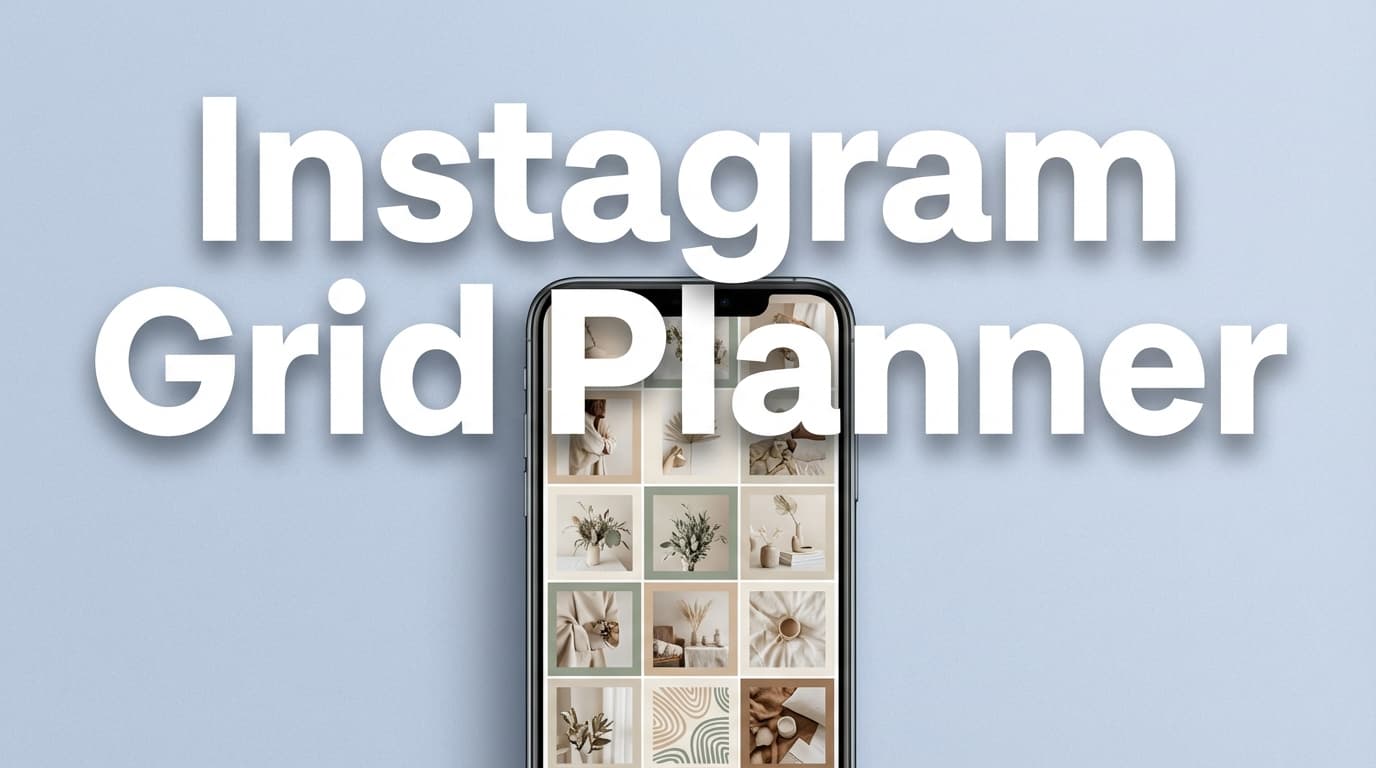
If your Instagram profile is your homepage, your grid is the hero section. PostQuickAI’s Instagram grid planner lets you preview your feed layout and drag-and-drop posts into the right order before anything goes live.

Instagram Grid Planner
  • Preview your grid with a 3-column layout and drag-and-drop reordering
  • Plan ahead by choosing 3–12 rows (beyond the next 9 tiles)
  • Move from planning to captions, hashtags, and scheduling when you’re ready

Start here: /tools/instagram-feed-planner.

Why Choose PostQuickAI for Instagram Grid Planning?

Many grid planners are either too lightweight or buried inside complex suites. PostQuickAI is creator-first: plan your grid visually, then finish the post package faster with built-in tools and optional scheduling.

Visual grid planning that’s actually fast

  • 3-column grid preview
  • Drag-and-drop reordering
  • Plan 3–12 rows to go beyond the next 9 tiles

Built-in tools to finish the post

Once the layout looks right, finalize the package quickly:

Schedule to Instagram when you’re ready

PostQuickAI supports Instagram publishing for single-image posts, carousels, and video (including Reels via the video publishing flow). Start with the scheduler: /instagram-scheduler.

How PostQuickAI’s Instagram Grid Planner Works

  1. Open the Instagram Feed Planner. Go to /tools/instagram-feed-planner.
  2. Choose how many rows to preview. Plan 3 rows (9 posts) or expand up to 12 rows for launches and campaigns.
  3. Upload images into the grid. Click any slot or use Add Recent (top) for quick batch planning.
  4. Drag-and-drop to reorder. Swap positions until the layout feels cohesive.
  5. Finish the post package. Draft captions, generate hashtags, and resize images.
  6. Schedule to Instagram. Move into the Instagram scheduler when you’re ready.

Key Features for Instagram Grid Planner Use Cases

FeatureWhat it doesWhy it matters
3-column Instagram grid previewShows your upcoming layout in a familiar grid viewMake visual decisions quickly
Drag-and-drop reorderingRearrange tiles until the grid feels balancedFixes random feed problems before posting
3–12 row planningExpand beyond a single 3×3 gridPlan launches, themes, and content series
Add Recent (top)Insert multiple images at the top of the gridSpeed up batched planning
Clear All resetStart fresh in one clickEasy resets for new campaigns
AI Caption GeneratorGenerates multiple captions with tone/platform controlsDraft captions faster without sounding generic
Hashtag GeneratorGenerates hashtags by topic/category/platformBuild consistent hashtag sets faster
Image ConverterConvert + resize imagesCleaner visuals and fewer wrong-size uploads
Instagram schedulingPublish single images, carousels, and ReelsTurn your planned grid into scheduled publishing

What a Great Instagram Grid Planner Helps You Do

Keep your top 9 tiles cohesive

  • Consistent colors
  • Consistent typography
  • Predictable rhythm (education → lifestyle → product)

Avoid repeating the same template

  • Three quote tiles in a row
  • Multiple announcement graphics back-to-back

Plan campaigns without a half-finished grid

Planning multiple rows keeps campaigns cohesive and avoids awkward spacing.

Make your feed feel intentional

Consistency with a plan looks premium.

5 Instagram Grid Layouts to Try

1) Checkerboard pattern

Alternate two content types (photo vs graphic, light vs dark).

Best for: coaches, educators, personal brands.

2) Row themes

Each row has one theme1plan complete rows so the grid doesnt look incomplete mid-campaign.

Best for: launches, content series, seasonal campaigns.

3) Color gradient flow

Shift colors gradually across posts for a smooth feed mood.

Best for: photographers, artists, aesthetic brands.

4) Puzzle-style reveal

One larger visual split across multiple tiles (3/6/9 tiles). Each tile should still work standalone.

Best for: big announcements, art reveals.

5) Column pillars

Assign each column a category (education / lifestyle / product).

Best for: businesses and creators who rotate content formats.

Instagram Grid Planner vs. Other Ways to Plan Your Feed

Notes, spreadsheets, or a posting checklist

Its consistent but not visual. You dont see clashes or awkward sequences until after posting.

Design tools (templates first, feed second)

Design tools are great for assets but dont show how your next posts sit together.

A grid planner that only previews

A pure preview tool is helpful, but PostQuickAI adds next steps with captions, hashtags, image tools, and an Instagram scheduler.

Pricing

  • Grid preview tool: available at /tools/instagram-feed-planner
  • Scheduling and publishing: part of the paid PostQuickAI app
  • Plans start at $8/month and include a 7-day free trial

See pricing: /pricing.

Frequently Asked Questions

Instagram shows your profile grid, but it doesn’t let you plan and rearrange upcoming posts as a layout preview. An Instagram grid planner helps you preview and reorder posts before publishing.

The grid preview tool is available at /tools/instagram-feed-planner. Scheduling and publishing are part of the paid app (plans start at $8/month with a 7-day free trial).

Yes. The planner supports planning 3–12 rows, so you can preview well beyond the next 9 tiles.

Right now, the Feed Planner is designed as a quick preview and rearrange tool (not a saved project). You can plan the layout and then move into scheduling when you’re ready.

PostQuickAI supports publishing single-image posts, Instagram carousels (multi-image), and video posts including Reels via the video publishing flow.

Common next steps are built into PostQuickAI: captions via /tools/caption-generator, hashtags via /tools/hashtag-generator, and resizing via /tools/image-converter.

Get Started with PostQuickAI Today

Preview your grid, draft captions and hashtags, and schedule posts when youre ready.

Next steps: Captions Hashtags Image Converter.

Full Guide

Instagram Grid Planner: Preview Your Next Posts Before You Publish

If your Instagram profile is your homepage, your grid is the hero section. One “off” post can throw off the whole look—especially when you’re trying to keep a consistent aesthetic while posting regularly.

PostQuickAI’s Instagram grid planner lets you preview your feed layout and drag-and-drop posts into the right order before anything goes live. When you’re happy with the sequence, you can move from planning → captions/hashtags → scheduling with PostQuickAI’s Instagram tools.

  • Preview your grid: /tools/instagram-feed-planner
  • Schedule to Instagram: /instagram-scheduler

Why Choose PostQuickAI for Instagram Grid Planning?

A lot of “grid planners” are either: - too lightweight (you outgrow them fast), or - built as a side feature inside a complex tool.

PostQuickAI is creator-first: plan your grid visually, then finish the post package faster with built-in tools and (optionally) schedule content on a calendar.

Visual grid planning that’s actually fast

The Feed Planner tool is built for quick “what will this look like?” decisions: - A 3-column grid preview - Drag-and-drop reordering - Plan ahead by choosing 3–12 rows (so you can plan beyond just the next 9 tiles)

Built-in tools to finish the post (not just the layout)

Once your layout looks right, you typically still need to: - write a caption that matches your tone - add hashtags that fit the post - resize images so they look clean in the feed

PostQuickAI supports that workflow with: - AI Caption Generator: /tools/caption-generator
- Hashtag Generator: /tools/hashtag-generator
- Image Converter/Resizer: /tools/image-converter

When you’re ready: schedule to Instagram (posts, carousels, video/Reels)

If you want the “plan + publish” workflow, PostQuickAI supports Instagram publishing for: - Single image posts - Carousels (multi-image) - Video posts (including Reels via the video publishing flow)

Start here: /instagram-scheduler


How PostQuickAI’s Instagram Grid Planner Works

Step 1: Open the Instagram Feed Planner

Go to: /tools/instagram-feed-planner

You’ll see a clean, 3-column grid preview designed for planning your upcoming posts.

Step 2: Choose how many rows you want to preview (3–12)

Use the Rows selector to plan: - the next 3 rows (9 posts) for a quick reset, or - up to 12 rows when you’re planning a campaign, theme, or launch.

Step 3: Upload images into the grid

Click any slot to upload an image.

Tip: Use Add Recent (top) if you want to drop in multiple images and start arranging from the newest content first.

Step 4: Drag-and-drop to reorder

Drag any filled tile to swap positions and refine your layout.

This is where a grid planner saves you: you can catch problems early, like: - too many promos in a row - repeated templates back-to-back - clashing colors in the top 9 tiles - a “heavy” row with no visual breathing room

Step 5: Finish the post package (caption + hashtags + sizing)

Once the layout looks good, finalize your post assets: - Draft caption options fast: /tools/caption-generator - Generate hashtag sets: /tools/hashtag-generator - Resize/convert images (JPEG/PNG/WebP + dimensions): /tools/image-converter

Step 6: Schedule to Instagram when you’re ready

Use PostQuickAI’s Instagram Scheduler to put posts on your calendar and publish consistently: - /instagram-scheduler - Pricing + 7-day free trial: /pricing


Key Features for Instagram Grid Planner Use Cases

Feature What It Does Why It Matters
3-column Instagram grid preview Shows your upcoming layout in a familiar grid view Lets you make visual decisions quickly
Drag-and-drop reordering Rearrange tiles until the grid feels balanced Fixes “random feed” problems before posting
3–12 row planning Expand beyond a single 3×3 Plan launches, themes, and content series
Add Recent (top) Insert multiple images at the top of the grid Speeds up planning for batched content
Clear All reset Start fresh in one click Easy “new season / new campaign” resets
AI Caption Generator (tool) Generates multiple captions with tone/platform/length options Faster caption drafting without sounding generic
Hashtag Generator (tool) Generates hashtags by topic/category/platform Helps you build consistent hashtag sets faster
Image Converter (tool) Convert + resize images (client-side first; server fallback available) Cleaner visuals and fewer “wrong size” uploads
Instagram scheduling (paid app) Publish Instagram single images, carousels, and video/Reels Turns your planned grid into consistent publishing

What a Great Instagram Grid Planner Helps You Do (Practical Wins)

1) Keep your top 9 tiles cohesive

Most people judge your profile in seconds. Planning the next 9 posts helps you create a strong “first glance” impression: - consistent colors - consistent typography (if you use quote tiles) - a predictable rhythm (education → lifestyle → product, etc.)

2) Avoid repeating the same template too often

It’s easy to accidentally stack: - three quote tiles in a row, or - multiple “announcement” graphics back-to-back.

A grid preview makes repetition obvious.

3) Plan campaigns without the “half-finished grid” look

If you’re doing a collection drop or launch, planning multiple rows helps you avoid posting one tile from a theme and leaving it hanging for days.

4) Make your feed feel intentional—even when you post consistently

Consistency is great. Consistency with a plan looks premium.


5 Instagram Grid Layouts to Try (Plan These in Minutes)

Use your Instagram grid planner to test layouts quickly before committing.

1) Checkerboard pattern (A/B alternating)

Alternate between two content types (example: photo vs graphic, light vs dark).

Best for: coaches, educators, personal brands
Planning tip: Arrange 9 posts first, then check that the pattern holds into the next row.

2) Row themes (each set of 3 is a mini-collection)

Each row has one theme—same palette, topic, or format.

Best for: launches, content series, seasonal campaigns
Planning tip: Build complete rows so the grid doesn’t look incomplete mid-campaign.

3) Color gradient flow

Shift colors gradually across posts to create a smooth “feed mood.”

Best for: photographers, artists, aesthetic brands
Planning tip: Group assets by dominant color, then drag into a gradient sequence.

4) Puzzle-style reveal (advanced)

One larger visual split across multiple tiles (3/6/9 tiles).

Best for: big announcements, art reveals
Planning tip: Each tile must still work as a standalone post—use the preview to ensure cropping doesn’t ruin key details.

5) Column pillars (3 vertical content pillars)

Each column has a job (example: education / lifestyle / product).

Best for: businesses and creators who rotate content formats
Planning tip: Use the planner to prevent one column from dominating the top 9.


Instagram Grid Planner vs. Other Ways People Try to Plan Their Feed

Notes, spreadsheets, or a posting checklist

Good for consistency—but it’s not visual. You don’t see color clashes, repeated templates, or awkward sequences until after you post.

Grid preview wins because it shows the actual layout effect.

Design tools (templates first, feed second)

Design tools are great for creating assets, but they don’t necessarily show how your next 9–36 posts sit together.

Grid preview wins because it’s sequence-first: what people will experience on your profile.

A grid planner that only previews

A pure preview tool is helpful—but most creators still need to do the “posting work” somewhere else (captioning, hashtags, resizing, scheduling).

PostQuickAI adds next steps with caption/hashtag/image tools and an Instagram scheduler when you’re ready.


Pricing

  • Grid preview tool: available at /tools/instagram-feed-planner
  • Scheduling and publishing: part of the paid PostQuickAI app
  • Plans start at $8/month and include a 7-day free trial (monthly)

See pricing: /pricing


Frequently Asked Questions

Does Instagram have a grid planner?

Instagram shows your profile grid, but it doesn’t let you plan and rearrange upcoming posts as a layout preview. An instagram grid planner is designed to help you preview and reorder posts before publishing.

Is PostQuickAI’s Instagram grid planner free?

The grid preview tool is available at /tools/instagram-feed-planner. If you want to schedule and publish from PostQuickAI, that’s part of the paid app (plans start at $8/month with a 7-day free trial): /pricing.

Can I plan more than 9 posts?

Yes. The planner supports planning 3–12 rows, so you can preview well beyond the next 9 tiles.

Can I save my grid layout?

Right now, the Feed Planner is designed as a quick preview and rearrange tool (not a saved project). If you want save/download, you can use the tool to plan and then move into scheduling when you’re ready.

What can PostQuickAI publish to Instagram?

PostQuickAI supports publishing: - single-image Instagram posts - Instagram carousels (multi-image) - Instagram video, including Reels via the video publishing flow

Start here: /instagram-scheduler

What tools can help after I plan my grid?

Common next steps are built into PostQuickAI: - Captions: /tools/caption-generator - Hashtags: /tools/hashtag-generator - Resize/convert images: /tools/image-converter


Get Started with PostQuickAI Today

  • Preview your grid (drag-and-drop): /tools/instagram-feed-planner
  • Generate captions + hashtags faster: /tools/caption-generator and /tools/hashtag-generator
  • Schedule Instagram posts & carousels: /instagram-scheduler
  • Plans + 7-day free trial: /pricing