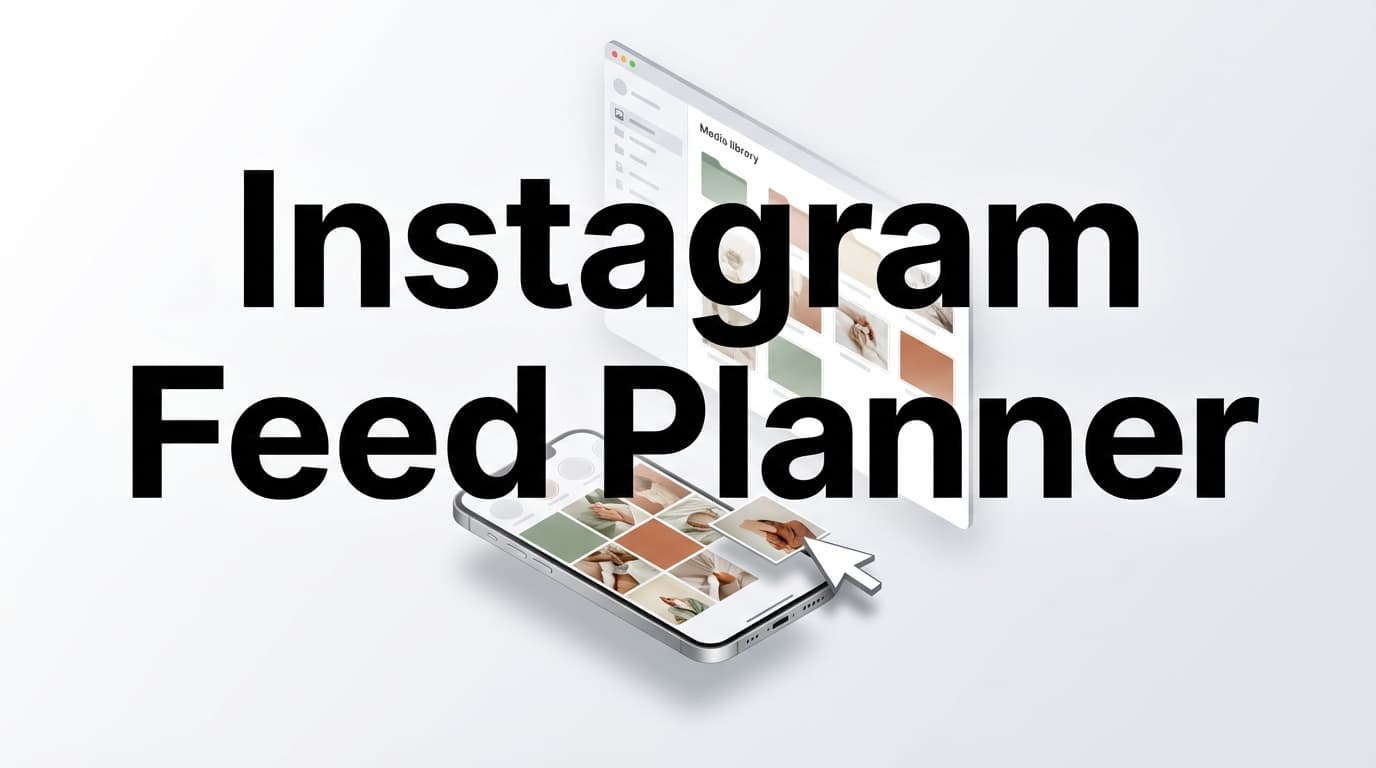
Instagram Grid Preview
PostQuickAI’s instagram feed planner is a fast, browser-based grid preview tool that lets you upload images, drag-and-drop to reorder, and preview how your Instagram profile grid could look before you hit publish.
Use it to plan a clean aesthetic for the next 3×3 (9 posts) or zoom out and plan ahead with a 3–12 row preview—so you don’t accidentally break your flow with the next post.

Open the tool: /tools/instagram-feed-planner.
A lot of “Instagram planners” try to do everything at once. If your immediate goal is simply to preview your grid and reorder upcoming posts, you want a tool that’s quick to start, easy to rearrange, accurate enough for planning, and ready to transition into scheduling when you’re ready. PostQuickAI gives you the grid preview first—then links you to the next steps without forcing you into them.
That’s how most creators and small brands actually plan.
Many grid tools focus only on a 3×3. PostQuickAI lets you preview 3–12 rows, so you can plan launches, campaigns, weekly pillars, and color transitions across 12–36 tiles.
Once the layout is set, you can move straight into copy:
And when you want to schedule content instead of posting manually, use the paid app’s Instagram scheduler (with a 7-day free trial on monthly plans): /instagram-scheduler.
Go to /tools/instagram-feed-planner. You’ll see a 3-column grid with empty slots.
Use the Rows selector to preview anywhere from:
You can add images two ways:
Note: the planner is designed for images (it accepts image files).
Use this to test:
Hit Clear All anytime to reset and start fresh.
| Feature | What It Does | Why It Matters |
|---|---|---|
| Drag-and-drop reordering | Swap grid tiles by dragging | Test different sequences quickly without re-uploading |
| 3–12 row previews | Expand beyond a 3×3 | Plan campaigns and themes further ahead |
| Simple image uploads | Click-to-upload per slot + multi-upload | Fast batch planning from a folder of exports |
| Clear All reset | Reset the grid instantly | Iterate layouts without friction |
| Built-in next steps | Jump to captions, hashtags, scheduling | Turn a grid plan into a real posting plan |
If you post spontaneously, the grid becomes a random collage. That’s fine for some accounts—but for brands and creators who care about first impressions, the grid is part of the conversion path.
Use these as layout templates while you rearrange your grid.
Alternate two types of tiles (photo / text cover), or light/dark backgrounds.
Great for: educators, coaches, brands mixing product + content.
Grid tip: check the pattern still holds after your next 9–12 posts (it breaks easily if you post out of order).
Each row of three has a consistent purpose (e.g., teaser row, proof row, offer row).
Great for: launches, events, seasonal collections.
Grid tip: build the row as a unit: hero tile + two supporting tiles.
Assign each column a category:
Great for: businesses that need both branding and selling.
Grid tip: preview enough rows to see the pillar rhythm (don’t stop at 3 rows if you post frequently).
Group 2–3 tiles of a palette together, then switch to a new palette.
Great for: creative brands and aesthetic-led accounts.
Grid tip: rearrange by dominant color first; then refine content order.
Repeat a consistent weekly tile (e.g., “Tip Tuesday”, “FAQ Friday”) to build recognizability.
Great for: creators building consistency.
Grid tip: place anchors first, then fill the gaps with supporting posts.
Plan where your promotional tiles land so they’re spaced out naturally.
Great for: eCommerce and service businesses.
Grid tip: aim for an obvious pattern: value → value → offer (or similar).
Instagram profile grids are displayed in a 3-column layout, but the exact preview behavior can vary over time. The safest planning approach is still to design with strong thumbnails and predictable crops.
Common export sizes:
If you need quick resizing/conversion, use /tools/image-converter.
This instagram feed planner is for preview + ordering. If you want to go from planning to publishing, PostQuickAI’s paid app adds scheduling.
It does not support Instagram Stories publishing. See the Instagram scheduler page: /instagram-scheduler.
Plans start at $8/month and include a 7-day free trial on monthly checkout. View pricing: /pricing.
Quick answers about the feed planner, grid preview workflow, and scheduling options.
Yes—this page’s grid preview tool is free to use. If you want to schedule and auto-publish Instagram content, that’s part of the paid PostQuickAI app (plans include a 7-day free trial on monthly checkout). See: /pricing.
No. You can open the tool and start arranging a grid preview without logging in.
Yes. You can preview 3–12 rows (9–36 tiles) using the Rows selector.
This grid preview tool is designed for images. If your goal is scheduling video content (including Reels), use the PostQuickAI app’s Instagram scheduler: /instagram-scheduler.
Not exactly. A feed planner helps you preview and arrange your grid layout. A scheduler helps you set publish times (and auto-publish supported content types). Many creators use both: plan the grid first, then schedule the posts.
A simple workflow is: 1) Arrange your grid in the planner. 2) Write captions: /tools/caption-generator. 3) Generate hashtags: /tools/hashtag-generator. 4) Schedule posts in the app: /instagram-scheduler.
Open the planner, upload your next batch of images, and reorder them until your grid looks right—before you post.
Instagram Feed Planner: /tools/instagram-feed-planner
Next steps (optional):
PostQuickAI’s instagram feed planner is a fast, browser-based grid preview tool that lets you upload images, drag-and-drop to reorder, and preview how your Instagram profile grid could look before you hit publish.
Use it to plan a clean aesthetic for the next 3×3 (9 posts) or zoom out and plan ahead with a 3–12 row preview—so you don’t accidentally break your flow with the next post.
Open the tool: /tools/instagram-feed-planner
A lot of “Instagram planners” try to do everything at once. If your immediate goal is simply to preview your grid and reorder upcoming posts, you want a tool that’s:
PostQuickAI gives you the grid preview first—then links you to the next steps (captions, hashtags, scheduling) without forcing you into them.
The tool is built around the simplest workflow that matters:
That’s how most creators and small brands actually plan.
Many grid tools focus only on a 3×3. PostQuickAI lets you preview 3–12 rows, so you can plan:
Once the layout is set, you can move straight into copy:
And when you want to schedule content instead of posting manually, use the paid app’s Instagram scheduler (with a 7-day free trial on monthly plans): /instagram-scheduler
Go to: /tools/instagram-feed-planner
You’ll see a 3-column grid with empty slots.
Use the Rows selector to preview anywhere from:
You can add images two ways:
Note: the planner is designed for images (it accepts image files).
If a slot has an image, you can drag it and drop it onto another tile to swap positions.
Use this to test:
Hit Clear All anytime to reset and start fresh.
| Feature | What It Does | Why It Matters |
|---|---|---|
| Drag-and-drop reordering | Swap grid tiles by dragging | Test different sequences quickly without re-uploading |
| 3–12 row previews | Expand beyond a 3×3 | Plan campaigns and themes further ahead |
| Simple image uploads | Click-to-upload per slot + multi-upload | Fast batch planning from a folder of exports |
| Clear All reset | Reset the grid instantly | Iterate layouts without friction |
| Built-in “next steps” links | Jump to captions, hashtags, scheduling | Turn a grid plan into a real posting plan |
If you post spontaneously, the grid becomes a random collage. That’s fine for some accounts—but for brands and creators who care about first impressions, the grid is part of the conversion path.
Use these as layout “templates” while you rearrange your grid.
Alternate two types of tiles (photo / text cover), or light/dark backgrounds.
Great for: educators, coaches, brands mixing product + content.
Grid tip: check the pattern still holds after your next 9–12 posts (it breaks easily if you post out of order).
Each row of three has a consistent purpose (e.g., teaser row, proof row, offer row).
Great for: launches, events, seasonal collections.
Grid tip: build the row as a unit: hero tile + two supporting tiles.
Assign each column a category:
Great for: businesses that need both branding and selling.
Grid tip: preview enough rows to see the pillar rhythm (don’t stop at 3 rows if you post frequently).
Group 2–3 tiles of a palette together, then switch to a new palette.
Great for: creative brands and aesthetic-led accounts.
Grid tip: rearrange by dominant color first; then refine content order.
Repeat a consistent weekly tile (e.g., “Tip Tuesday”, “FAQ Friday”) to build recognizability.
Great for: creators building consistency.
Grid tip: place anchors first, then fill the gaps with supporting posts.
Plan where your promotional tiles land so they’re spaced out naturally.
Great for: eCommerce and service businesses.
Grid tip: aim for an obvious pattern: value → value → offer (or similar).
Instagram profile grids are displayed in a 3-column layout, but the exact preview behavior can vary over time. The safest planning approach is still to design with strong thumbnails and predictable crops.
Common export sizes: - 1080×1080 (square) - 1080×1350 (portrait for feed; profile previews may crop)
If you need quick resizing/conversion, use:
/tools/image-converter
This instagram feed planner is for preview + ordering. If you want to go from planning to publishing, PostQuickAI’s paid app adds scheduling.
In the PostQuickAI app, Instagram publishing supports: - single-image posts - carousels (multi-image) - video posts - Reels publishing via a dedicated video publishing flow
It does not support Instagram Stories publishing.
See the Instagram scheduler page: /instagram-scheduler
Plans start at $8/month and include a 7-day free trial on monthly checkout.
View pricing: /pricing
Yes—this page’s grid preview tool is free to use. If you want to schedule and auto-publish Instagram content, that’s part of the paid PostQuickAI app (plans include a 7-day free trial on monthly checkout). See: /pricing
No. You can open the tool and start arranging a grid preview without logging in.
Yes. You can preview 3–12 rows (9–36 tiles) using the Rows selector.
This grid preview tool is designed for images. If your goal is scheduling video content (including Reels), use the PostQuickAI app’s Instagram scheduler: /instagram-scheduler
Not exactly. A feed planner helps you preview and arrange your grid layout. A scheduler helps you set publish times (and auto-publish supported content types). Many creators use both: plan the grid first, then schedule the posts.
A simple workflow is:
1) Arrange your grid in the planner
2) Write captions: /tools/caption-generator
3) Generate hashtags: /tools/hashtag-generator
4) Schedule posts in the app: /instagram-scheduler
Open the planner, upload your next batch of images, and reorder them until your grid looks right—before you post.
Instagram Feed Planner: /tools/instagram-feed-planner
Next steps (optional):
- Captions: /tools/caption-generator
- Hashtags: /tools/hashtag-generator
- Scheduling: /instagram-scheduler
- Pricing (7-day free trial, plans from $8/month): /pricing